








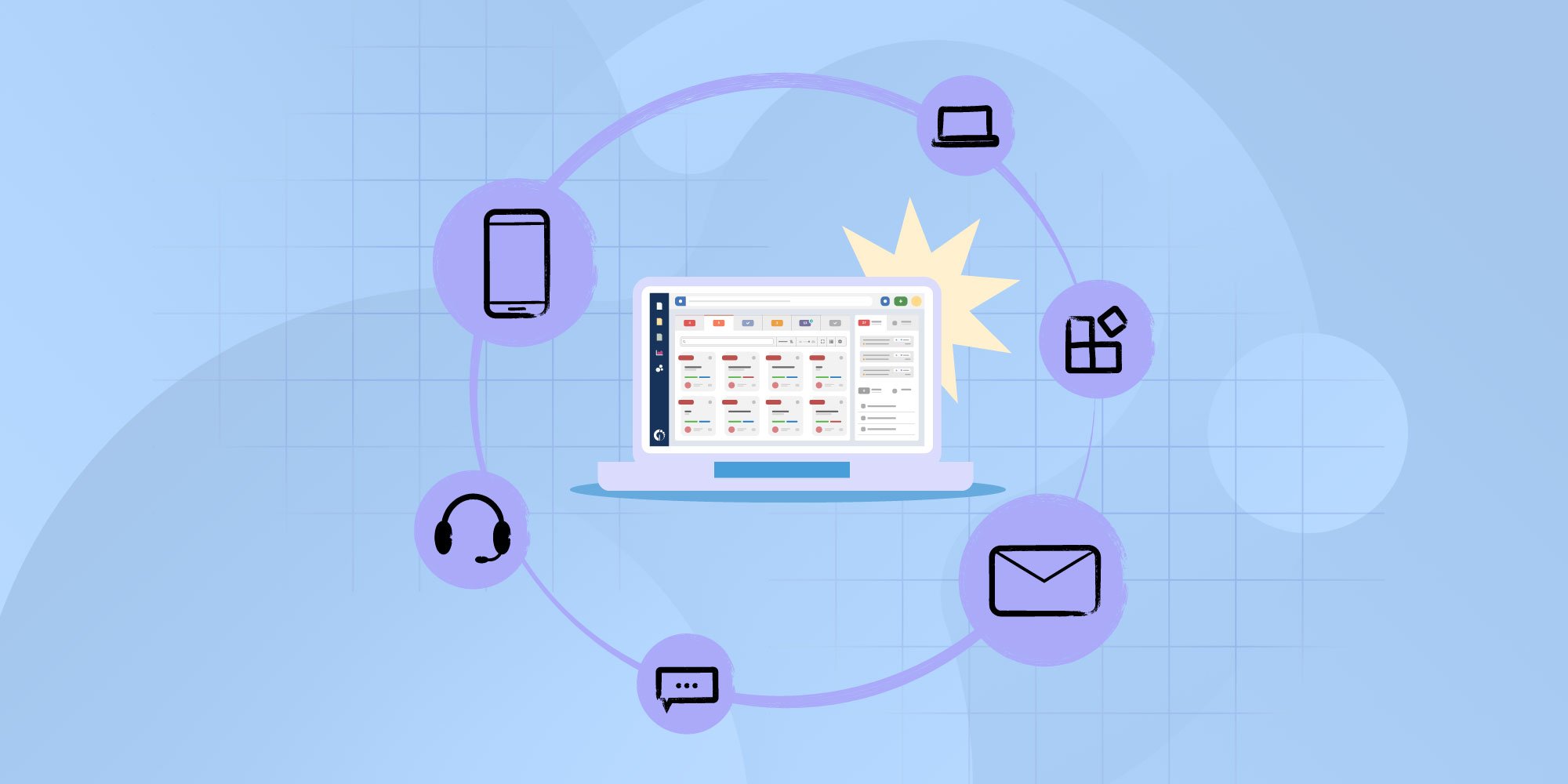


Omnichannel support addresses a common problem in service teams: communication channels that work in isolation. Email, chat, forms, and messaging apps all receive requests, but each one creates its own thread, its own history, and often its own version of the same issue.
When channels stay separated, context slips through the cracks. Agents spend time reconnecting conversations, users repeat information, and tracking a request across touchpoints becomes harder than it should be.
Keep reading to learn about omnichannel support, and how to implement an omnichannel strategy step by step using InvGate Service Management, so all support interactions stay connected within a single workflow.
Omnichannel support is an approach to IT Service Management where all communication channels feed into a single system.
The goal is to address customer issues promptly and through their preferred channel. For example, a customer might start by sending an inquiry through social media, follow up via email support, and then finalize the resolution through a phone call — all without needing to repeat themselves. Here, a virtual phone number ensures voice interactions remain unified with other support channels.
The channel may change, but the request, its context, and its progress remain the same.
Offering omnichannel support ensures a consistent and convenient experience, boosting customer satisfaction. To achieve this, each channel must work together seamlessly, creating a unified experience regardless of where the interaction begins or ends.
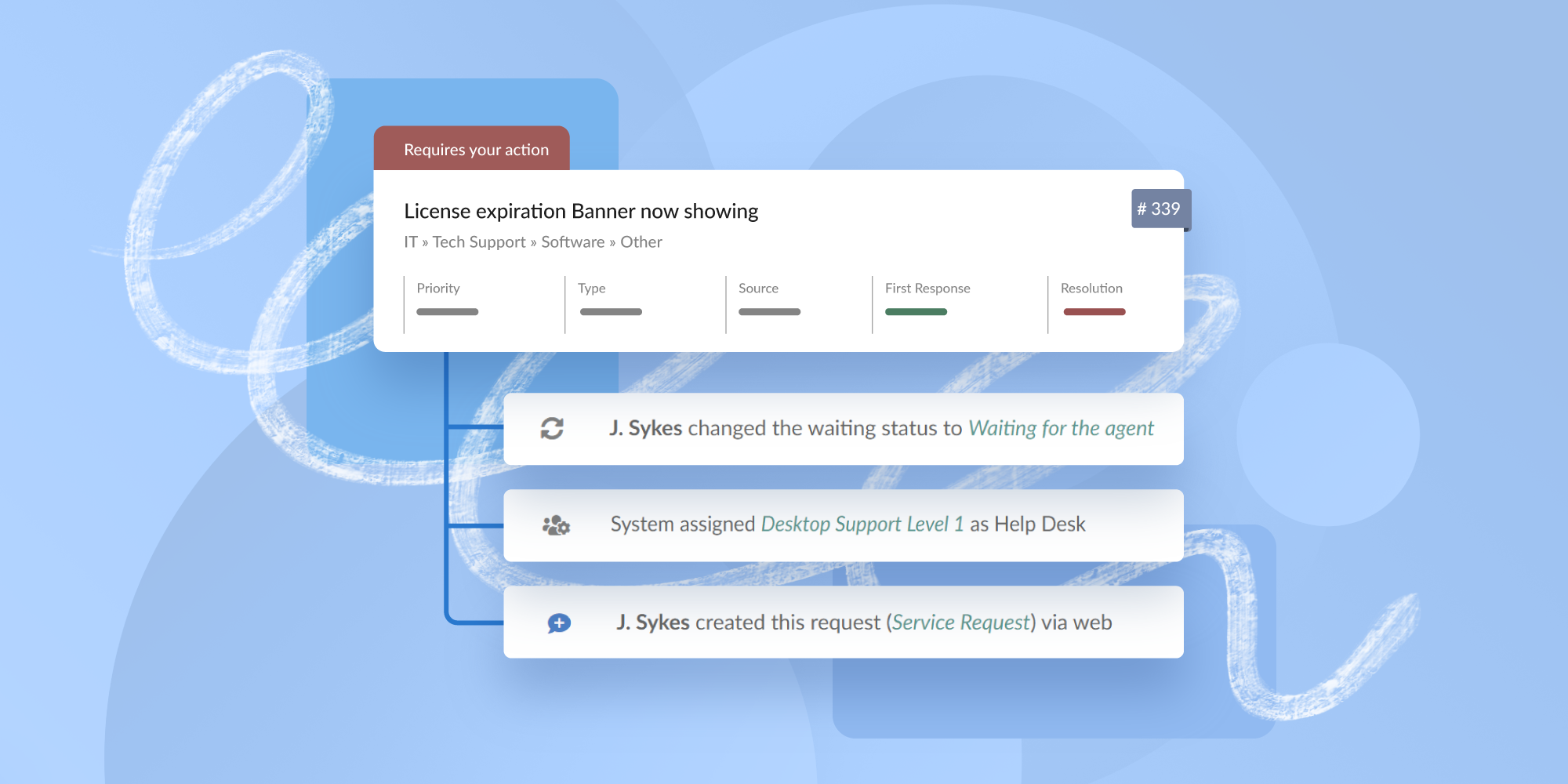
The difference usually shows up once conversations move across channels:
Multichannel support offers several contact options, but each channel operates independently. Conversations live in separate inboxes, and context often gets lost when switching from one channel to another.
Omnichannel support connects all channels into one workflow. Interactions stay linked to the same ticket, giving agents and users continuity from start to finish. And if you want to go a bit further, you can always pair this with customer journey tools to visualize how users move across channels and where the experience breaks down before they ever reach support.
Omnichannel support introduced a new term for a growing expectation. Even today, organizations may describe their approach as multichannel while actually aiming for an omnichannel experience. The real distinction isn’t the label, but whether conversations remain connected and carry their context across channels.
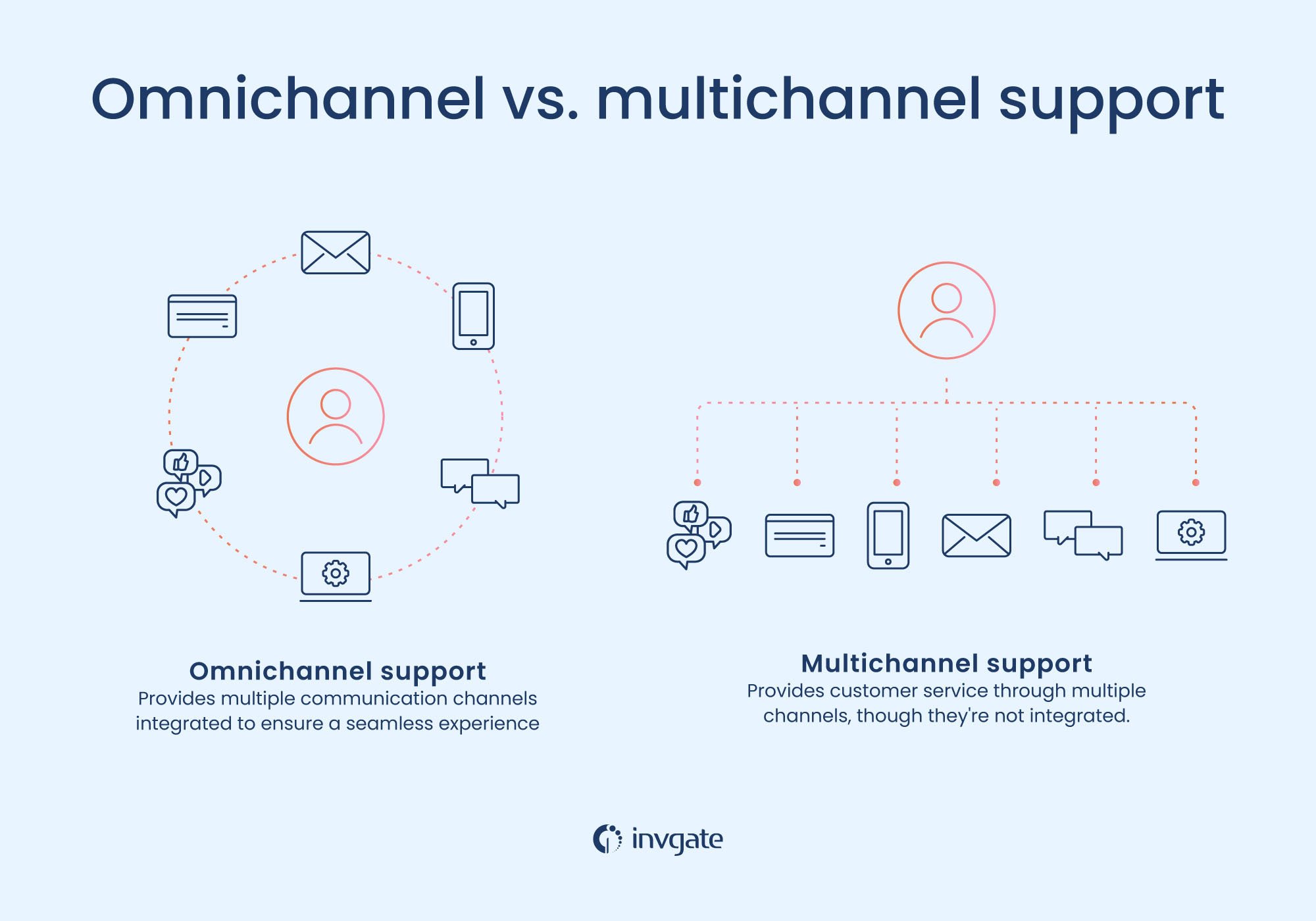
AI plays a supporting role in omnichannel support by helping teams manage volume, maintain context, and respond consistently across channels. Instead of acting as a separate layer, AI works within the same Service Management system that already connects all interactions.
Chatbots are often the first point of contact. They can answer common questions, guide users through simple requests, and collect key details before creating or updating a ticket. A white-label AI chatbot platform can make it easier for businesses to deploy and manage these interactions at scale. Because those interactions feed directly into the same workflow as email, chat, or portal requests, the information stays attached to the conversation when a human agent takes over.
Once that layer is in place, AI tends to move deeper into the workflow. Classification models can identify intent, assign categories, and suggest priorities based on the content of the request, independent of the channel used. That shared understanding is what keeps omnichannel support from fragmenting again as volume grows.
More mature setups use AI to assist agents rather than replace them. Suggested replies, knowledge article recommendations, and conversation summaries help agents pick up a request mid-stream without scanning long histories. In an omnichannel environment, this matters because context may come from several channels over time.
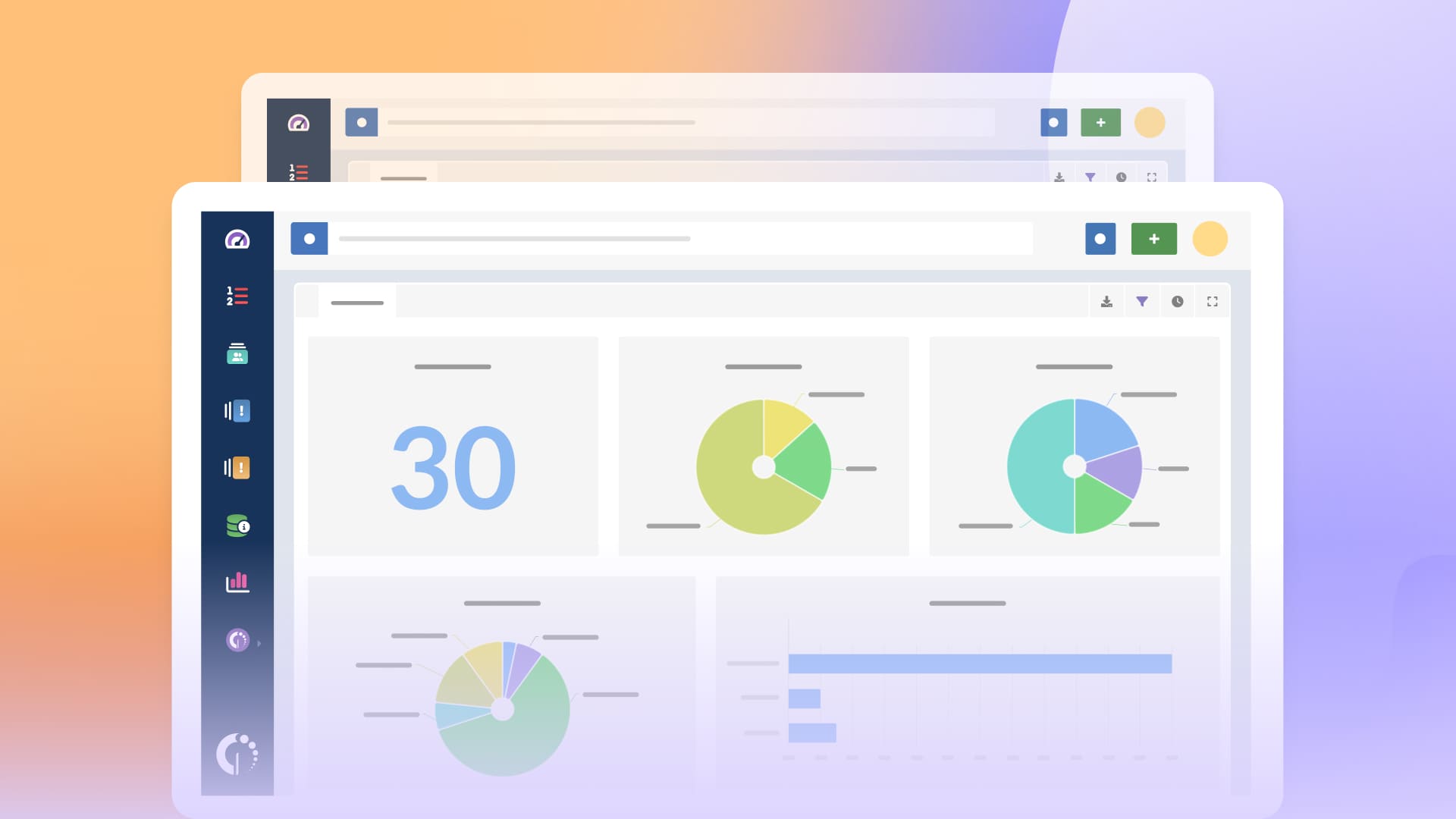
An omnichannel support strategy relies on having the right structure and systems in place to keep conversations connected, regardless of where they start.
A tiered support model helps route requests efficiently. Most teams combine self-service, front-line support, and specialized technical teams, with tickets moving between levels without losing context.
A ticket escalation process defines how and when issues move to the next level. Clear escalation rules prevent tickets from stalling and make sure the right team steps in at the right time.
Customer segmentation allows support to adapt to different user groups. Requests from VIP users or high-impact roles can follow different routing or assignment rules, improving response times without manual handling.
Priority definition and automation ensure urgent issues receive attention first. Automated priority assignment based on request type, impact, or user group becomes especially important when requests arrive through multiple channels.
Finally, centralized communication is the technical foundation. A help desk platform must consolidate all channels into a single ticketing system, keeping every interaction traceable and accessible from one place.
InvGate Service Management supports omnichannel experiences by integrating communication channels in three ways:
Native integrations, such as email, Microsoft Teams, and other built-in channels.
Third-party integrations via Zapier, including tools like Slack, Google Calendar, and PagerDuty.
A free API, allowing teams to build custom integrations when needed.
Once connected, all requests — regardless of origin — are managed from the same platform and follow the same workflows. Teams can share knowledge base articles, escalate tickets across support tiers, route requests to different help desks or locations, automate repetitive tasks, and track performance through dashboards and reports.
Let's review some of the channels you can incorporate:
Email can be turned into a fully traceable support channel when you connect your support email to InvGate Service Management. Incoming messages automatically create or update tickets, keeping the entire email thread attached to the request.
To add email as a support channel in InvGate Service Management, you connect a dedicated corporate mailbox from providers such as Gmail or Microsoft Outlook. Once configured, the platform monitors that inbox and automatically converts incoming messages into requests, preserving the full email thread and any attachments.
Incoming email settings allow you to define distribution rules, so requests are routed to the correct help desk or agent based on criteria like address or content. Agents can reply to tickets, add attachments, and approve actions directly from their inbox, while all activity remains linked to the same request in the system.
Outgoing email is configured separately to handle replies, notifications, and automated templates. Multiple outgoing email accounts can be set up, which allows different teams or departments to communicate with users using the appropriate sender address.
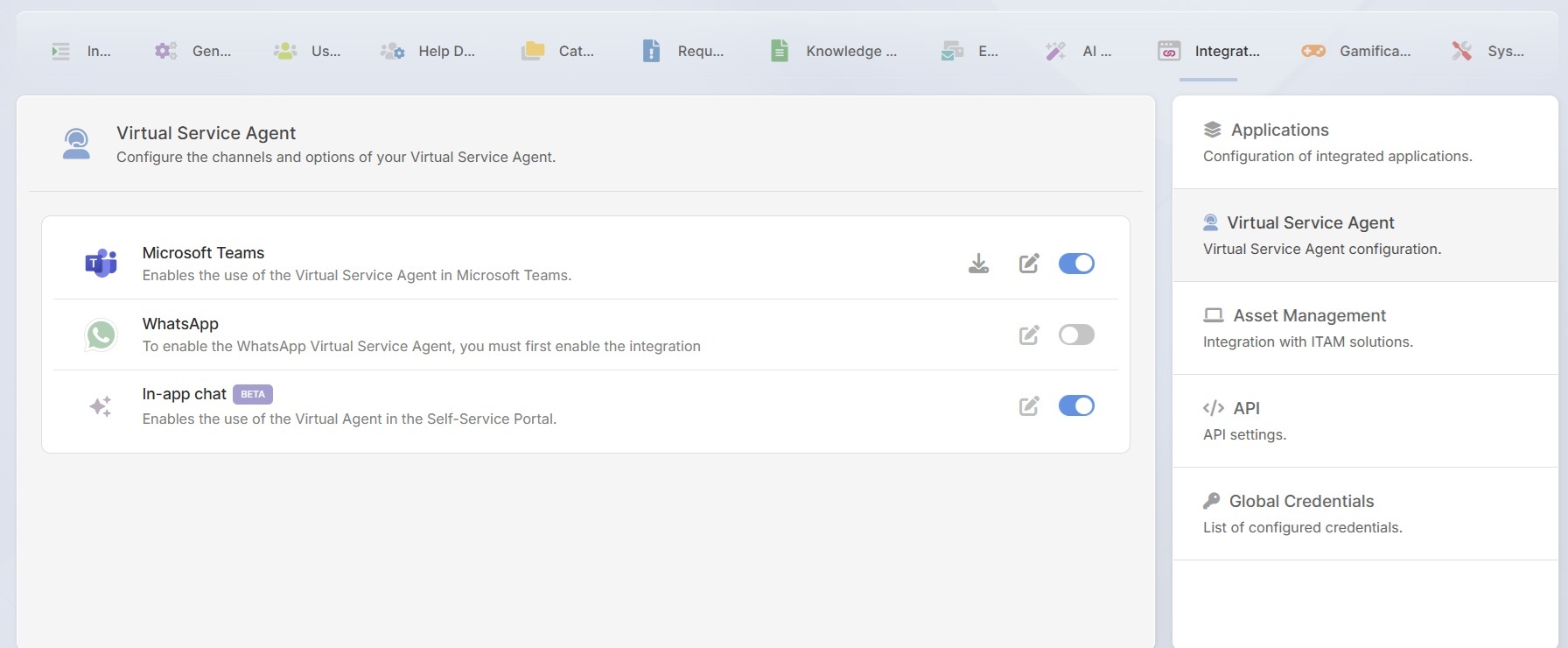
InvGate Service Management’s Virtual Service Agent acts as the conversational layer across multiple channels. It is enabled by selecting InvGate AI Service under Settings → AI Hub → AI Service, and then activating it from Settings → Integrations → Virtual Service Agent.
The agent relies on existing configuration — request categories, workflows, and knowledge base content — to interpret user messages and turn conversations into structured support actions. It can answer questions, suggest articles, create requests, and escalate issues while keeping all context attached to the ticket.
Once enabled, the Virtual Service Agent can be deployed across several channels.
The self-service portal provides a structured, web-based entry point for support. Users can submit requests, track progress, and consult knowledge articles without contacting an agent directly.
With the Virtual Service Agent active, the portal supports conversational interactions alongside traditional forms, allowing users to describe issues in natural language while requests still follow standard workflows and approvals.
To offer the chat experience with the VSA on the self-service portal, go to Configuration → Integrations → Virtual Service Agent and enable "In-app chat".
To use the Virtual Service Agent for Microsoft Teams, you install the InvGate Virtual Agent from the Microsoft Teams App Store and complete the integration by linking it to your Microsoft Entra tenant. Once configured, the agent becomes available inside Teams as a bot that users can interact with directly.
With the integration in place, Microsoft Teams works as a help desk entry point. Users can ask questions in natural language, create and track requests, receive notifications, and handle approvals without leaving Teams, while all activity continues to follow the same workflows and rules defined in InvGate Service Management.
The experience inside Microsoft Teams can be adjusted to fit your organization. You can customize the bot’s name, avatar, and welcome message, and highlight common request categories so users can get started quickly. These small adjustments help reduce back-and-forth and guide users toward the right actions from the first interaction.
InvGate Service Management's Whatsapp Integration starts with connecting a WhatsApp Business account to the platform. Once the integration is in place, messages sent to the WhatsApp number are captured by InvGate, making it an official entry point for support requests rather than an informal inbox.
After the connection is established, as with the other channels, the Virtual Service Agent manages incoming conversations. It interprets messages written in plain language and pulls answers from the knowledge base directly into the chat. When an issue needs follow-up, the agent creates a ticket automatically using the information gathered during the conversation.
With the help of InvGate Service Management, you can offer your customers a unified and integrated customer experience. Ask for a 30-day free trial and start implementing omnichannel customer support today.
What is the cost to implement omnichannel customer support?
The cost depends on the tools you already use, the number of channels you plan to support, and the level of automation required. Many teams start by centralizing existing channels in a single help desk before adding virtual agents or advanced workflows. This phased approach helps control costs while improving consistency early on.
How to decide which channels should be included in an omnichannel support plan?
Start with the channels your users already rely on, rather than adding new ones. Usage data, ticket volume, and response times usually point to where consolidation will have the biggest impact. Channels that can feed directly into a shared ticketing workflow should take priority.
What are the setup requirements to implement omnipresent support?
You need a help desk platform that centralizes all channels, applies shared workflows, and keeps conversation history intact. Integrations, automation rules, and clear escalation paths are also required to prevent fragmentation.
How to scale omnichannel support?
Scaling depends on automation, self-service, and consistent routing rules. Virtual agents, knowledge bases, and automated prioritization help manage higher volumes without adding headcount at the same pace. Reporting and dashboards then provide visibility to adjust the model as demand grows.

