










Asset location tracking for IT teams means knowing where every laptop, desktop, server and peripheral is, without attaching a Global Positioning System (GPS) tracker to each one. Computers report their own position through an agent installed on them, and everything else carries an assigned location that a tag scan or a physical audit confirms.
The problem is familiar to any team running a hybrid fleet: devices move between homes, branches and shared desks, and the inventory slowly drifts away from where the hardware actually sits. This guide covers the methods that work for IT equipment, how to set them up step by step in an IT Asset Management (ITAM) platform, and how to see every location on a single dashboard.
Asset location tracking is the practice of recording where each asset is and keeping that record current as equipment moves. Vehicles and heavy machinery usually rely on GPS trackers, and IT teams can get the same answer from data their devices already produce.
In IT, location has two layers. The first is the position a device reports on its own, as latitude and longitude, and the second is the place the inventory assigns to an asset, such as a country, city, office or floor, which also covers equipment that can't report anything.
An asset nobody can find still carries a purchase price, a warranty and, often, company data. Three situations make location a daily concern for IT teams:
In all three cases, the value comes from one record that combines what devices report with what the team assigns and verifies. That record also speeds up reassignments, refresh planning and offboarding, because nobody has to ask where a device ended up.
Most content on this topic focuses on GPS for fleets and machinery, which solves a different problem from the one IT teams have. For computers and peripherals inside offices and homes, these are the methods that work:
Each method covers a different kind of asset, so most IT teams combine them. That mix is what makes equipment location tracking work in IT: computers with an agent report their own position, while monitors, docks and printers depend on assigned locations, tags and audits.
Beyond those IT-specific methods, eight technologies dominate the broader location tracking market. The table below shows what each one does best and whether it fits IT devices inside an office:
GPS, BLE and UWB are the technologies behind real time asset location tracking, and they make sense when an asset's position changes by the minute. Office IT equipment moves far less often, so periodic reports from an agent, combined with tags and audits, give IT teams the visibility they need without a tracker on every device. RFID asset tracking is the exception worth a closer look, because one reader counts dozens of tagged assets in a single pass.
InvGate Asset Management is a no-code ITAM software that tracks hardware, software and non-IT assets from a single interface. Location works in three layers, depending on the asset:
A practical setup order is to sync users with their locations first, turn on geolocation and the location templates next, and deploy the Agent last. That way, every new device lands in the inventory with a location from its first report.
Geolocation is the fastest way to know where computers are, because the Agent already reports to the platform on a schedule. Setting it up takes three steps: turning the feature on, keeping it on across the fleet, and deciding who can see the result.
Geolocation works on computers running Windows 10, Windows 11 or Windows Server 2016 and later, with the Agent installed. Each device also needs location services turned on in Windows, under Start > Settings > Privacy & security > Location, with Let apps access your location enabled. Then enable the feature in the Configuration Items (CIs) settings:
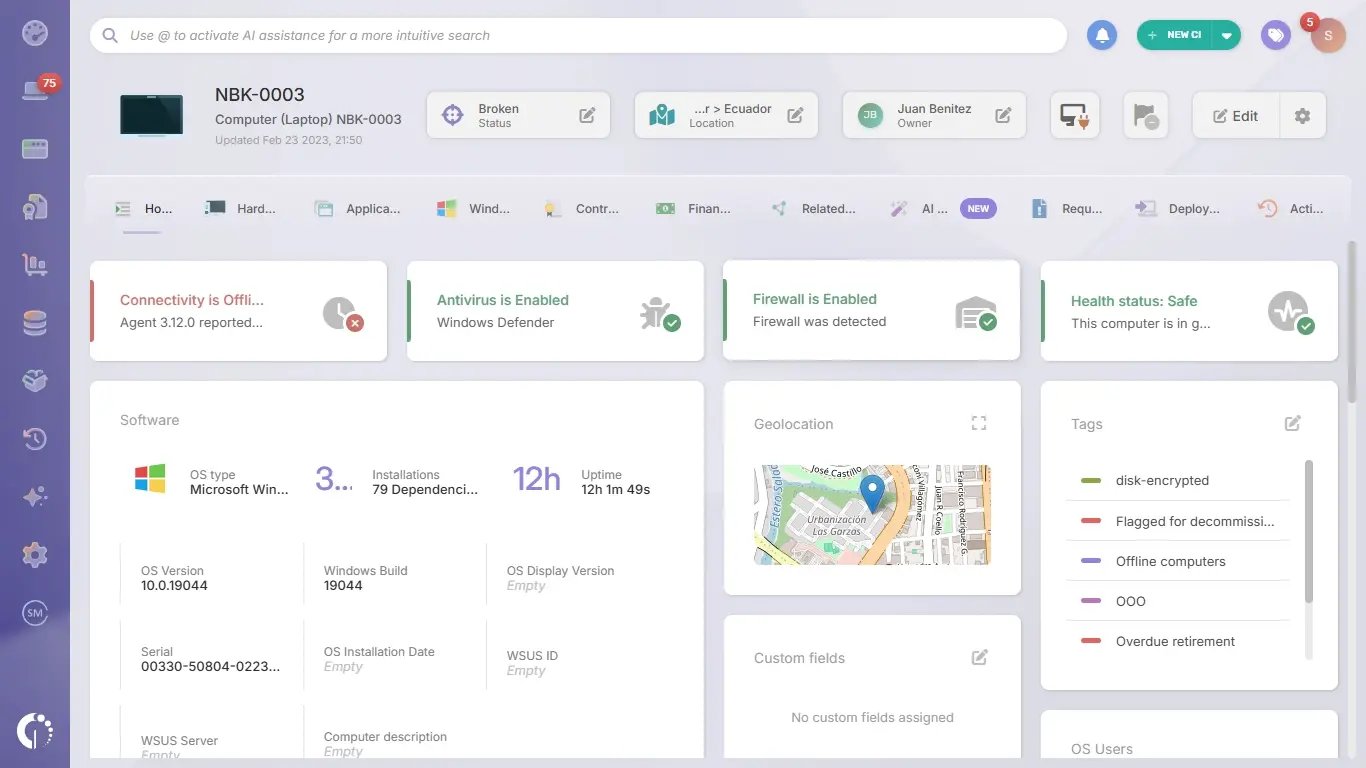
From then on, the Agent adds the device's latitude and longitude to each inventory report. To check the result, filter Assets by computers that report through the Agent and open any of them: the profile shows a Geolocation box with the last coordinates, the same view the asset location tracking product tour walks through.
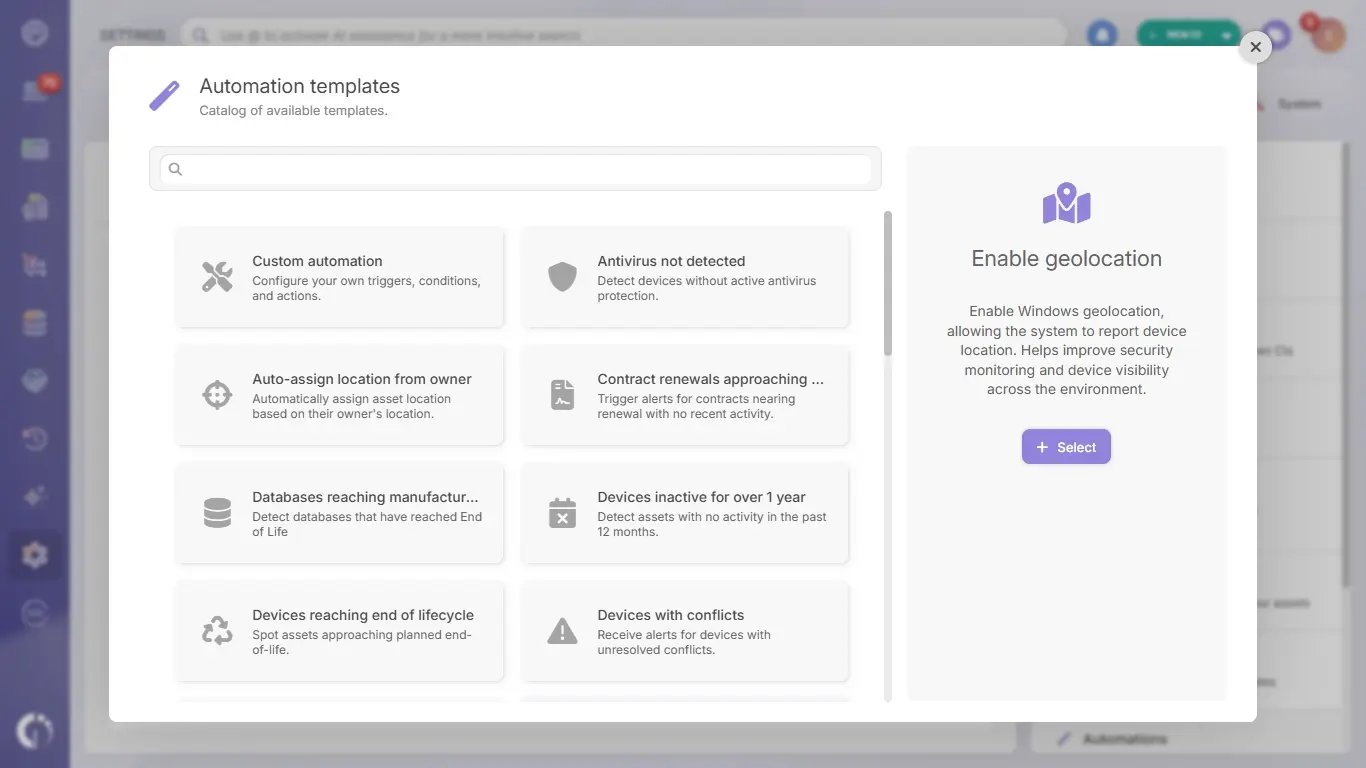 Users or local policies can turn Windows location services off, and those computers stop sending coordinates without warning. The Enable Geolocation automation template, found in Settings > CIs > Automations under Add, turns location back on by deploying the matching package to compatible devices automatically.
The Offline devices (Agent not reporting) template and Smart Recommendations cover the opposite case, flagging computers whose Agent has stopped reporting altogether. Smart Recommendations separates devices silent for more than seven days from those past 30 days, which are the most likely to be lost, stolen or retired.
A device's coordinates can reveal where its user lives or works, so geolocation data deserves the same care as any other personal information. In InvGate Asset Management, the Geolocation permission decides which roles can view geolocation data in asset profiles and Explorers.
Roles are configured in Settings > Users > Permissions, under Modules and functionalities. The predefined Standard Technicians role includes Geolocation, so restricting it means creating a custom role without that permission and assigning it to the users who shouldn't see coordinates.
Assigned locations cover every asset, including the ones that will never run an agent. Four pieces make them reliable: a hierarchy that mirrors the organization, rules that fill in locations automatically, Smart Tags that group assets by place, and permissions scoped to each branch.
Locations in InvGate Asset Management nest inside each other, so a structure such as country, city, office and floor fits in a single tree. Filters follow that structure: Location > is > Buenos Aires returns the assets in that office, while Location > is inside of > Europe returns every asset in Europe and in every level below it, down to a floor in Paris.
Locations can also carry their own custom fields, created in Settings > CIs > Fields with Location as the CI type, to store data such as a site code, a cost center or the person in charge of a building. Those values appear in the location profile, work as filters and columns in the Locations Explorer, and serve as a dimension in dashboards.
 Locations can be set one asset at a time or in bulk from the Asset Explorer. For groups that come from outside the platform, such as a shipment received at a branch, the search by external list takes up to 500 identifiers (serial numbers, hostnames, asset names or RFID codes) and returns the matching assets, ready for a bulk update.
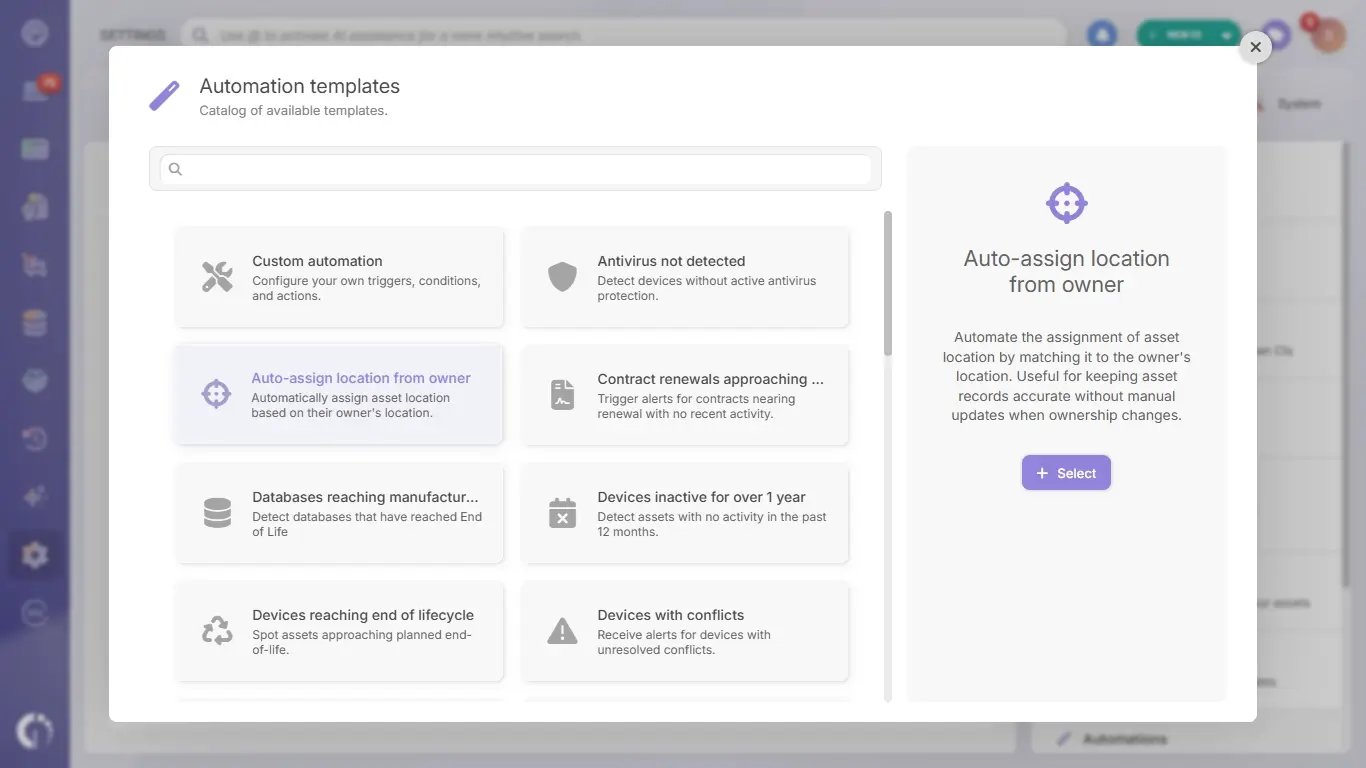
Two automation templates keep locations current without manual edits. Both are in Settings > CIs > Automations under Add, open prefilled and can be edited before saving:
Coming soon: Atlas AI Agent will infer each asset's location from its network range and last check-in IP, catching devices that physically moved without anyone updating the record. The values it fills in can be applied automatically or held for a person to confirm.
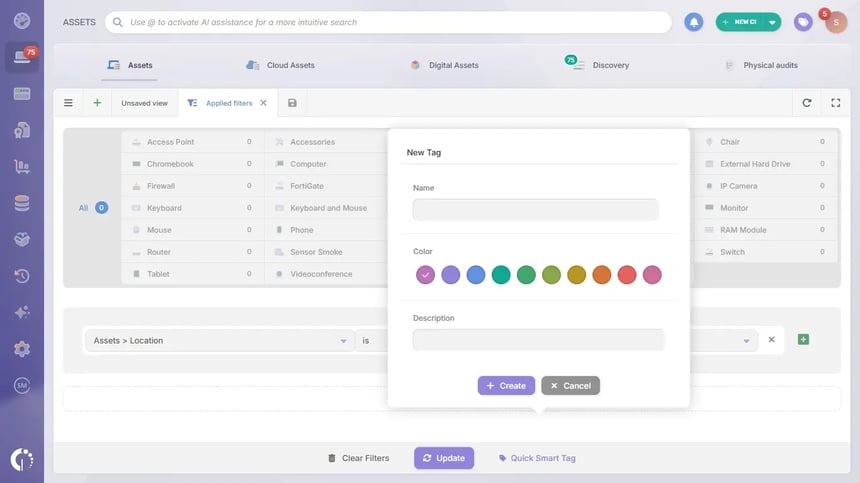 Smart Tags turn any filter into a group that updates itself as assets move. Filtering Assets by Location > is > Buenos Aires and selecting Quick Smart Tag, for instance, creates an Assets in Buenos Aires tag that always holds whatever sits in that office.
The same approach exposes gaps in the data, since a Smart Tag with the condition Location is None collects every asset that still has no location. Smart Recommendations surfaces the same gap without any setup and opens the affected assets in the Explorer, ready for a bulk location update.
Organizations with several regions or subsidiaries can limit each team to its own part of the hierarchy. In Settings > Users > Permissions, a CI permission on Locations with the Under operator grants access to a parent location and all its children, so Under > America covers every country, city and building in that branch.
New locations added below the parent are included automatically, so the rule doesn't need updating as the hierarchy grows. Combined with the Geolocation permission, roles can give each regional team the locations it manages and keep coordinates visible only to the people who need them.
Monitors, docking stations, printers and computers whose Agent stopped reporting rely on their assigned location, and a physical inventory is what confirms it. Each one can carry asset tags with a QR code linked to its profile and an RFID code stored in the Physical asset tag (RFID) field, so scanning the QR code from a phone opens the record and the location can be corrected on the spot.
For a full site check, physical audits are scoped to one location, run from a phone camera or a Zebra RFID reader, and leave a Last physical audit card on each audited asset with the date, location and result. Scans sort the assets into three groups:
Location data is easiest to read on a dashboard, and InvGate Asset Management includes one ready to use. The predefined CI status dashboard, under Dashboard > CI status, brings location together in two charts:
Global filters by owner, location or tag apply to every chart at once, so filtering by Argentina shows only the assets located there. For other views, such as asset type by office or status by country, custom dashboards use location as one more dimension.
Asset location tracking in IT works best as a combination: the Agent reports where computers are, assigned locations and automation templates cover every asset, and QR codes, RFID tags and physical audits confirm the rest. Each layer covers what the others can't see, and together they keep the inventory aligned with the hardware.
As asset location tracking software, InvGate Asset Management brings those layers into one record per asset and one dashboard for all of them. To try it with your own fleet, start a free trial or talk to Sales.
These are the questions IT teams ask most often when they set up location tracking for their devices. The answers below summarize what each section of this guide covers in detail.
Install an agent that reads the location the operating system already calculates. In InvGate Asset Management, the Agent adds the latitude and longitude from the Windows location service to each inventory report, so Windows laptops with the Agent and geolocation enabled appear on the Assets Geolocation map.
The Agent sends the location with each inventory report, which happens at least once a day and every 8 to 12 hours on average, a range that can grow in instances with many active agents. If a device is off when its next report is due, the Agent sends it within the first hour after the device comes back on.
Assign them a location in the hierarchy, label them with QR codes or RFID tags, and confirm them with physical audits. Each closed audit records the date, location and result on the asset's profile, and anything found in the wrong place can be relocated in bulk.
The Agent reports the coordinates calculated by the Windows location service, with no adjustment based on the VPN connection. Windows combines GPS, nearby wireless access points, cell towers and IP address to calculate them, so precision depends on which of those signals each device can use at the time.
Only users whose role includes the Geolocation permission can view geolocation data in asset profiles and Explorers. Administrators set it per role in Settings > Users > Permissions, and the predefined Standard Technicians role includes it by default.


