











Windows Server 2016 end of life arrives on January 12, 2027, the day Microsoft ends extended support for the operating system. From then on, servers still running it stop receiving security updates, and the IT teams that manage them need a decision for each one: upgrade, move the workload to Azure or pay for Extended Security Updates (ESU).
This article covers the exact dates, what stops on January 12, how to find every Windows Server 2016 machine in your environment and what each of the three options involves. It closes with a migration checklist and with how InvGate Asset Management builds the inventory that every one of those decisions starts from.
Windows Server 2016 reaches End of Life on January 12, 2027, when its extended support period ends. Mainstream support already ended on January 11, 2022, so the operating system has received only security updates for almost five years.
These dates apply to the Datacenter, Essentials, MultiPoint Premium and Standard editions, according to Microsoft's lifecycle page for Windows Server 2016. Extended Security Updates cover only Standard and Datacenter, so servers running Essentials or MultiPoint Premium can't enroll in the program and need to be upgraded or replaced.
Windows Server 2016 machines keep running after January 12, 2027. What ends is Microsoft's work on them: no more security updates, no non-security fixes and no technical support for the operating system, unless the server is covered by Extended Security Updates.
The risk grows with every vulnerability published after that date, since none of them will be patched on an uncovered server. Unsupported operating systems also show up in security audits and compliance reviews as findings that need a remediation plan, the same situation many teams faced when Windows 10 reached End of Life in October 2025.
Every option starts with the same two questions: how many Windows Server 2016 machines are there, and what does each one do? An inventory by operating system and edition answers the first one, and the details of each server answer the second.
A query against Active Directory is the usual first pass, and it only lists domain-joined machines. Servers outside the domain, virtual machines (VMs) that nobody joined and instances running in a public cloud stay out of that list, and they're often the ones nobody remembers to migrate.
A complete count crosses three sources: the physical servers, the VMs in each hypervisor and the instances in each cloud subscription. The goal is one list with the operating system and edition of every machine, because the edition decides which options are available later.
Before touching a server, it pays to know what depends on it. For each Windows Server 2016 machine, record at least these details:
Databases deserve a separate look. SQL Server 2016 left extended support on July 14, 2026 and Exchange Server 2016 did the same on October 14, 2025, so a Windows Server 2016 machine running either one carries two End-of-Support problems at once.
A physical server bought around 2016 may be out of warranty or past its manufacturer's End of Support date. An in-place upgrade on that hardware puts a supported operating system on a machine with no replacement parts or vendor help when it fails.
Checking warranty and support status per model turns the operating system decision into a hardware decision too. Upgrade in place where the hardware still has years left, and replace the server or move the workload to a VM where it doesn't.
Microsoft offers three ways forward for a Windows Server 2016 machine, and most environments end up combining them server by server. The table summarizes each one before the details.
Windows Server 2025 is the version Microsoft recommends, with mainstream support until November 13, 2029 and extended support until November 14, 2034. Servers outside a cluster can run an in-place upgrade directly from Windows Server 2016 to 2019, 2022 or 2025, while failover clusters move one version at a time, according to Microsoft's guide to Windows Server upgrades.
Each upgrade needs its own license for the target version, and the edition carries over unless you move from Standard to Datacenter during the process. Windows Server 2022 remains an option when an application isn't certified for 2025 yet, although it left mainstream support on October 13, 2026 and receives only security updates until October 14, 2031.
Moving a Windows Server 2016 workload to Azure buys time without an immediate upgrade. Microsoft provides Extended Security Updates for three more years in Azure, across destinations such as Azure Virtual Machines, Azure Dedicated Host, Azure VMware Solution and the Azure Stack portfolio.
The move keeps the operating system as it is, so the same deadline returns in January 2030 and the upgrade still has to happen. It works best for workloads that were already candidates to leave the data center, where the migration and the upgrade can be planned as one project.
Extended Security Updates for Windows Server 2016 deliver Critical and Important security updates for up to three years, through 2030, for the Standard and Datacenter editions. Servers that stay on premises or in other clouds get them through Azure Arc: the configuration has been available in the Azure portal since August 3, 2026, and monthly billing starts on January 13, 2027, according to Microsoft's Azure Arc documentation.
To buy them, servers need Software Assurance through a Volume Licensing program, or licenses through the Services Provider License Agreement (SPLA) or a Server Subscription. The program includes no new features and no non-security fixes, and organizations that prefer annual billing through Volume Licensing can request it from their Microsoft representative.
With the deadline close, the work fits in a short, ordered list. Each step feeds the next one, so an incomplete inventory slows down everything that follows:
Servers that need new hardware can join the next refresh cycle, which is easier when your hardware refresh planning already ranks devices by age and support status. Keep the list updated until the last Windows Server 2016 machine is gone, since forgotten VMs and test environments tend to add new ones along the way.
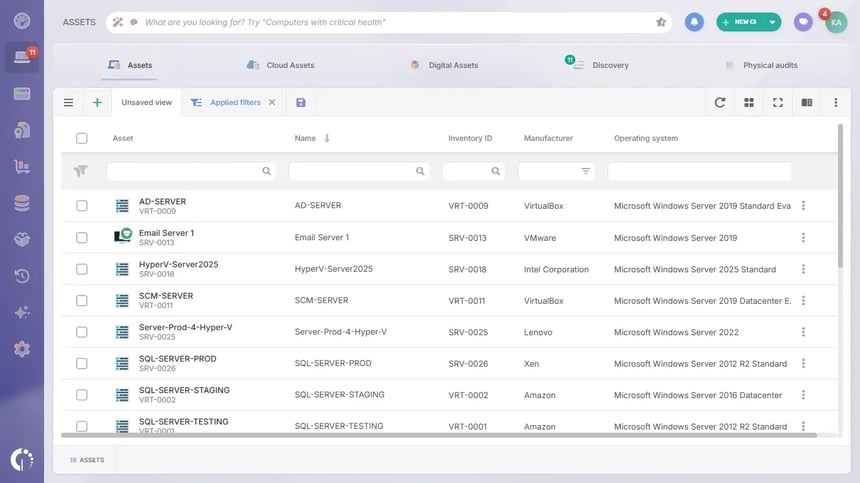
InvGate Asset Management is IT Asset Management software that offers an enterprise experience without the complexity or the price of one, with an intuitive interface, a no-code approach and fast deployment. For a Windows Server 2016 deadline, it answers the question every option starts from: how many 2016 servers exist and what runs on each one.
The asset inventory is built with the Agent, network discovery, integrations such as VMware, Microsoft Azure and Microsoft Intune, and manual or CSV import, so physical servers, VMs and cloud instances land in the same list. From there, these capabilities cover the steps above:
Element U.S. Space & Defense, a U.S. government contractor in engineering and testing for space and defense, had its asset data split across spreadsheets, Microsoft Intune and Microsoft Entra. With InvGate Asset Management, the team consolidated 1,700 assets across six sites into a single inventory with ownership and lifecycle data.
That inventory supported the company's own operating system migration. Element completed its Windows 11 migration in 45 days and raised software update coverage from 55% to 95% across 1,700 devices, according to its case study.
Windows Server 2016 end of life leaves every server with three possible paths, and the right one depends on what each machine runs, who owns it and what hardware sits underneath. Teams that start from a complete inventory make those calls server by server and avoid discovering forgotten machines after January 12, 2027.
To see every Windows Server 2016 machine in your environment, start a free trial of InvGate Asset Management or talk to Sales about your migration plan. Either way, the first list of 2016 servers is where the decision for each one begins.

