











Windows Server 2019 End of Life arrives on January 9, 2029, the day Microsoft ends extended support for the operating system. Mainstream support already ended on January 9, 2024, so the servers still running it receive security updates only, and the IT teams that manage them are planning what comes next.
This article covers both dates, what still works until 2029 and what already stopped, how to find every Windows Server 2019 machine, the upgrade options and a migration timeline for 2027 and 2028. Two years is enough time for a calm, planned migration, as long as the inventory comes first.
Windows Server 2019 reaches End of Life (EOL) on January 9, 2029, when extended support ends, and its mainstream support ended on January 9, 2024, according to Microsoft's lifecycle page for Windows Server 2019. The product follows Microsoft's Fixed Lifecycle Policy, and both dates apply to the Datacenter, Standard and Essentials editions.
The Windows Server 2019 extended support end date also closes support for Windows 10 Enterprise Long-Term Servicing Channel (LTSC) 2019, which shares the same lifecycle. Containers released with Windows Server 2019 follow the same dates as well.
Extended support keeps Windows Server 2019 secure, but it freezes everything else. Some of the software that usually runs on these servers also has its own, earlier deadlines.
Until January 9, 2029, Windows Server 2019 keeps receiving security updates at no additional cost through Microsoft's monthly cumulative updates. Under the Fixed Lifecycle Policy, extended support also keeps paid support and self-help resources available.
In practice, a patched Windows Server 2019 machine is a supported machine today. The real question for the next two years is how many of them will still be running when the updates stop, and what depends on each one.
Since mainstream support ended in January 2024, Microsoft no longer releases non-security updates for Windows Server 2019 and doesn't accept requests for design changes or new features. New capabilities land only in later versions of Windows Server.
Several Microsoft products that often run on these servers reach their own deadlines first, or shortly after. These are the ones worth checking before planning the rest:
After January 9, 2029, Windows Server 2019 stops receiving security updates, so any vulnerability discovered from then on stays open. The servers keep booting and running, which is exactly why so many of them stay in production long after the deadline.
An unsupported server is also an audit finding: frameworks that require supported, patched software flag it as soon as support ends. Microsoft hasn't announced Extended Security Updates (ESU) for Windows Server 2019, so counting on a paid extension is a bet for now.
Every migration plan starts with the same list: each machine running Windows Server 2019, what it does and what depends on it. An Active Directory query is a useful starting point, although it misses servers outside the domain, lab machines and cloud instances, so the list needs more than one source.
Windows Server 2019 runs on physical servers in racks and branch closets, on virtual machines in VMware or Hyper-V, and on instances in Azure, AWS or other clouds. Each of those places keeps its own records, and the migration needs them merged into one list.
For each machine, record the operating system, the edition and where it runs. The edition matters for licensing the upgrade, and the location decides whether the next step is an in-place upgrade, a new virtual machine or a move to the cloud.
The operating system is only half the picture. Record the roles each server holds (domain controller, file server, web server), the applications it hosts, the databases and their versions, and the person responsible for it.
Then map what depends on each server, and check whether each application's vendor supports Windows Server 2025. Our guide to the fields worth recording in a server inventory covers the full list in detail.
Servers bought around 2018 and 2019 will be ten years old or close to it by 2029. Many will be out of warranty, and some models will be past the manufacturer's End-of-Support date before the operating system is.
That makes the hardware a decision of its own: upgrade in place, replace the server or move the workload to a virtual machine. Aligning that call with your hardware refresh cycle avoids paying for an upgrade on a machine that is due for replacement anyway.
There are four ways out of Windows Server 2019, and most environments end up combining them server by server. The table sums them up, and the sections below explain each one.
Windows Server 2025 is the natural target, with extended support until November 14, 2034. Microsoft supports a direct in-place upgrade from Windows Server 2019 to 2025 on nonclustered servers, while failover clusters upgrade one version at a time, according to its guide to planning a Windows Server upgrade path.
Since April 2026, Windows Server 2019 machines with the March 2026 cumulative update can also opt in to the upgrade through Windows Update, as Microsoft explains in its announcement of the opt-in feature update. Either way, each upgrade needs its own license, and Microsoft recommends a clean install for domain controllers.
Windows Server 2022 entered extended support on October 13, 2026, and stays supported until October 14, 2031. It buys three years less than 2025, so it fits servers whose applications aren't yet supported on the newer version.
It's also the mandatory stop for failover clusters, which go from 2019 to 2022 and then to 2025. For every other server, going straight to 2025 saves a second migration project before 2031.
Moving to Azure takes the hardware decision off the table. The workload can run on an Azure virtual machine with Windows Server 2022 or 2025, or move to a managed service, so the operating system stops being yours to patch.
One expectation needs to be clear before choosing this path. A Windows Server 2019 virtual machine moved to Azure as is still reaches End of Life in January 2029, because no Azure coverage for Windows Server 2019 has been announced either.
Extended Security Updates are Microsoft's paid program for security patches after a version's End of Support. Windows Server 2016 is the latest version with a program in place, starting on January 12, 2027, and Microsoft's Extended Security Updates page doesn't list Windows Server 2019.
Microsoft could announce a program for 2019 closer to the deadline, as it did for earlier versions. The Windows Server 2016 End of Life program shows how that works, but the safest plan for 2019 is one that doesn't depend on it.
Some servers run a single application that now has a cloud version, such as a mail server that can move to Exchange Online. Others have no active users left, and the inventory is where that shows: no recent logins, no connections, no owner.
Retiring a server is part of the migration too, with its own steps. Wipe or dispose of the hardware, close its licenses and update the inventory, so the server doesn't come back in the next audit.
Two years is a comfortable window if the work starts with the inventory and ends with the last server retired. This timeline spreads the Windows Server 2019 EOL project across 2027 and 2028, with room for the servers that always take longer.
The first months are about knowing exactly what you have. Nothing else can be planned or budgeted without this list.
With the inventory complete, each server gets a path. This is also the moment to secure the budget for 2028.
The migration itself runs in waves, starting with the servers that carry the least risk. Leave buffer time at the end of the year for the exceptions.
By the deadline, the list of Windows Server 2019 machines in production should be empty. Any server that stays needs a documented reason and an owner who accepts the risk.
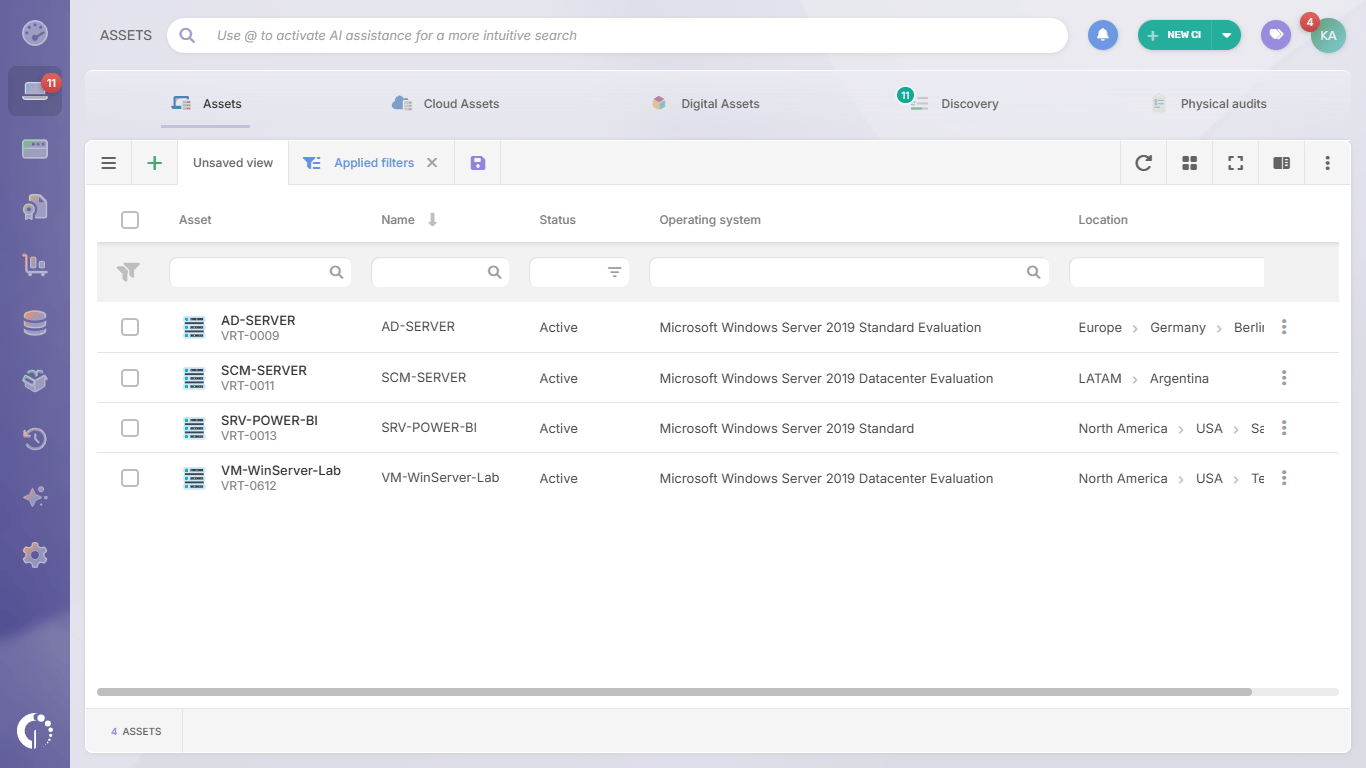 InvGate Asset Management is IT Asset Management software that offers an enterprise experience without the complexity or the price of one. Its intuitive interface, no-code approach and fast deployment get the server inventory ready quickly, built from the Agent, network discovery, integrations such as VMware, Microsoft Azure and AWS, and manual or CSV import.
Once every server is in one place, the migration becomes a list you can work through. These are the capabilities that matter most for it:
InvGate Asset Management runs in the cloud or on-premises, including air-gapped environments, with the same features in both. Each team can pick the deployment model that fits its own server policies.
Element U.S. Space & Defense, a United States defense company with more than 500 employees, needed one inventory across its sites and a way to keep every machine up to date. With InvGate Asset Management, it centralized 1,700 assets across six sites in a single inventory.
According to its case study, update coverage went from 55% to 95%, and the company completed its Windows 11 migration in 45 days. As Michael McCouch, Ops. Applications Product Manager, put it: "In one year, we replaced the help desk, built our asset inventory, and patched every asset to the latest levels."
Windows Server 2019 End of Life is two years away, and the teams that finish on time start with a complete list of servers, workloads and dependencies. With that list, each server gets a path, a date and an owner, and January 9, 2029 becomes one more day on the calendar.
To build that inventory and track the migration in one place, start a free trial of InvGate Asset Management or talk to Sales about your server environment. The sooner the list exists, the more of the next two years goes into the migration itself.
These are the questions IT teams ask most often about Windows Server 2019 End of Life. Each answer is based on Microsoft's own lifecycle and upgrade documentation.
Yes, as long as it receives the monthly security updates. Microsoft keeps releasing them until January 9, 2029, and after that date new vulnerabilities stay unpatched.
Yes. Microsoft supports a direct in-place upgrade from Windows Server 2019 to 2025 on nonclustered servers, from installation media or through Windows Update, while failover clusters must go through Windows Server 2022 first.
Windows Server 2019 stops receiving security updates and Microsoft support. The servers keep running, every new vulnerability stays open and audits flag them as unsupported software.
Not yet. As of November 2026, Microsoft hasn't announced an Extended Security Updates program for Windows Server 2019, and the latest version with one is Windows Server 2016.
Yes. Windows 10 Enterprise LTSC 2019 shares the Windows Server 2019 lifecycle, and its extended support also ends on January 9, 2029.

