











Keeping an IT inventory organized is harder than it sounds. As environments grow, assets quickly multiply across locations, owners, statuses, and lifecycles. Manually grouping devices becomes time-consuming and error-prone, often leading to outdated inventories and teams spending valuable time building lists instead of taking action.
That’s where InvGate Asset Management’s Smart Tags come in. Smart Tags automatically group assets based on rules you define, such as device type, status, warranty dates, or even custom fields. Unlike manual tags, they update automatically, ensuring every asset is always in the right group without ongoing effort.
In this article, we’ll explain what Smart Tags are, how they work in InvGate Asset Management, and share practical automation examples to help you turn your inventory into actionable insights.
Smart Tags in InvGate Asset Management are a flexible tool for automatically classifying and cataloging assets based on conditions defined by each team. Once a Smart Tag is created, any asset that meets its criteria is grouped under that tag. This means asset groups stay constantly updated without manual effort, making it easier to organize inventories and act on accurate data.
Teams can build Smart Tags using both standard asset attributes, such as type, status, or location, and custom fields created specifically for their organization. This makes the possible grouping criteria virtually unlimited. As a result, Smart Tags adapt to different priorities, workflows, and business goals, allowing every organization to structure its IT inventory in a way that reflects how it actually operates.
Tags in InvGate Asset Management are static labels that help classify and catalog any Configuration Item (CI) within the platform. This includes assets -like hardware and software-, but also users, locations, contracts and vendors (among other things).
They are applied manually and remain assigned until someone removes them. This makes them useful for basic categorization or one-time grouping, but they require ongoing human intervention to stay accurate as assets change over time.
Smart Tags, on the other hand, are dynamic and automated. Instead of being manually assigned, they rely on conditions defined in advance, such as asset type, status, location, warranty dates, or custom fields.
Any asset that meets those criteria is automatically included, and removed when it no longer does. This turns Smart Tags into living asset groups that stay up to date, making them ideal for reporting, and large-scale automated Inventory Management.
InvGate Asset Management’s Smart Tags group assets that share one or more predefined criteria. Unlike regular Tags, which can be applied to different types of CIs (such as users or software), Smart Tags are exclusively available for assets. Their operation is very simple.
The team responsible for organizing the IT inventory defines the rules an asset must meet to belong to a Smart Tag. They then create the tag and assign those conditions. From that point on, whenever an asset matches the configured criteria, it is automatically included in that group.
There are two main different ways to create a Smart Tag in InvGate Asset Management:
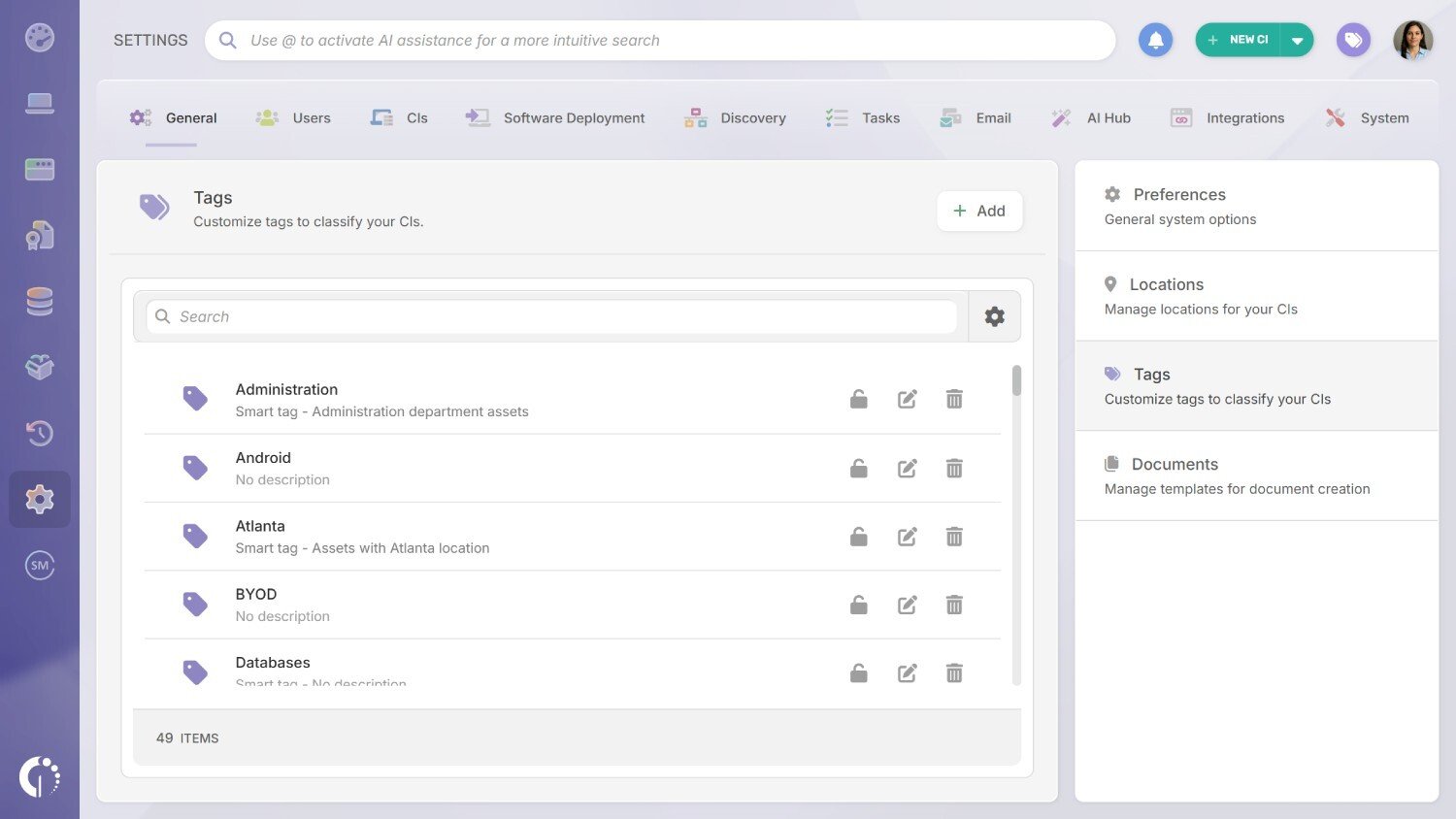
To create a Smart Tag from the Settings section, follow these steps:
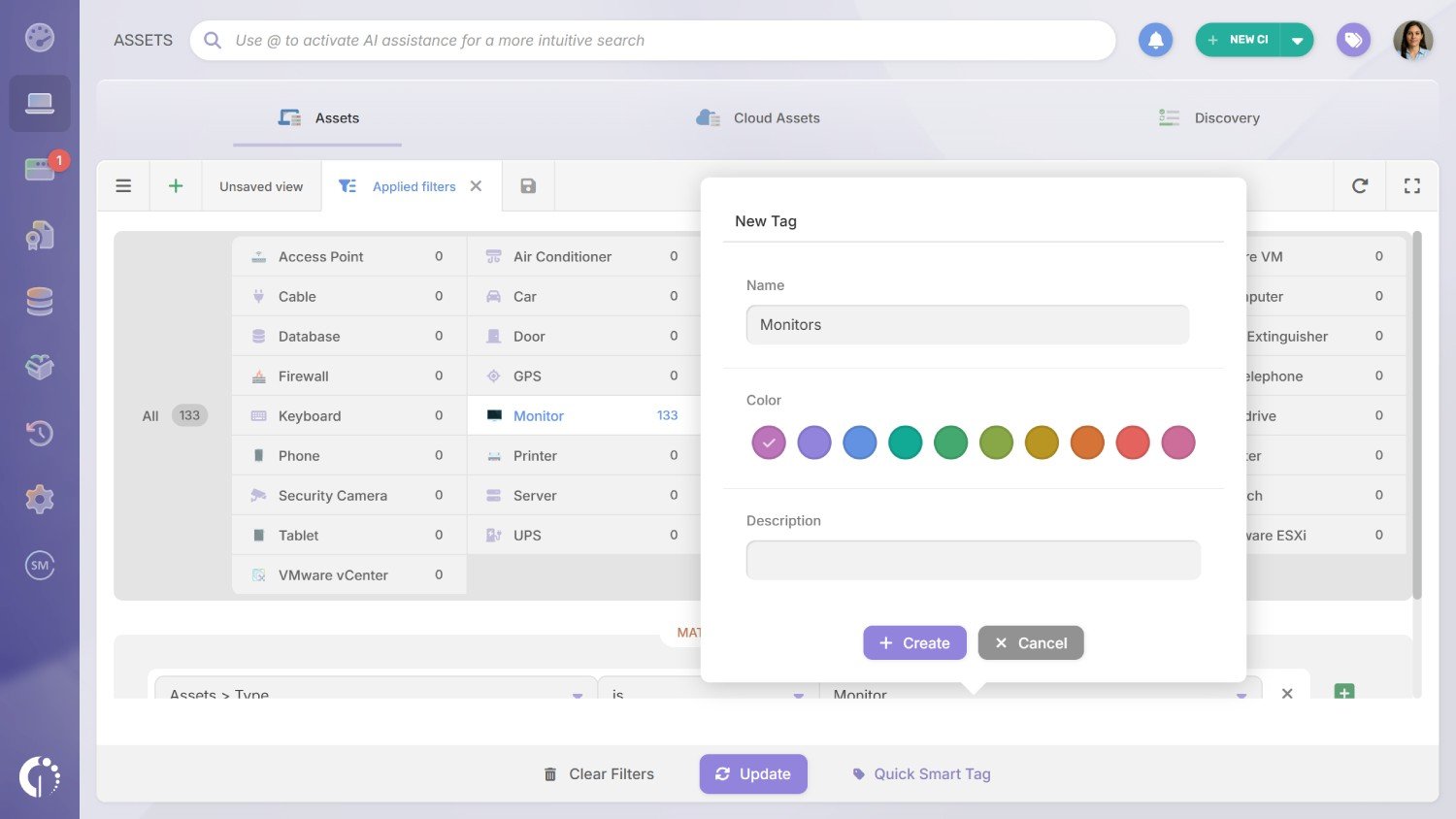 A Quick Smart Tag works the same way as a Smart Tag, but it’s created differently. To create one from the Explorer, follow these steps:
Using Smart Tags helps keep your IT inventory accurate and up to date, strengthening your overall IT Asset Management (ITAM) strategy. Combined with InvGate Asset Management’s inventory capabilities, Smart Tags turn asset data into actionable groups that support ITAM automation, reporting, and operational control.
While the possibilities are virtually endless, here are five Smart Tags every growing organization should consider creating for more advanced Inventory Management:
Note: Smart Tags don’t have to be permanent. You can also create temporary Smart Tags for specific security situations or internal and external compliance requirements. For example, you might create a Smart Tag to identify devices running Windows 10, especially considering it is currently approaching its end-of-life period.
Remember that for each of these Smart Tags, you’ll need to define a name, tag color, and description. We recommend keeping this process as organized as possible to support better Inventory Management.
Assets with missing or incomplete information are one of the most common challenges as IT inventories grow. When key fields are empty, it becomes harder to assign ownership, plan renewals, assess risk, or automate workflows. This Smart Tag acts as an ongoing data quality check, helping you quickly identify which assets need attention so your inventory remains reliable and actionable.
When you are creating this specific Smart Tag, make sure to add the following conditions:
Note: The attributes above are just examples. Each team can define its own set of essential fields based on internal processes, priorities, and business objectives. Smart Tags are fully flexible, so you can include any conditions that make sense for your organization.
Keeping operating systems up to date is critical for reducing security vulnerabilities and maintaining compliance. Devices running Windows with pending updates often represent one of the easiest entry points for threats, especially in growing environments where patching can quickly become inconsistent.
This Smart Tag helps surface computers that require immediate attention, making it easier to prioritize remediation and automate follow-up actions.
Create a Smart Tag that matches assets where:
Computer > Has pending updates > Yes.
Shadow IT often appears quietly, through unapproved or non-business software installed on company devices. While some applications may seem harmless, they can introduce security risks, licensing issues, and productivity concerns.
This Smart Tag helps identify computers running popular gaming platforms, a common indicator of unauthorized software, so IT teams can quickly investigate and take action.
Create a Smart Tag that matches assets where:
Note: This list can include any software your team considers relevant. InvGate Asset Management also includes a dedicated Software Authorization Policies feature, which makes this process much easier.
Tracking assets as they near the end of their lifecycle is essential for proactive replacement planning, budget forecasting, and reducing operational risk. This Smart Tag helps you identify devices that are approaching their expected end-of-life, so you can take action before failures or disruptions occur.
Create a Smart Tag that matches assets where:
Assets > EOL date > Is (range) > This year.
Note: To use this Smart Tag, you’ll need to create a custom field named “EOL date” and ensure it is populated across your assets. Once in place, Smart Tags will automatically keep this group up to date.
Devices nearing the end of their warranty period often represent increased operational risk and unexpected support costs. This Smart Tag helps you proactively identify assets whose warranty is about to expire, making it easier to plan renewals, prioritize replacements, or prepare mitigation actions.
Create a Smart Tag that matches assets where:
Assets > Warranty expiration date > Is > Next 30 days.
Note: The time range is fully customizable. You can adjust it to 7 days, 15 days, or any period that fits your processes, and you can also create additional Smart Tags to identify assets with already expired warranties or combine this rule with other conditions as needed.
Smart Tags help turn your IT inventory into a living system that stays organized, adapts to your priorities, and supports automation at scale. Whether you’re improving data quality, strengthening security, or planning asset lifecycles, Smart Tags give you a simple way to move from visibility to action.
If you’d like to see how this works in practice, you can try InvGate Asset Management with a 30-day free trial and start building your own Smart Tags in just a few minutes.

