










Shadow AI on company computers often starts with an AI agent that an employee installed on their own, signed in with a personal subscription and connected to internal systems through a Model Context Protocol (MCP) server. Shadow AI is one branch of shadow IT, with a shorter path from install to impact: these tools set up quickly, act on files and systems, and work under whatever account the employee chose.
This guide skips the long definitions and goes to the practical part. It covers where shadow AI hides, how to find it with the same IT Asset Management (ITAM) practices you already apply to hardware and software, what InvGate Asset Management shows about each AI agent on your endpoints, and a short policy that adds only what AI changes.
Shadow AI is any AI tool, model or agent that employees use for work without IT's approval or knowledge. It includes chat assistants used with personal accounts, AI features switched on inside approved apps, and AI agents installed on company computers.
What changed is what those tools can do on their own. A chat assistant answers questions, while an AI agent reads files, runs commands, writes code and reaches other systems through MCP servers, skills and plugins, all with the permissions of the person who installed it.
Unapproved AI use is already widespread. In November 2025, Gartner reported that 69% of organizations suspect or have evidence that employees use prohibited public generative AI. Suspicion is where most teams stop, because the evidence sits in places a standard inventory doesn't look.
With most unapproved software, finding the install answers the main question. With an AI agent, the install says the least: the same Claude Code installation can run on a personal Pro or Max subscription or on a seat in the company's Teams or Enterprise plan, as Anthropic's authentication documentation describes, and by default anyone running Claude Code can connect any MCP server they choose. Neither the account nor those connections appear in a list of installed programs, so a clean software inventory can still hide company work processed in a tenant your organization doesn't control.
Shadow AI lives in four places, and only the first two can be read from the computers themselves. The other two need a conversation with each team, so start with what the endpoint data shows and use it to guide those conversations.
Desktop AI assistants such as the ChatGPT and Claude apps, AI browsers, AI code editors and local model runners install like any other program, so an endpoint agent reports them in the regular software inventory. AI browsers are one example among many: detecting and removing ChatGPT Atlas and Comet follows the same steps as any other unwanted title.
The software inventory tells you where an AI tool is installed and how far it has spread. It has two limits worth knowing: AI agents such as Claude Code and Codex are usually installed from the command line, which leaves no entry in the list of installed programs, and an install record says nothing about who uses the tool or what it can reach.
The details that decide the risk of an AI agent live inside the agent itself. For each agent you find, record enough to decide what to do with it:
Collecting this by hand means asking each person or reading configuration files machine by machine, and the result is out of date by the next audit. InvGate Asset Management reads this data automatically for Claude and Codex, two of the most widely used AI agents in development teams, as the product section below shows.
Some of the AI your people use needs no install at all. Office suites, collaboration platforms, sales platforms and design apps now ship AI assistants that an admin or a user can switch on, and that activity never reaches the endpoint inventory.
The place to look is each vendor's admin console, where those features are turned on for the whole tenant or for specific users. Keep a short record per approved app of which AI features are on, who can use them and what data they can see, and add it to your software as a service (SaaS) governance review so it gets checked at every renewal.
Business teams also build their own agents in automation and low-code platforms, and engineering teams stand up internal MCP servers that expose company systems to AI assistants. None of these run on a managed computer, so no endpoint scan will find them, and the reliable way to list them is to ask each area what it has built.
For each one, capture the owner, what it does, the systems and data it touches and the account it runs under, and set a date to review it. The automation workflows behind many of these agents can already be recorded with an owner as Digital Assets in InvGate Asset Management, which keeps them in the same inventory as the rest of your environment.
InvGate Asset Management looks at the AI on your computers in two linked ways. The software inventory detects AI tools installed like any other program, and AI asset detection goes further for Claude and Codex, showing how each one is used, with which account and with what connected to it.
Both work through the InvGate Asset Management Agent, so they cover every computer where the Agent is installed and the AI tool is present. The data lands in each computer's profile, in the Explorer and in dashboards, where you can filter it, tag it and report on it like any other asset data.
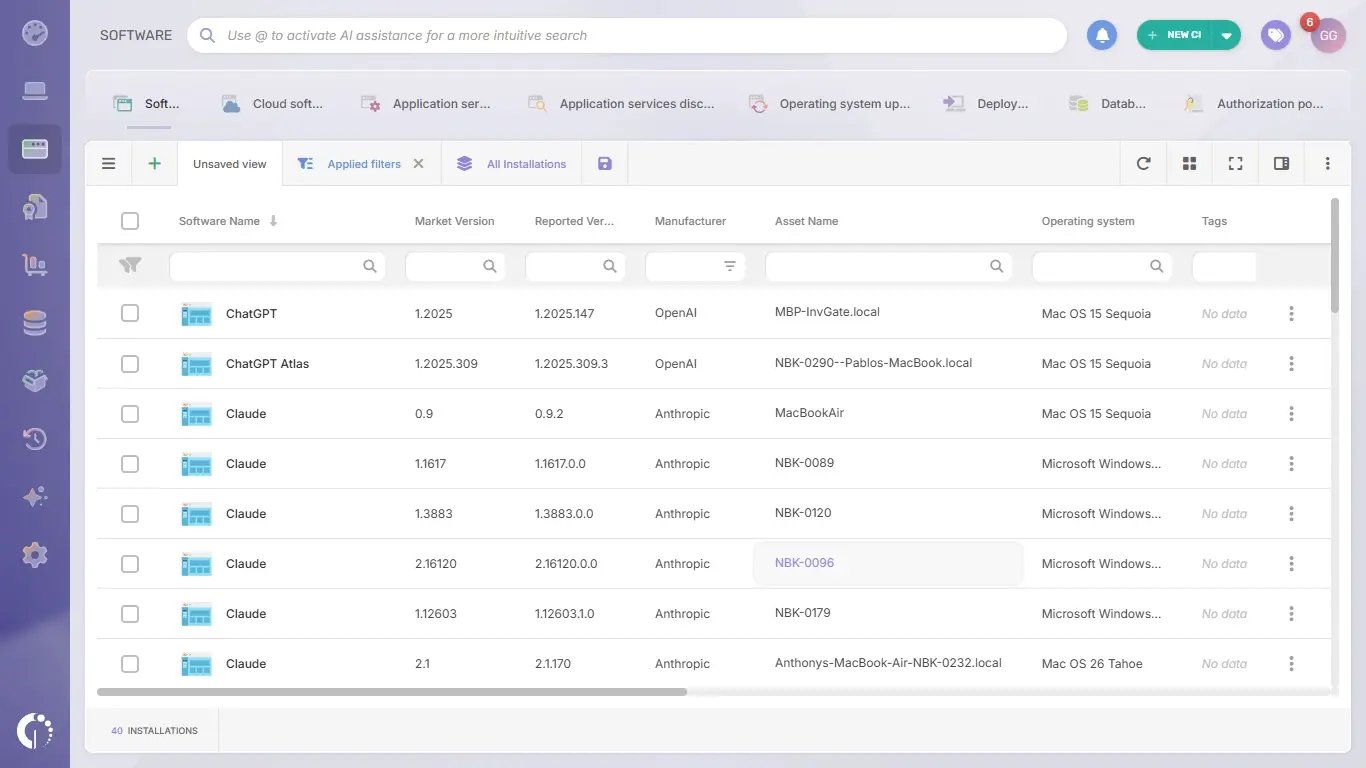
The Agent reports every program installed on the computer it runs on, and AI tools are no exception. Desktop AI apps, AI browsers, AI code editors and local model runners appear in the software inventory with the devices where they run and their versions, so you can search for a title and see how far it has spread.
That view answers where an AI tool is installed. It leaves out who uses the tool, with which account and what it has been connected to, and it misses agents installed from the command line, which is where AI asset detection comes in.
AI asset detection reads how Claude and Codex are used on each computer: the account they run under, the plan behind it and everything connected on top of them. It finds both agents whichever way they were installed, including the command-line installs that never show up as a program.
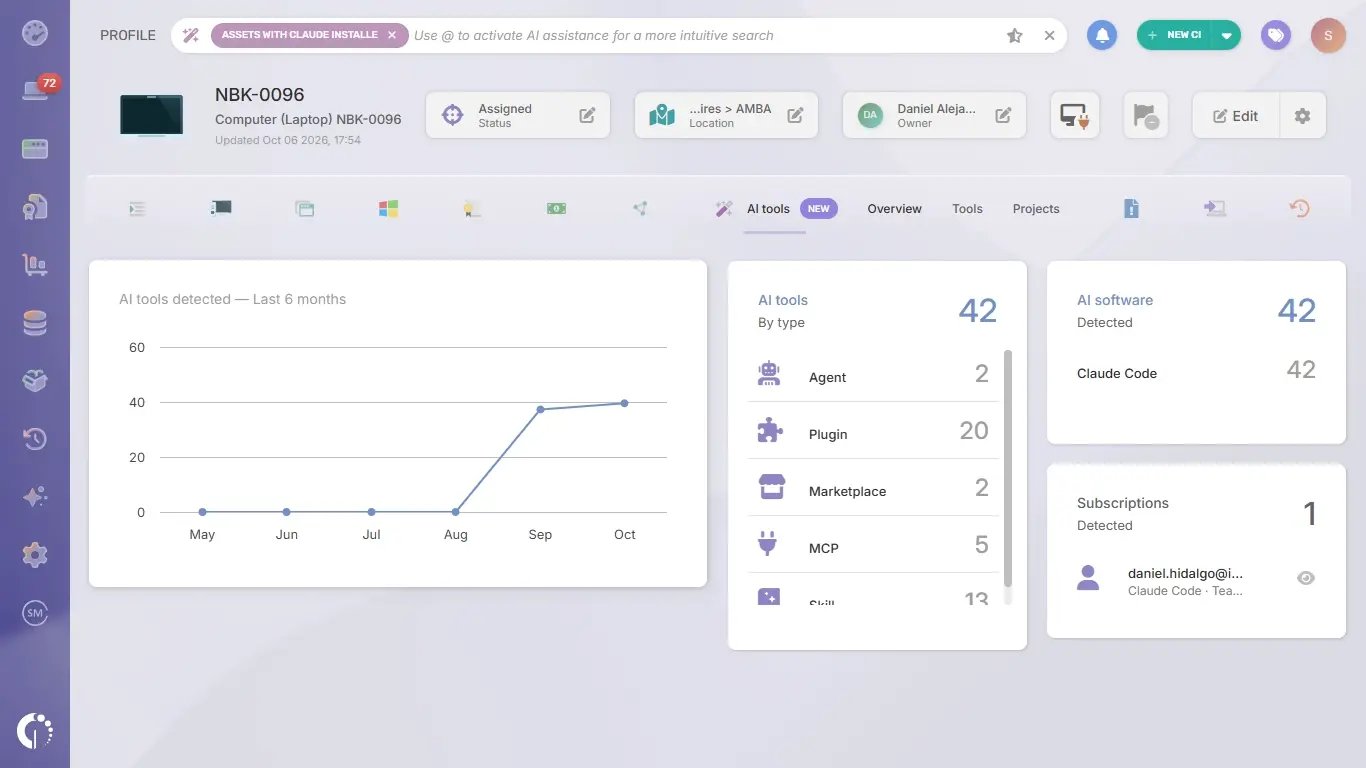
Every computer with a detection gets an AI tools tab, which shows the AI software running there, when it was first detected and the account it is signed in with: email, display name, license level, organization and role. Each account also gets an account risk level, calculated automatically as a personal account, an unlicensed corporate account or a licensed corporate account.
A personal account on a company computer is the case of greatest exposure, because the work it processes stays in a tenant your organization can't audit, apply its retention policy to or revoke when the person leaves. A corporate account on a free plan is the second case to watch, since it runs outside the agreement your company negotiated.
The Tools view in the same tab lists every component installed on top of each AI agent: subagents, plugins, marketplaces, MCP servers and skills, each with its type and the date it was first detected, plus the host for remote MCP servers. The Projects view lists the working directories where the agent has been active, which shows what people are using it for.
Across the fleet, the dashboard ranks the most detected MCP servers, skills and marketplaces, so when a vulnerability is published for an MCP server you can see which computers have it installed without asking anyone. Detection records what is installed, which account it uses and what is connected to it, and it never captures the content of conversations, prompts or generated code, or the environment variable values and headers of remote MCP servers.
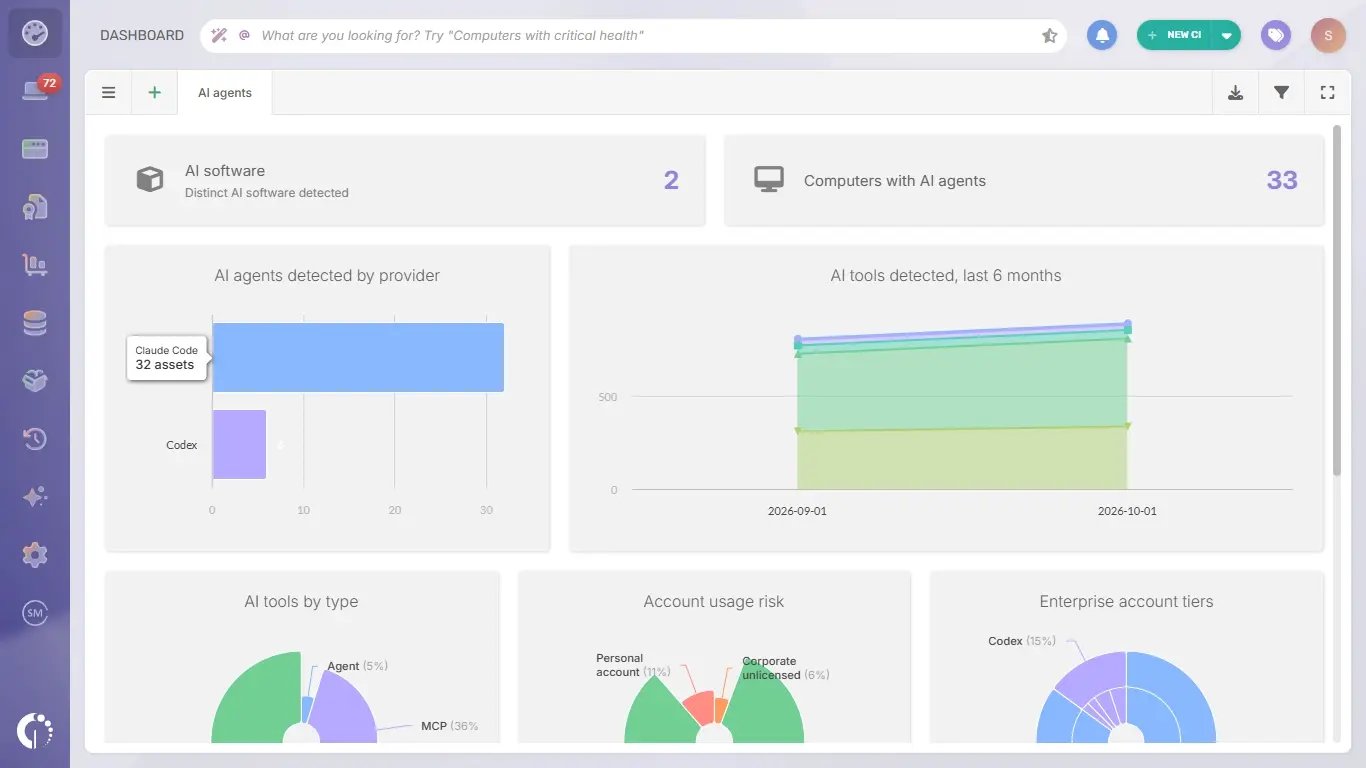
The AI agents dashboard brings the same data together for the whole fleet, with the global Owner, Location and Tags filters and a path from any data point to the Explorer with that filter already applied. It answers three questions at a glance:
Two Smart Recommendations work on the same data: one flags personal AI accounts on corporate computers and the other flags corporate accounts running on free plans. From either one you can open the affected computers in the Explorer, create a Smart Tag or set up a recurring report, so the review happens on a schedule.
What you do next depends on where the finding comes from. An unapproved app calls for a decision about the install, while an AI agent signed in to a personal account calls for a decision about the account, and InvGate Asset Management supports both.
Smart Tags group the computers with an unapproved AI app installed and keep that group current as new installs arrive. Authorization policies classify each AI title in the software inventory as allowed, under review or prohibited and flag every computer where a prohibited one shows up.
When the decision is to remove a desktop AI app, software deployment uninstalls it from the affected Windows computers in a single plan.
AI asset detection findings need a different kind of follow-up, because the agent itself may be approved while the account or its connections are the problem. A few practices keep that review focused:
AI Asset Detection shows what is running and leaves the decision with your team, and a short policy gives that decision a shape people can follow. Your general shadow IT policy already covers scope, the request route and enforcement, so a shadow AI policy only needs the clauses that AI changes, each one something you can check against the inventory.
The clause that decides whether people follow the policy is the request route. If approving a new agent takes longer than installing it with a personal account, the personal account wins, so publish how long a request takes and keep that promise.
Shadow AI grows wherever people find AI useful and the approved route is slower than the unapproved one. Finding it starts with the endpoint inventory, where installed AI tools, the accounts behind Claude and Codex and their MCP servers are now visible, and continues with each team for the AI that lives on other platforms.
With that inventory in place, the policy becomes a list you can review every month. To see AI Asset Detection with your own data, start a 30-day free trial of InvGate Asset Management or talk to Sales.
These are the questions that come up most often once the first detections arrive. Each answer builds on the sections above.
Record the agent, the device or platform where it runs, the account it uses and whether that account is personal or corporate, the plan behind it, the MCP servers, skills and plugins connected to it, the systems and data it can reach, its owner and a review date. With that set, you can answer who is responsible for it and what it touches when something goes wrong.
For agents on endpoints, start with the account they are signed in with and the owner of the computer, which the inventory already records. For agents built on other platforms, the owner is whoever built or requested them, confirmed with that team's lead, and any agent without a named owner should be treated as unapproved until someone takes it.
The main risks are company data processed in accounts the organization doesn't control, no audit trail or offboarding for that work, and agents that reach internal systems through MCP servers nobody reviewed. There is also contract exposure, since free and personal plans come with data handling and support terms your legal team never reviewed.
A blanket ban usually moves AI use to personal devices and personal accounts, where IT sees even less. A more effective approach is to approve a short list of tools on company accounts, keep the request route fast and use the inventory to check that the rules hold.

