










The InvGate Asset Management Agent is a lightweight piece of software that runs on your endpoints to collect essential hardware and software data. Organizations use it to keep inventories accurate, understand real software usage, and support remote operations, all as part of a broader IT Asset Management (ITAM) strategy focused on control, optimization, and compliance.
In this article, you'll learn what the Agent is, how it works, what data it collects, and how to deploy it using different methods. We'll also cover practical use cases, how to resolve asset conflicts, and when agentless discovery is the better fit, so you can get the most value from Agent data in your day-to-day IT operations.
The InvGate Asset Management Agent is a small, lightweight piece of software that is installed on different devices, such as computers, servers, and mobile endpoints, to collect essential information about their hardware and installed software. It helps maintain full visibility across your environment and supports building a centralized inventory.
The agent-based approach differs from agentless discovery in how inventory data is collected and maintained. While agentless methods rely on periodic network scans or integrations to detect devices and gather information, the Agent runs directly on each endpoint and reports data back to the platform on a regular basis, providing deeper visibility and more consistent updates, especially for devices that are remote or frequently off the corporate network.
Accurate and comprehensive data collection is essential for tracking, monitoring, and managing IT assets effectively. The InvGate Asset Management Agent plays a central role in gathering detailed hardware, software, and system information directly from each endpoint.
This data feeds a centralized inventory that supports compliance efforts, software optimization, Lifecycle Management, and day-to-day operational visibility. This is the main data the Agent collects:
Once installed, the Agent collects hardware, software, and system data locally and sends inventory reports to the platform for processing. During installation, each Agent is assigned a unique Agent ID, which permanently links that endpoint to its asset record, so every new report updates the same asset over time instead of creating duplicates.
The Agent sends a full inventory every 8 to 12 hours, an interval that is set automatically and can't be modified. If the device is off when its next inventory is due, the Agent sends it within the first hour after the device is back on, which keeps laptops and remote endpoints up to date. Software metering runs on a much shorter cycle, about every five minutes: inventory tells you what is on the device (hardware, installed software, operating system, users, and network), while metering shows how software is actually being used.
The Agent is designed to work across the most common operating systems used in business environments. It supports:
In general, the Agent works with modern and actively supported versions of these platforms. Older operating systems may not be compatible due to security or technical limitations, so if you're unsure about a specific version, you can always reach out to confirm compatibility.
InvGate Asset Management offers multiple deployment options so you can install the Agent in a way that fits your infrastructure, device volume, and management model. They range from centralized enterprise tools to lightweight manual installs, whether you are rolling out Agents at scale or onboarding a handful of devices.
Below is a practical overview of the available methods, when to use each one, and their main tradeoffs. Agentless discovery appears at the end as the alternative for devices where the Agent can't be installed.
In the following sections, we'll walk through how to install the InvGate Asset Management Agent using the different deployment methods available in the platform. Every method starts from the same place, the Agent Deployment screen, and changes only in how the installer reaches each device.
Manual installation in InvGate Asset Management is the simplest way to deploy the Agent. It's designed for single devices, testing environments, or endpoints outside the corporate network, where you install the Agent directly on each machine.
Once you select the operating system and deployment method, the platform updates the instructions on screen, tailored to your selections, so you only need to follow them to have the Agent installed and running. In order, you'll see:
Remote installations let you deploy the InvGate Asset Management Agent across multiple devices without installing it manually on each endpoint. They save time whenever you need to onboard dozens or hundreds of machines at once.
In the following sections, we'll cover the two remote methods you run from the platform, Remote via Proxy and GPO (Group Policy Object), and then briefly review deployments through enterprise tools such as SCCM (System Center Configuration Manager) and Microsoft Intune.
Remote via Proxy is InvGate Asset Management's native remote deployment method. It allows you to install the Agent in bulk by targeting a specific hostname or an IP range, making it a practical option for rolling out the Agent across devices that are reachable within the corporate network.
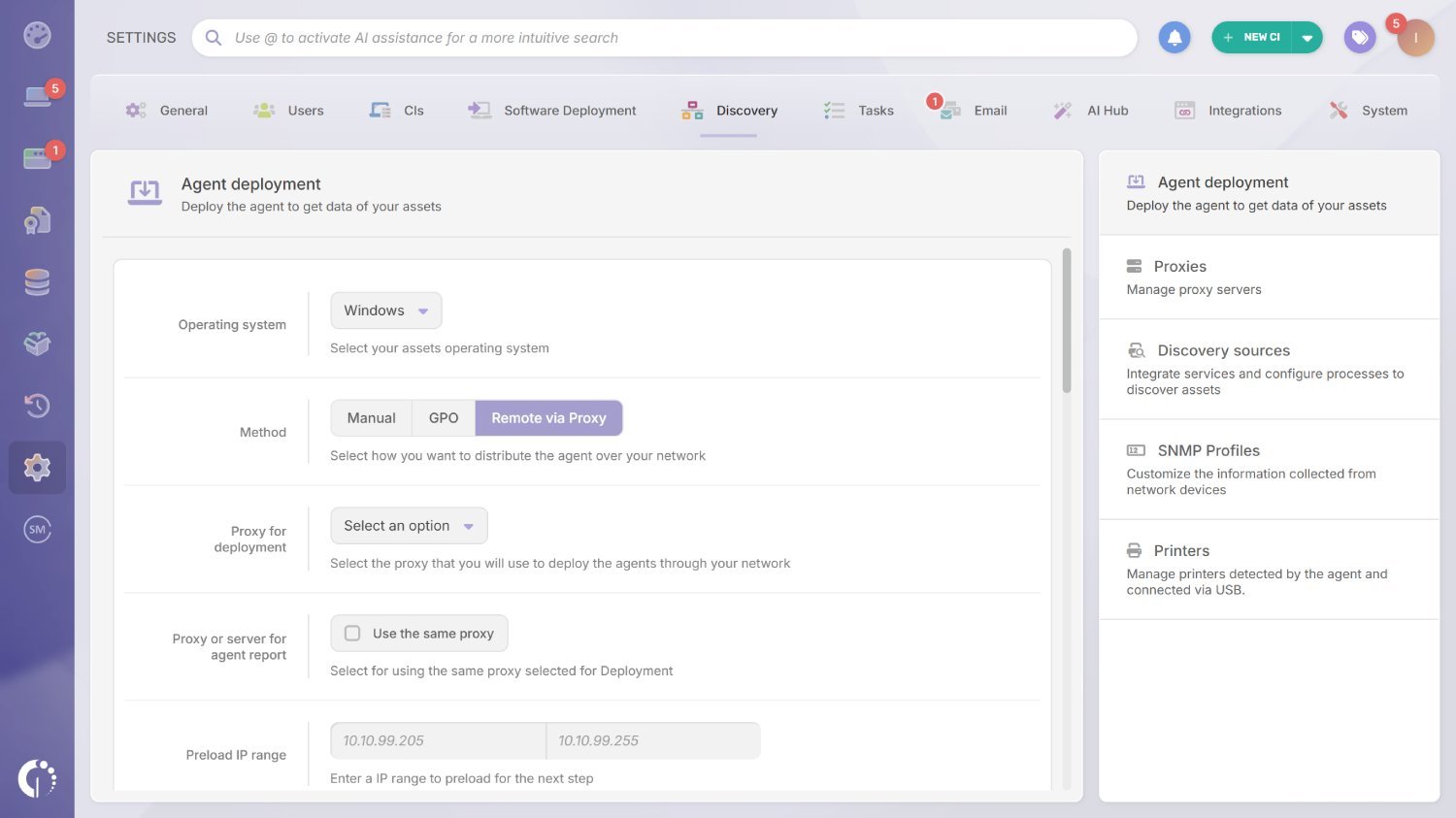
Just like with Manual installation, once you choose the operating system and deployment method, the platform dynamically updates the on-screen guidance. In order, you'll see:
Note: For this to work, the Proxy must already be installed and configured in Settings > Discovery > Proxies.
After you click Prepare deploy, a modal will open where you can define the deployment scope and credentials.
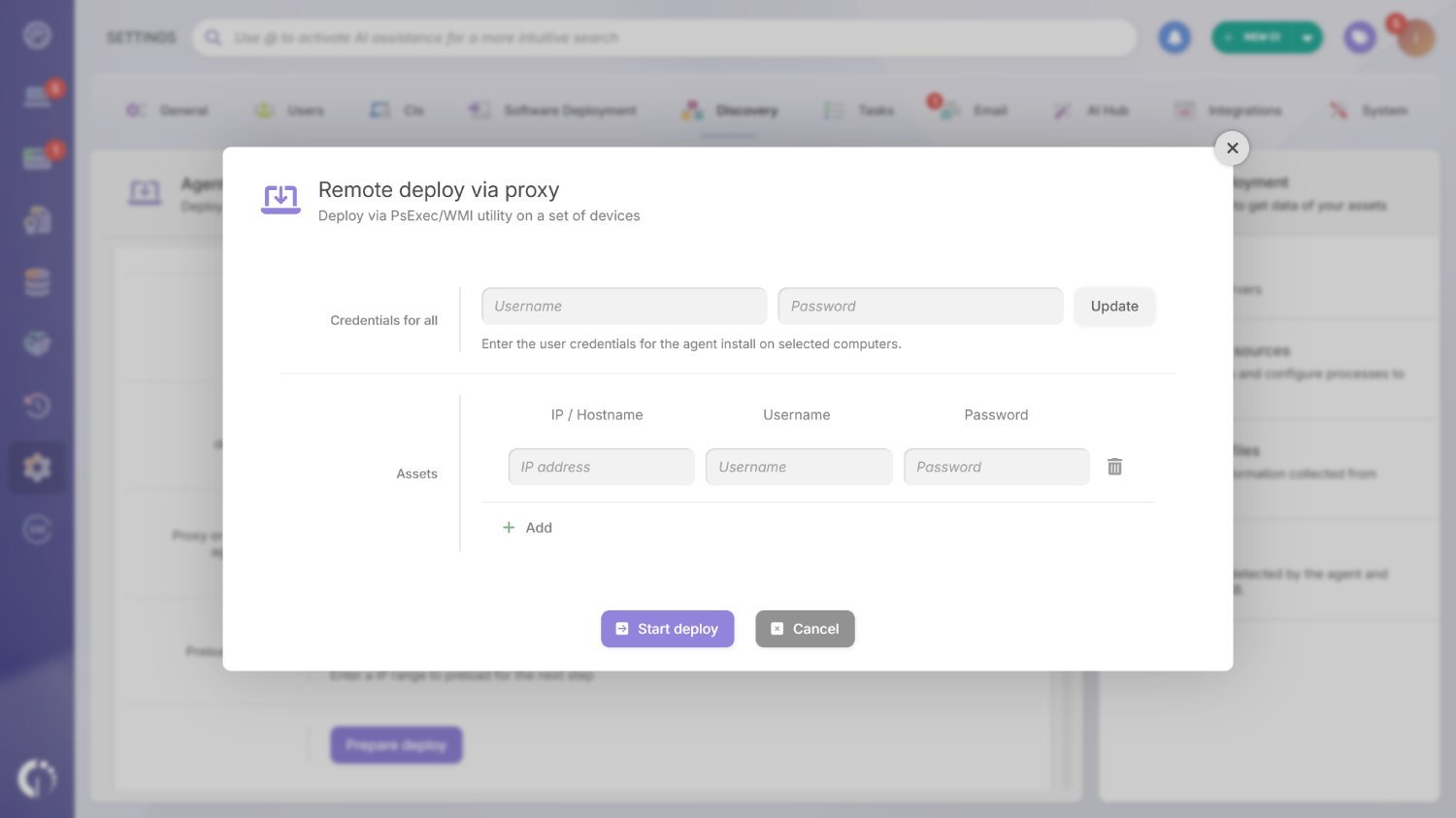
In this modal, you define the credentials and target devices for the remote installation.
Once started, InvGate Asset Management will handle the deployment automatically and report the results directly in the platform.
Note: Depending on the operating system, Remote via Proxy uses different underlying mechanisms (for example, Windows Management Instrumentation (WMI) and PsExec on Windows, and Secure Shell (SSH) on Linux and macOS). These are managed automatically by the platform and only become relevant if you need to troubleshoot connectivity or permissions.
GPO is a deployment method for Windows environments that use Active Directory (AD). It lets you distribute the Agent automatically across domain-joined devices by linking the installer to a Group Policy, making it a strong option for organizations that already manage endpoints centrally through AD.
In InvGate Asset Management, GPO-based deployment follows the same general flow as the other methods: you configure the Agent from the platform, download a prepared installer, and then let your directory services handle the rollout. The full procedure for bulk deployment through GPO is documented step by step in the InvGate Knowledge Base.
In addition to Manual installation, Remote via Proxy, and GPO, you can also deploy the Agent with the Microsoft tools your team may already use to distribute software. These include:
Since each of these methods involves platform-specific configuration and workflows, we won't cover them in detail here. Each one has its own dedicated documentation that walks through setup and best practices step by step.
When working with the Agent, it's possible to run into asset conflicts, especially in environments where devices were already added through other methods, such as manual creation, discovery scans, or integrations. In simple terms, this happens when the same physical device ends up being represented by more than one asset record.
While this doesn't affect data collection, unresolved conflicts can lead to duplicated assets, fragmented information, and confusion when reporting or managing lifecycle tasks. Resolving them helps keep your inventory clean, ensures each device is represented only once, and makes everything from compliance to day-to-day operations easier to manage in InvGate Asset Management.
Conflicts usually appear when:
To help detect these cases, the platform supports two conflict-detection modes:
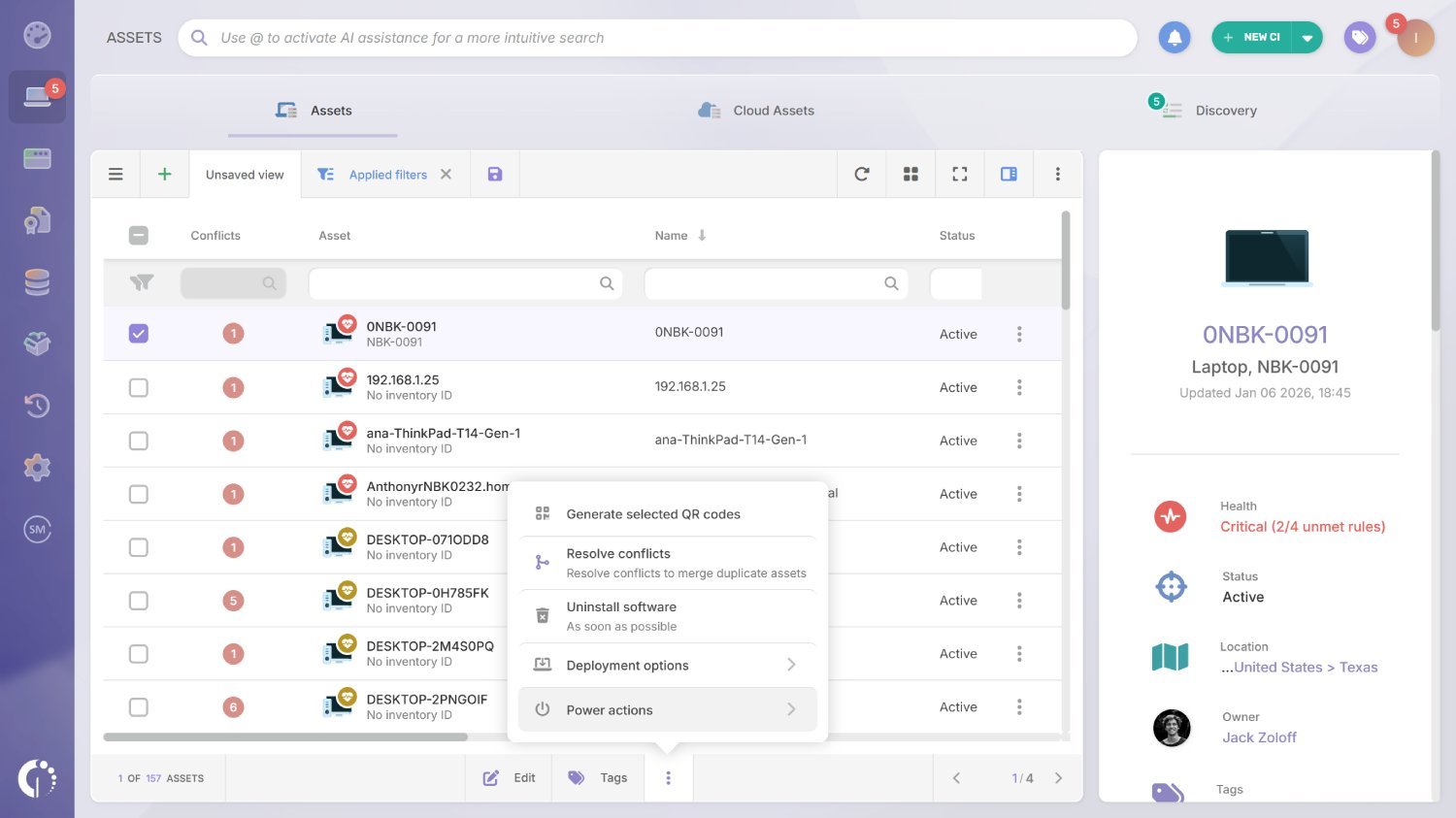
At this point, the system will show the conflicting assets and suggest unifying them. You'll be able to choose one of three options: Merge (combine two or more assets into one), Remove match (dismiss the suggested match), and Do nothing.
Note: After a merge, the asset that remains active is the one that reported most recently. This action is permanent and cannot be undone.
In addition to manual resolution, InvGate Asset Management also supports automatic merge, which prevents duplicates at the moment an asset would be created. When the Agent reports for the first time from a device that already has an asset record matching the conflict-detection mode, it updates that existing record instead of creating a new one. Automatic merge doesn't apply to duplicates that already exist, so those are still reviewed and resolved manually as described above.
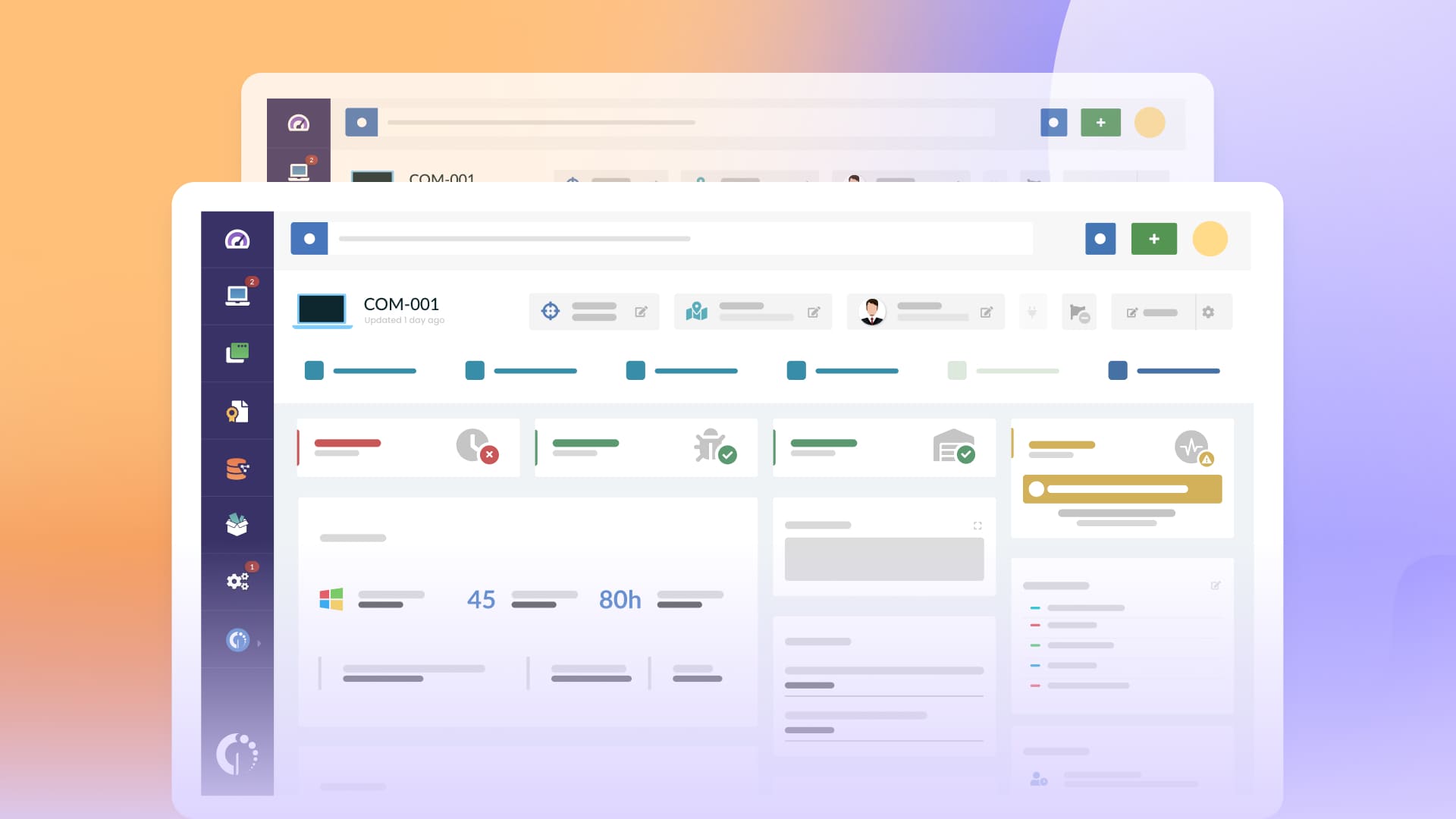
Beyond simply discovering devices, the Agent turns raw endpoint data into practical insights you can act on. From building a reliable inventory to understanding real software usage and supporting remote assistance, Agent data helps IT teams move from visibility to action.
Here are three concrete ways you can use it:

By now, you've seen what you can do with Agent data in InvGate Asset Management, from building a reliable inventory to enabling software metering and remote access. However, not every organization is able to install Agents on all devices, and for those cases the platform offers agentless discovery through its Discovery sources, which run network scans or integrate with external systems to identify devices and collect basic asset information without installing any software on them.
There are several common reasons why an organization might choose (or need) to go agentless:
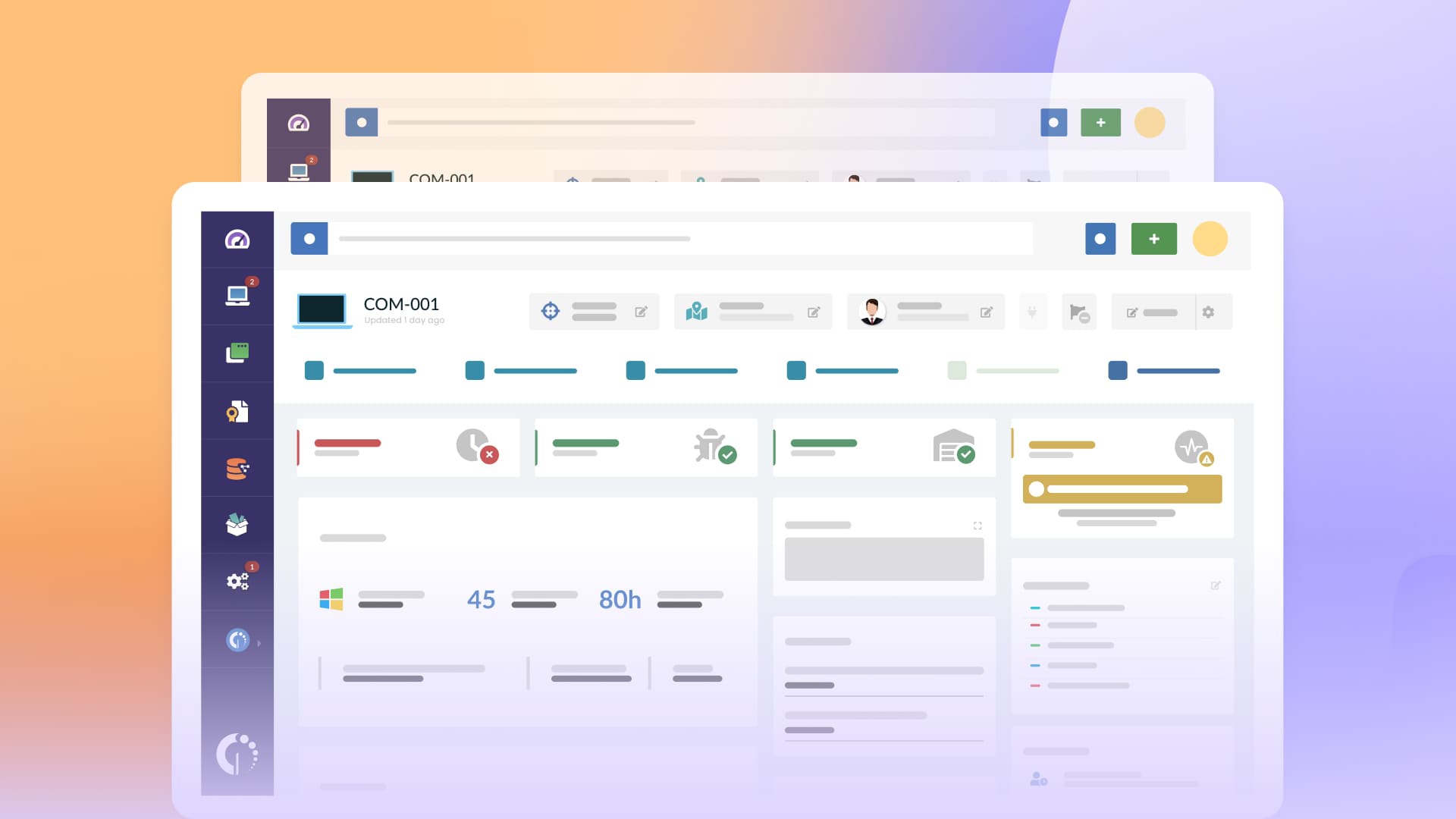
The choice between agent and agentless discovery comes down to how much detail you need and whether you can install software on the device. This is how the two methods compare in InvGate Asset Management:
In short, the Agent is the preferred option whenever possible, since it provides deeper visibility and continuous updates. Agentless discovery works best as a complementary or fallback method, helping you get basic inventory coverage when installing the Agent isn't feasible.
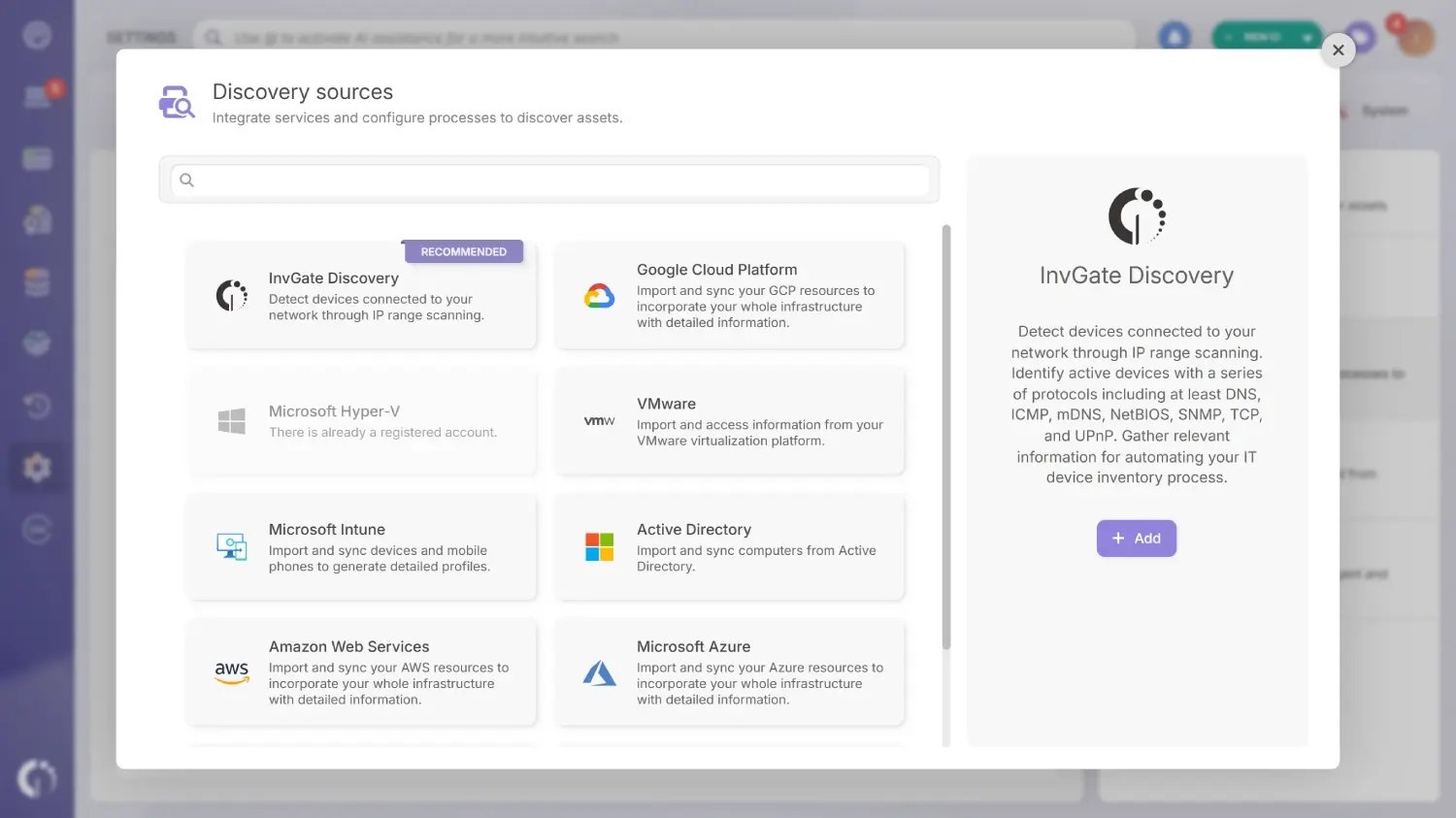
InvGate Asset Management also runs agentless discovery through InvGate Discovery, its native network discovery feature. A Proxy installed inside your network scans the IP ranges you define with standard protocols and identifies what answers on each address, from computers to printers, switches, and other devices that can't run an Agent. You create the scan as a discovery source in Settings > Discovery > Discovery sources, choosing which protocols and credentials it uses.
A scan returns addresses and basic device data, so the results land in Assets > Discovery for review before anything reaches the inventory. From there, you add devices one by one with Convert to asset or several at once with Convert item(s), and mark what shouldn't be tracked with Set as ignored. Windows computers can go further in the same discovery source through agentless discovery for Windows devices, which uses WMI to return the hostname, operating system version, and hardware details, as long as each target allows remote WMI calls and the Proxy runs version 3.26.0 or later.
Integrations are also a form of agentless discovery. InvGate Asset Management connects to the systems that already manage your devices and keeps those devices in sync in the inventory, with nothing from InvGate installed on the endpoints. Depending on what each system manages, the integrations fall into three groups:
In the mobile group, the SOTI MobiControl integration brings in the phones, tablets, and rugged devices managed there, including iOS devices the Agent doesn't support. It syncs enrollment state, operating system version, last check-in, assigned user, and compliance status, so those devices sit in the same inventory as computers and servers.
Connect our solutions with the apps you use every day.
Explore InvGate's integrations
The InvGate Asset Management Agent gives you accurate inventory, real software usage insights, and reliable remote operations from a single install, while agentless discovery covers the devices where it can't run. To see how it works in your own environment, start a free trial of InvGate Asset Management or talk to Sales.
These are the questions that come up most often when teams deploy the Agent. They cover performance, deployment, and which features depend on having the Agent installed.
No. The Agent is lightweight and designed to run quietly in the background, with minimal to zero impact on day-to-day operations. Inventory runs on an automatic schedule, and software metering collects usage data in short intervals without affecting user productivity.
Yes. InvGate Asset Management supports deployment via GPO (Group Policy Object) for Windows environments using Active Directory. This allows you to automatically install the Agent across domain-joined devices using centralized policies.
Yes. Software Metering requires the Agent to be installed on endpoints. While agentless methods can discover devices and collect basic inventory data, application usage tracking depends on the Agent to measure how software is actually used.
Yes. Remote Desktop integrations rely on the Agent to establish the connection between InvGate Asset Management and the endpoint. Without the Agent, you won't be able to launch remote sessions directly from the platform.
Yes. Discovery sources add devices to the inventory without installing anything on them, through network scans (including WMI for Windows computers) or integrations with tools such as Microsoft Intune, Jamf, Google Workspace, and SOTI MobiControl. Those devices get basic inventory data, while software metering and remote access still require the Agent.

