











Asset Health Management (AHM) helps organizations to proactively monitor and manage the condition of physical assets, in order to minimize downtime and extend asset lifespan. This is a relevant part of IT Asset Management (ITAM), and they typically go hand in hand to ensure that all assets are properly managed.
There are many different approaches to Asset Health Management, but all share a common goal: to ensure that your organization's assets are performing at their best and that any risks to their health are minimized.
Keep reading to find out what AHM entails, and how InvGate Asset Management can help you implement it in your company.
Asset health management (AHM) is a proactive approach that helps organizations monitor the condition of critical assets to identify potential risks and address them before they lead to failure and costly, unplanned downtime.
Furthermore, AHM provides a real-time view of your assets' health, enabling you to determine exactly when to perform maintenance based on the actual condition of the equipment. This approach lays the groundwork for condition-based maintenance (CBM), a type of preventive maintenance that lets teams decide when to service assets, avoid unnecessary maintenance, and extend their lifespan.
Let's review quickly the benefits of implementing an Asset Health Management process:
Asset Health Management encompasses a range of activities, from asset performance analysis to asset condition monitoring. Here are some of the tasks that typically fall under AHM:
Now that we know the typical tasks included in AHM, we can take a look at how to develop a basic Asset Health Management strategy. Typically, it'll consist of these five steps:
Since it's a complete IT Asset Management solution, you can use InvGate Asset Management as your Asset Health Management software as well. The health data comes from the same records you already use to track each asset.
To start with, once you create your IT inventory, you have a complete map of the devices in your network, kept up to date with every scan, along with their software and hardware details, the contracts associated with them, owners, and location. This alone is enough for you to start making informed decisions regarding their lifecycle management.
Do you have an old fleet of devices that needs to be replaced ASAP? Do you have inadequate assets for the tasks they're performing? Do you have warranties about to expire? Health rules answer those questions for you, and the sections below cover what they are, which conditions they check, and how to use them to flag devices for refresh.
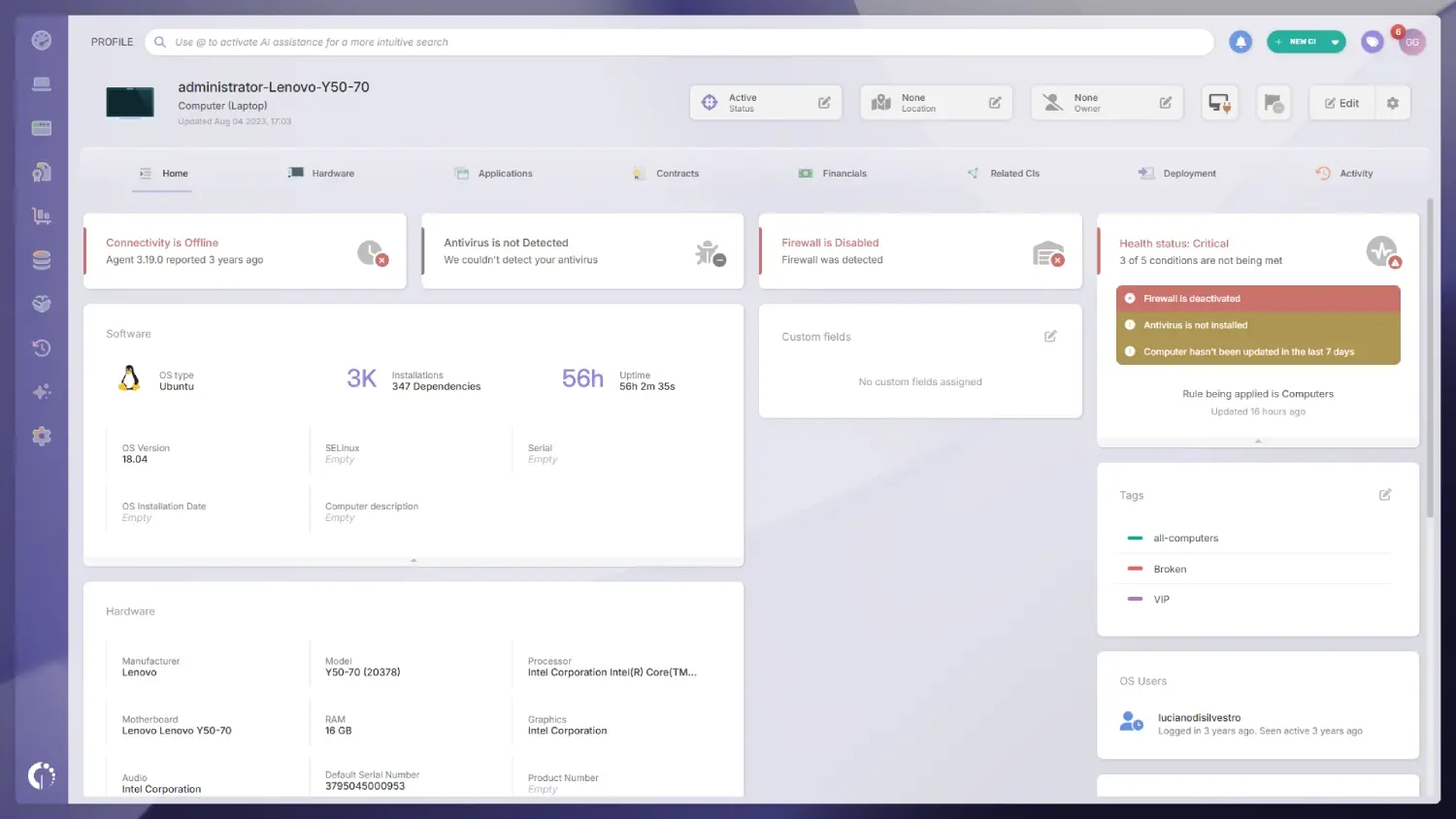 Health rules are how InvGate Asset Management puts asset health monitoring into practice. They take the idea of IT asset monitoring alerts one step further: you set the conditions that matter to your organization, and the platform assigns every computer a health status based on them. Since both the parameters and the criticality scale are yours to define, the rules adapt to each company's needs and compliance requirements. Once that's done, you'll see a color coding next to your assets indicating:
Health rules evaluate computers, and most of their conditions read the data the InvGate Agent collects from each device. That makes asset health part of the inventory itself: the status sits on the asset record next to its hardware, software, warranty, and ownership data, so there's no separate monitoring tool to maintain.
The condition library covers both hardware and software parameters, so a single rule can describe IT asset health from several angles at once. It's organized in six areas:
Each rule can hold several of these conditions, which lets you translate a real concern into a status. A high number of open requests points to a device that keeps generating complaints, low available storage flags a machine that needs more space, and a disabled firewall or antivirus signals a compliance risk.
Health rules turn the lifecycle and performance data already in your inventory into a shortlist for your hardware refresh plan. Each flagged device shows its status next to the asset along with the conditions that triggered it, so the refresh discussion starts from evidence. A rule built for refresh typically looks at:
From there, the rest of the platform acts on that shortlist:
As you can see, InvGate Asset Management can be the perfect companion to automate and monitor your AHM strategy, from the first health check to the replacement decision. To see Health rules working on your own devices, start a 30-day free trial or talk to Sales.
AHM is just one aspect of a proactive IT Asset Management strategy. By applying it, you can rest assured that your company devices are fitted to the task they're assigned to, and quickly spot the ones that might not be in the near future.
Therefore, you'll be able to:
And the best thing is that you can use InvGate Asset Management as your complete ITAM tool. Request our 30-day free trial and start addressing potential issues before they become major problems!
Health rules are the feature InvGate Asset Management uses for asset health monitoring. You define the conditions that matter to your organization, and the platform assigns every computer a status of Safe, Warning, or Critical based on them, shown with a green, yellow, or red indicator next to each asset.
The condition library covers six areas: lifecycle and finance, service demand, performance and capacity, updates and patching, security and configuration, and software governance. That includes checks such as warranty expiration, current value, open requests, CPU, RAM, and disk usage, battery health, pending OS updates, antivirus, encryption, firewall, and banned or under review software.
Health rules evaluate computers. Most of their conditions read the data the InvGate Agent collects from each device, so the health status sits on the asset record next to its hardware, software, warranty, and ownership data.
A rule built for refresh can look at warranty status, current value, open requests, performance, and battery health, and flag the devices that match along with the conditions that triggered their status. From there, automations can use the health status as a condition to send notifications or reports, and Smart Tags can classify devices as refresh candidates automatically.
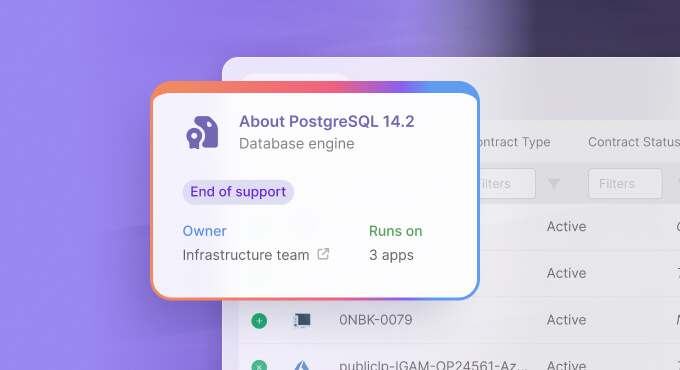
Manufacturer end-of-life dates come from Atlas, which adds end-of-life and end-of-support dates to asset records in cloud deployments. Health rules complement that signal with warranty, value, performance, and security conditions, so together they cover the full lifecycle picture.

