











AI prompts for IT Asset Management (ITAM) are the questions and instructions IT teams type into an AI assistant to get answers from their asset inventory. They're searched by IT asset managers, technicians and IT leaders whose assistant can already read inventory data and who want ready-made questions that return useful answers about devices, owners, warranties and costs.
This library groups the prompts by the task they solve, and every one of them works with the InvGate Asset Management Model Context Protocol (MCP) server, now available in Beta. It starts with how to connect an assistant in three steps, then covers prompts for finding assets, tracking warranties, reviewing inventory status and analyzing costs, followed by prompts that turn an answer into the next piece of work, tips for writing your own and what the server covers today.
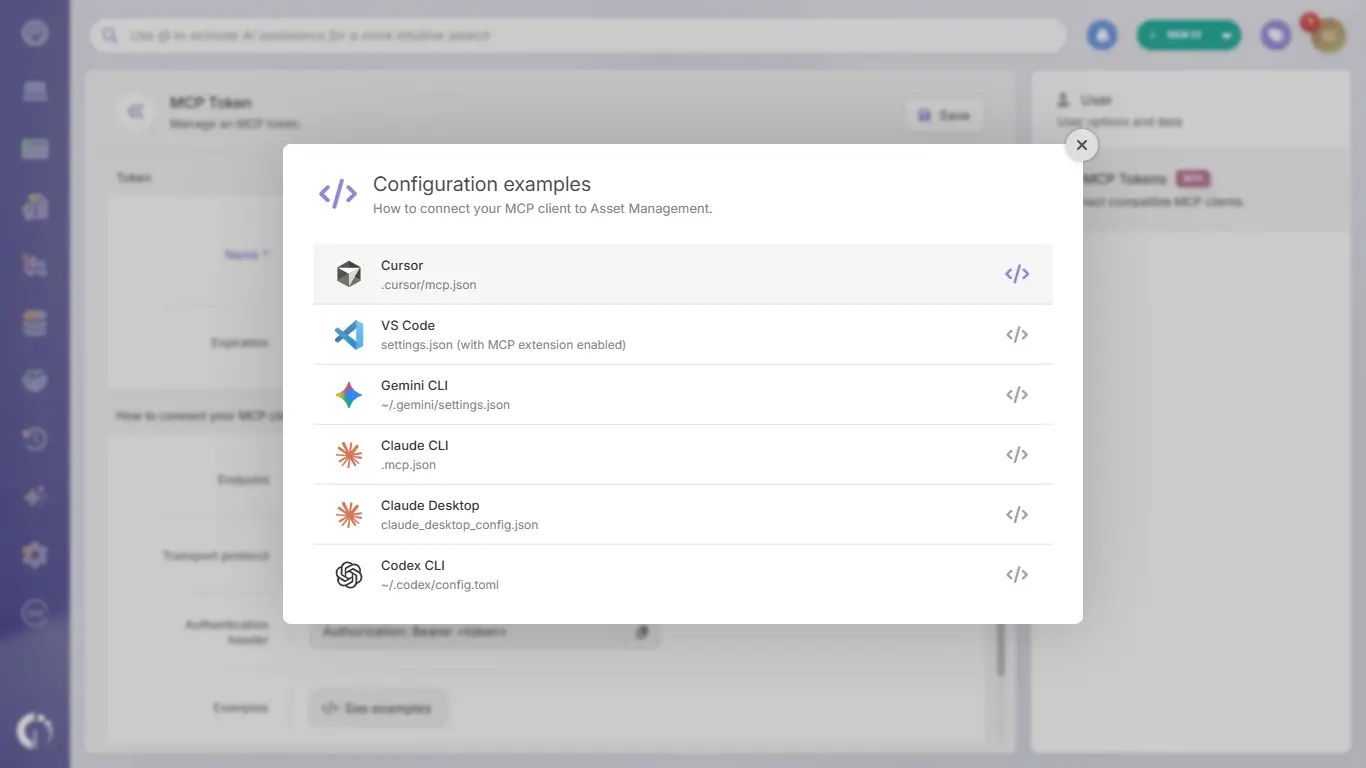 These prompts need an assistant that can read your inventory, and InvGate Asset Management provides that connection through its MCP server. The setup takes three steps, and none of them requires custom development:
From then on, the assistant answers with data from your instance and with the permissions of the person who owns the token, so it only sees what that person sees in InvGate Asset Management. The server is read-only in this Beta release, as the announcement of MCP support in InvGate Asset Management explains, which means the assistant can query records and can't create, edit or delete them.
The most frequent questions about an inventory are about ownership and location: who has a device, what a team uses, what sits in a given office. These prompts answer them in one message, and you only need to swap the names, places and serial numbers for your own:
Help desk technicians get the most out of the serial number and full record prompts, because they bring the device context into the conversation without opening another tool. Ownership answers depend on how complete the owner and department fields are in your inventory, since the assistant can only report what the records hold.
Warranty and purchase dates live in each asset's financial record, so an assistant connected to InvGate Asset Management can turn them into renewal lists and replacement candidates. These prompts cover the questions that usually come up before a budget meeting or a renewal deadline:
The last prompt is a natural first step in hardware refresh planning, because it crosses the purchase date with each asset's current status. Adding a location or a department to any of these prompts narrows the answer to the budget you're actually planning.
Statuses tell you which assets are in use, in stock, under repair or out of the inventory, and they're the base for audits and for assigning equipment. These prompts check them without building a filter by hand:
Status names change from one organization to another, so the assistant checks which statuses your instance has and picks the one that matches what you asked for. If an answer looks off, ask it to list the available statuses and repeat the question with the exact one you mean.
Acquisition price, current value, depreciation and cost center are part of each asset's financial data, which the MCP server exposes alongside the rest of the record. These prompts answer the questions Finance and Procurement usually send to IT:
These answers are only as complete as the financial fields in your inventory. If acquisition prices or dates are missing for part of the fleet, the totals won't reflect those assets, so it's worth checking coverage before taking a figure to a budget review.
Once the assistant has the data, it can also draft the email, table or checklist that comes next. These prompts chain a query with a piece of work, and the writing happens in the assistant while your records in InvGate Asset Management stay unchanged:
Read each draft before sending it, as you would with any text an assistant writes. The data comes from your inventory, and the tone, the recipients and the next step are still your call.
The assistant translates your question into queries against the inventory, so the more precise the question, the more accurate the answer. These habits help with every prompt in this library and with the ones you write yourself:
Precise prompts also matter for cost, because MCP uses more large language model (LLM) tokens per query than a direct application programming interface (API) integration. That's worth keeping in mind if your AI client has usage limits, and a filtered question always costs less than one that makes the assistant read the whole inventory.
The InvGate Asset Management MCP server is in Beta and gives assistants read access to hardware assets and the data attached to them: owners and departments, locations, statuses, manufacturers, warranties, financial records and cost centers. It's available for both cloud and on-premise deployments, and more of the inventory will open up to assistants in future releases.
Every connection uses the permissions of the person who generated the token, and a change in that person's role applies to the assistant immediately. The MCP server complements the AI capabilities that already run inside the product, which the guide to AI-enabled ITAM describes along with the data they depend on.
AI prompts for IT Asset Management pay off when the assistant answers with your own data, and every prompt in this library maps to information the InvGate Asset Management MCP server already exposes. Start with the questions your team asks every week, then adjust names, locations and dates until the answers fit how you work.
Setup needs an administrator to enable the server and a personal token for each user. To try these prompts on your own inventory, start a free trial of InvGate Asset Management or talk to Sales about connecting your AI assistant.
These are the questions IT teams usually ask before connecting an assistant to their inventory. Each answer reflects the current Beta release of the InvGate Asset Management MCP server.
InvGate Asset Management provides ready-to-paste configuration snippets for Claude Desktop, Claude Code, Cursor, VS Code, Gemini CLI and Codex CLI. Each user connects their own client with a personal token generated from their profile.
No. The MCP server is read-only in this Beta release, so the assistant can query records and can't create, edit or delete them.
The assistant sees exactly what the token owner can see in InvGate Asset Management. Permissions come from that user's role, and any change to the role applies to the token immediately.
An assistant without access to your inventory can only answer with general information. The prompts in this library need the MCP server connection to return data about your own assets.
Yes. The MCP server is available for both cloud and on-premise deployments of InvGate Asset Management, and an administrator enables it for each instance.

