









Summarize with
Table of contents
An SOP for incident escalation documents how a service desk transfers incidents across support tiers, management levels, and response teams when an issue can’t be resolved within the current scope of ownership.
Clear escalation rules help teams determine when to involve technical specialists, when managers should step in, and how automated workflows should react when response times are at risk.
In this article, we’ll look at practical examples of escalation procedures used in service desk environments, including functional escalation paths, management escalation workflows, SLA-driven automation, and common documentation structures used in IT Service Management.
Key takeaways
A service desk SOP for incident escalation is a documented procedure that defines the exact conditions under which a ticket must move from one tier to the next, who receives it, what information must travel with it, and how long each team has to act before the next trigger fires.
This is different from a general service desk standard operating procedure, which covers the full lifecycle of service desk operations. The escalation SOP is one specific module of that larger framework — but it warrants its own document because the handoff has its own logic, its own roles, and its own failure modes.
In teams that have reached operational maturity, the SOP exists in two forms simultaneously: as a written document agents can reference, and as an automated workflow inside the service desk platform. InvGate Service Management supports both: the SOP can live as an internal knowledge base article that agents access directly from within the ticket, and as a set of automation rules that fire without manual intervention.
An incident SOP covers the full lifecycle of an incident: logging, categorization, diagnosis, resolution, and closure. The escalation SOP is one part of that process, but service desks often maintain it as a separate document because the workflow changes once a ticket moves beyond the original support tier.
A different team may take ownership, new SLA targets can apply, and additional technical information may be required before the handoff is accepted. Incident Management best practices usually recommend documenting those escalation rules separately so timing, approvals, communication paths, and reassignment procedures stay consistent across teams.
Most service desks maintain separate SOPs for incident handling, service requests, and escalation procedures. This article focuses on the escalation layer specifically.
The most common escalation failure isn't a missing procedure — it's a vague one. When the criterion is "escalate when you're stuck," two agents on the same team will interpret it differently. One escalates at 20 minutes. The other holds the ticket for 90 minutes trying to solve it. Neither is wrong by the written rule, and both outcomes are bad.
The SOP must replace subjective criteria with objective, measurable triggers. There are three categories every escalation SOP needs to cover.
Time-based / SLA triggers: The ticket has consumed a defined percentage of the available SLA time without reaching resolution. Example: a P1 ticket with no activity for 15 minutes triggers an automatic functional escalation. The SOP must specify the threshold per priority level — not as a suggestion, but as a rule.
Skill or scope triggers: The assigned agent doesn't have the technical authority or system permissions to move forward. A Tier 1 agent who reaches a server configuration issue that requires backend access cannot resolve it — not because they lack the knowledge, but because the SOP correctly restricts their permissions. The trigger here is the scope boundary, not the time elapsed.
Impact-change triggers: The incident affects more users than reported at intake, or a workaround that was containing the impact has stopped working. When the blast radius of an incident grows mid-lifecycle, the original priority may no longer reflect reality. The SOP must specify that re-prioritization and escalation can be triggered by impact change, not just time.
The following table provides a reference structure for incident severity levels. Adapt thresholds to your actual SLA agreements.
| Priority | Time trigger (no resolution) | Default owner | Escalation path |
| P1 | 15 minutes | Tier 1 lead | Tier 2 + IT Manager |
| P2 | 30 minutes | Tier 1 agent | Tier 2 |
| P3 | 2 hours | Tier 1 agent | Tier 2 |
| P4 | 8 hours | Tier 1 agent | Tier 1 lead |
ITIL defines two types of ticket escalation. In practice, a third type — SLA-based automatic escalation — operates differently enough that it deserves its own definition in the SOP.
Functional escalation
The ticket moves to a more specialized technical tier. Tier 1 passes to Tier 2. Tier 2 passes to Tier 3. The SOP must document what information must be present in the ticket before the handoff is valid, who holds ownership during the transition period, and what the receiving tier's SLA clock looks like.
Hierarchical escalation
Management is brought in — a team lead, IT manager, or director. This type activates when a decision requires authority that the technical team doesn't have: authorizing emergency changes, reallocating resources, or communicating directly with affected stakeholders. Hierarchical escalation doesn't necessarily replace functional escalation. Both can be active at the same time.
SLA-based / automatic escalation
This type is triggered by time conditions rather than a human decision. It isn't a separate category in formal ITIL literature, but in operational practice it functions as one because the mechanism is different: the platform fires the escalation, not the agent. The SOP must define whether automatic escalation is the primary trigger or a fallback when manual escalation hasn't happened in time.
One of the most consistent failure points in escalation isn't that the ticket got escalated too late — it's that the ticket arrived at the next tier with incomplete context. The receiving agent spends 20 minutes reconstructing what Tier 1 already knew. The SLA clock is running. The user is waiting.
The SOP must define what information is mandatory in the ticket before an escalation can happen. Not recommended — mandatory. The following fields represent the minimum required for a valid handoff:
This is the structure of the handoff. It belongs in the SOP as a required completion step — not as a suggestion, and not as a separate document agents have to open in another tab.
Many teams have an escalation SOP. The problem is where it lives. A document in a shared folder, a page in a wiki, a PDF attached to an onboarding guide — these are SOPs that don't get consulted when the ticket is open and the SLA clock is running. Agents are in the service desk platform. The SOP is somewhere else. The gap is behavioral, not intentional.
InvGate Service Management solves this by letting the escalation SOP live inside the ticket itself — both as a knowledge base article agents can access without leaving the interface, and as automation rules that enforce the procedure without relying on the agent to remember it.
The following steps cover how to configure both layers.
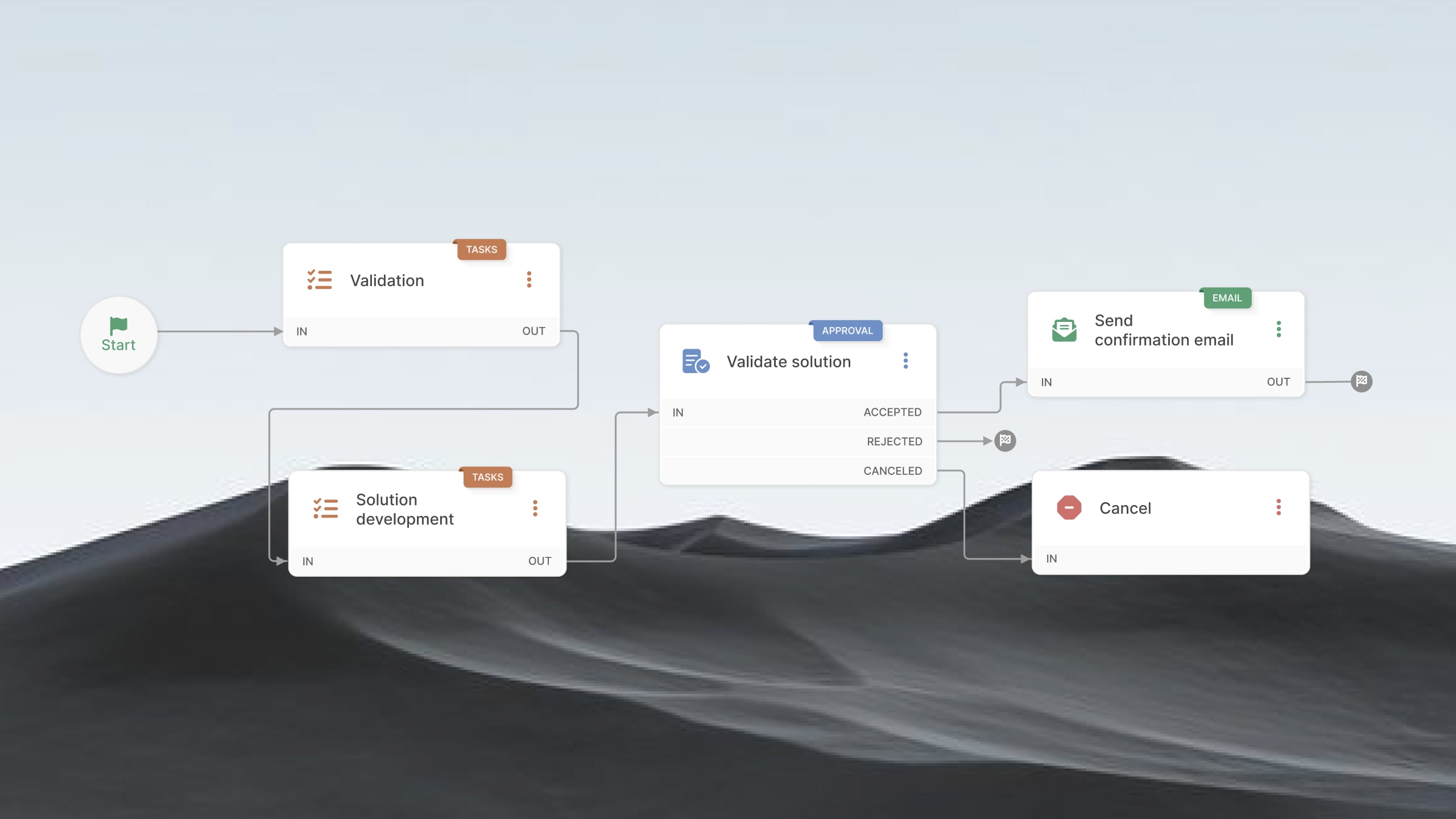
Start with the document layer before building the automation layer. Go to Articles in InvGate Service Management and create an internal article — set the visibility to agents only. This article contains the escalation triggers by priority level, the tier structure and owners, and the handoff checklist defined in the previous section.
When an agent is working a ticket and needs to verify the escalation criteria, they can search and open the article without leaving the ticket view. The SOP is embedded in the workflow, not stored elsewhere.
This step also forces the team to make the SOP explicit. Many escalation procedures exist only as shared knowledge — "the way we do things here" — that new agents don't have access to. Documenting it in the knowledge base converts implicit knowledge into a referenceable standard.
Go to Settings > Requests > Automations. Create an automation rule that evaluates elapsed time without resolution or without activity against the SLA threshold defined in the SOP.
When the condition is met, the rule executes the escalation actions without waiting for an agent to manually trigger it:
The automation doesn't replace the manual escalation path — it enforces the SOP when the manual path hasn't been followed. If Tier 1 should have escalated at 30 minutes and didn't, the rule fires at 30 minutes regardless.
For teams building out their tier structure, IT support tiers covers how to define the levels and responsibilities that the automation rules will reference.
Go to Settings > Help desks and configure separate teams for each support tier with role-based permissions scoped to that level. Tier 1 agents can view and edit user-facing fields. Tier 2 agents have access to system configuration fields and diagnostic data that Tier 1 shouldn't modify.
The permission boundary is itself part of the SOP. It's not just an administrative setting — it's the mechanism that makes scope-based escalation triggers work. A Tier 1 agent who encounters a field they can't edit knows, from that limitation, that the ticket needs to move.
A Tier 1 agent also cannot close a P1 ticket if the SOP reserves that action for a manager or Tier 2 lead. The platform enforces the procedure at the workflow level.
In InvGate Service Management, priority can be assigned automatically based on the affected service, the number of reported users, the ticket category, or keywords in the description. When priority changes during the ticket lifecycle — because the impact has grown, or because the initial classification was incorrect — automation rules can fire a re-escalation automatically.
This is the mechanism behind impact-change triggers. The agent updates the affected user count. The platform recalculates the priority. The automation rule evaluates whether the new priority level requires a different escalation path. If it does, the reassignment and notification happen without a second manual action.
Monitoring the escalation rate KPI over time helps validate whether the priority matrix thresholds are calibrated correctly.
Use the Tasks field inside the ticket to create required completion items that the agent must mark as done before the ticket can be escalated. Go to Settings > Requests > Automations and configure tasks that correspond to the handoff checklist: symptoms documented, diagnostics recorded, workarounds logged, affected users updated.
Until those tasks are marked complete, the ticket cannot move to the next tier. The SOP requirement is enforced by the platform, not by a manager checking whether agents followed the procedure.
This step closes the most common handoff gap: the receiving tier arrives at the ticket with everything they need to start diagnosis immediately, without reconstructing what Tier 1 already knew.
If you want to see how these steps work together in a live environment, you can request an InvGate Service Management demo to walk through the escalation configuration for your team's specific tier structure.
Functional and hierarchical escalation are not the same procedure, and the SOP should document them separately — even if they live in the same document. Treating them as a single flow creates ambiguity at exactly the moment when clarity is most important: during a high-impact incident.
Sub-flow: functional escalation
Sub-flow: hierarchical escalation
Both sub-flows can activate concurrently. A P1 incident with no resolution at 30 minutes may simultaneously need Tier 3 technical ownership (functional) and IT manager awareness (hierarchical). The SOP must state this explicitly so agents don't assume that triggering one cancels the need for the other.
This concurrency is especially relevant for major incident management, where the functional and hierarchical tracks run in parallel throughout the entire lifecycle.
Using "escalate when stuck" as the criterion: This phrasing is too subjective to produce consistent behavior. One agent interprets "stuck" as 15 minutes without progress. Another holds a ticket for two hours. The fix is replacing the language with measurable triggers: time elapsed, SLA percentage consumed, or a specific scope boundary.
Transferring the incident with the original impact count: The number of affected users at intake is often lower than the number at escalation time. If the agent escalates with the original count, the receiving tier prioritizes incorrectly from the start. The SOP must require an impact update as part of the handoff, not as an optional field.
Automating escalation without requiring a pre-escalation check: Some SOPs configure automatic reassignment without requiring Tier 1 to complete any diagnostic steps first. This inflates the escalation rate and overloads Tier 2 with tickets that Tier 1 could have resolved with a basic check. Automatic escalation should require at least one documented diagnostic step before it fires.
Keeping the SOP outside the service desk platform: If the agent has to open a second tool to read the procedure while working a ticket, the SOP will not be consulted consistently. The procedure needs to be accessible from within the ticket view — either as an embedded knowledge base article or as enforced task requirements.
Not documenting the handoff in the ticket: When the receiving tier has no record of what was tried, what was ruled out, and what hypothesis is active, they restart from scratch. The SLA clock doesn't restart. The resolution time grows. Requiring handoff documentation in the ticket, enforced through mandatory task completion, is the only reliable fix.
An escalation SOP that isn't measured isn't improving. The following metrics give service desk managers a direct signal of whether the procedure is working as designed.
Escalation rate: The percentage of tickets that require escalation. A high rate often indicates a knowledge gap at Tier 1 — agents don't have access to the information or tools needed to resolve a class of incidents at their level. It can also indicate misclassification at intake: tickets are assigned to Tier 1 that should go directly to Tier 2. For a detailed breakdown of how to interpret this metric, the escalation rate KPI reference covers calculation method, benchmarks, and improvement actions.
MTTR by tier: Mean time to resolution broken down by tier. If Tier 2 resolution time is disproportionately long relative to Tier 1, two things may be happening: handoffs are arriving incomplete, forcing Tier 2 to reconstruct context, or the routing rules are misconfigured and tickets are landing at the wrong tier.
SLA compliance post-escalation: If escalated tickets continue to breach SLA after the handoff, the escalation trigger is firing too late. The ticket arrives at Tier 2 with insufficient time remaining to meet the SLA. The fix is moving the trigger earlier in the SLA window — not tighter resolution targets for the receiving tier.
Reopen rate: Tickets reopened after closure often signal that the resolution was confirmed too quickly or the root cause wasn't fully addressed before close. A sustained high reopen rate in escalated tickets points to a handoff problem: the receiving tier is closing the ticket based on incomplete information.
InvGate Service Management allows service desk managers to configure dashboards with all of these indicators broken down by tier, team, and incident category. When Tier 2 is consistently receiving escalations of the same incident type from Tier 1, the dashboard makes that pattern visible — and the fix is a knowledge base article, not a procedural change.
What should a service desk escalation SOP include?
A complete escalation SOP covers: documented triggers for escalation (time-based, skill-based, and impact-change), escalation types (functional and hierarchical), required handoff fields that must be completed before the ticket moves, tier owners and their responsibilities, SLA windows per tier, and the mechanism for automatic escalation when manual escalation hasn't occurred.
What is the difference between functional and hierarchical escalation?
Functional escalation moves the ticket to a more specialized technical tier — from Tier 1 to Tier 2, or from Tier 2 to Tier 3. Hierarchical escalation brings in management authority: a team lead or IT manager who can authorize emergency changes, reallocate resources, or communicate with business stakeholders. Both types can be active simultaneously on the same ticket.
How do you automate incident escalation in a service desk?
Configure automation rules based on elapsed time without resolution or SLA percentage consumed. When the condition is met, the platform reassigns the ticket to the next tier, sends notifications to the receiving agent and manager, and updates the priority field if warranted — without waiting for manual action. In InvGate Service Management, this is configured under Settings > Requests > Automations.
What information should be included in an escalation handoff?
The minimum required in the ticket before escalation: current symptom description, diagnostics performed and their outcomes, workarounds tried and why they failed, the active root cause hypothesis, the updated count of affected users, SLA time remaining at the moment of escalation, and the business impact beyond the technical description.
Read other articles like this one:
View all postsClear pricing
No surprises, no hidden fees — just clear, upfront pricing that fits your needs.
View PricingEasy migration
Our team ensures your transition to InvGate is fast, smooth, and hassle-free.
View Customer ExperienceService Management
Learn
Compare With


