









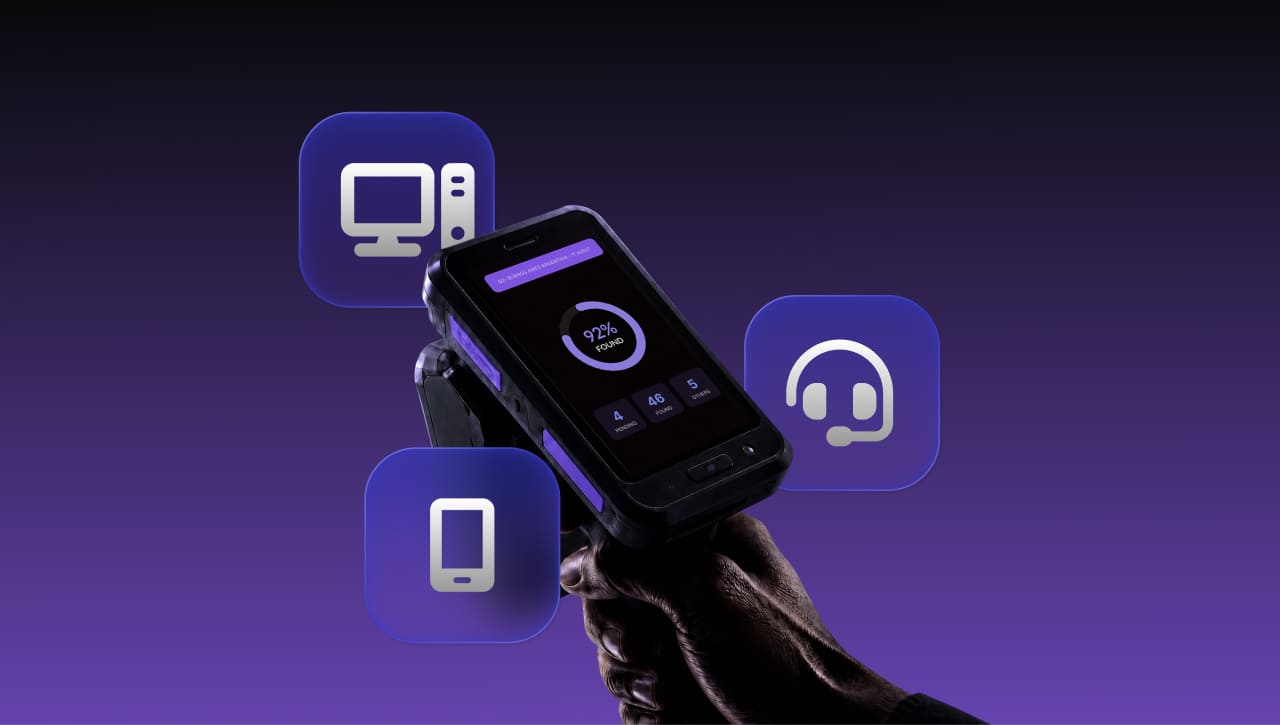

InvGate Asset Management now runs physical asset audits from a phone, a tablet, or a Radio Frequency Identification (RFID) scanner, and every scan is checked against the asset record as it registers automatically, so the team sees what matches, what is missing, and what does not belong while still on the floor. This can save teams hundreds of hours of manual work.
Physical verification has always happened away from the system of record, which is why discrepancies pile up between cycles and matching them up afterward turns into a project of its own. InvGate Asset Management removes that round trip, and it gives you three scanning methods to work with. Keep reading to learn how to run a physical audit, what you can do on site, and what is arriving next.
We introduced these capabilities at ENVISION'26, our global user conference. Explore everything else we announced!
An audit in InvGate Asset Management is a structured verification pass that you create, scope, and run from the device in your hand. The team scans, and the platform compares each scan against the live inventory as it registers.
That comparison is what fundamentally changes what the job looks like. Discrepancies surface during the pass instead of in a separate matching phase afterward, so by the time the team leaves the location, the audit already shows what was found, what is still pending, and what turned up unexpectedly.
Scanning works through three methods, grouped by the hardware each one needs:
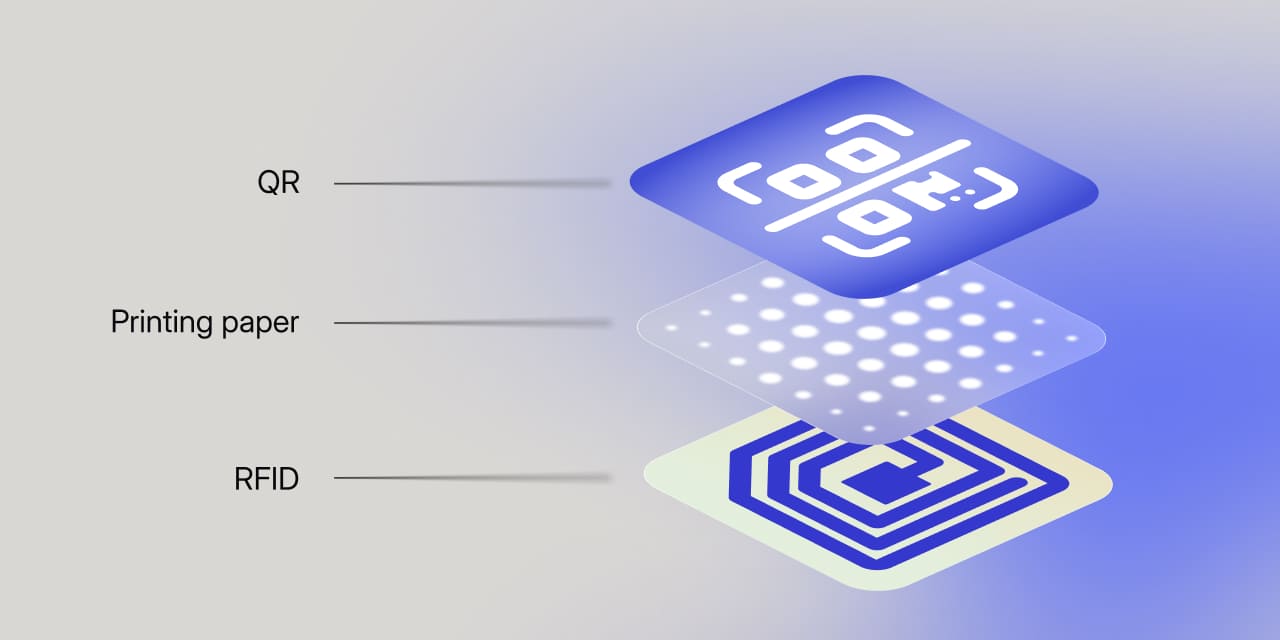 An audit can only verify what it can identify, so the tags have to be on the assets before the first scan. Each asset carries a QR code, a barcode, and/or RFID tag that maps back to its record in the inventory.
Generating, printing, and placing those labels is its own piece of work, with real decisions about label size, material, and placement. Tagging and tracking hardware with QR codes walks through that setup from inventory build to label placement, and it is the step that has to be finished before an audit is worth scheduling. The same goes for RFID tagging.
The most flexible tag carries all three: an RFID chip, a unique QR code, and human-readable text. That combination leaves every method available and lets each situation use the fastest one. An inventory reconciliation across a storage room is where RFID can save hundreds of hours of work, while a technician holding a single device dropped at their desk will identify it faster from the printed code than from any scan.
InvGate provides these tags, so the labelling setup is not a project the team has to solve on its own.
Every audit is created against a defined set of assets, and there are two ways to define that set. Which one you pick changes what the results are able to tell you.
Location is the default scope because it is the only boundary an auditor can physically walk. A room, a floor, or a site is an area a person can cover completely, and complete coverage is what makes a count mean something.
It is also the field that drifts fastest, because assets move between desks, floors, and storage rooms without anyone updating the record. Location is what gives the results their meaning as well, since an asset can only be missing relative to where it was expected to be.
The second option scopes an audit to a custom list of assets regardless of where they are recorded. This is what makes targeted checks practical between full cycles, when walking every location would be more work than the question deserves.
It covers the passes that do not map neatly to a room: a server room before a maintenance window, a batch of devices returned after a checkout period, and a set of high-value assets before a quarterly report.
With the scope set, the team walks it, and each scan is matched against the expected list as it registers. The method decides how fast that goes: QR codes and barcodes need one scan per asset, while RFID captures everything in range at once, which is what makes a server room or a storage area practical to audit at all.
The same pattern covers recurring collection cycles. A school district that hands out 2,000 Chromebooks at the start of the year scans each one back in at collection, and InvGate Asset Management marks each device as returned, updates its status, and flags anything that was expected back and never got scanned.
A physical audit does more than produce a count. The pass is also the best opportunity a team gets to fix the record, and the platform is built to take it.
When an auditor finds something that does not match, they can correct it on the spot from the phone. Status, location, owner, tags, and custom fields all update against the asset record during the pass.
For example, a technician on a site visit at a manufacturing plant might find a server that the record places in a different room. They can scan its QR code and update the location, status, owner, tags, and any custom fields before leaving, so the discrepancy never survives to the next audit.
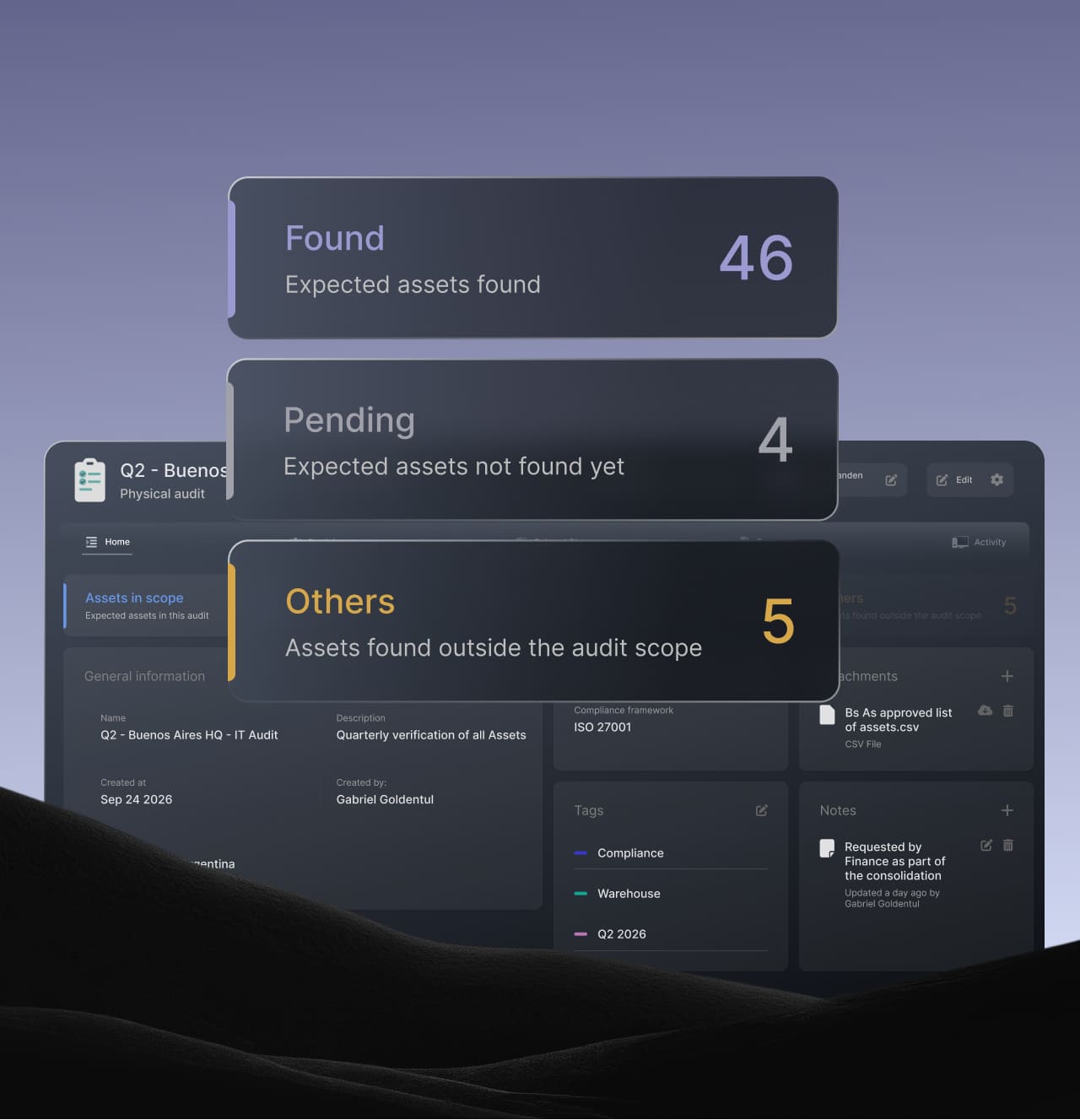 The summary of an audit returns three groups:
Found and Pending/Missing are the two halves of what the audit had In scope, so reading one against the other is the reading of the location itself. Others sits outside that scope and splits in two: Extra covers assets that do exist in InvGate Asset Management but are recorded somewhere else, and Unknown covers items that were scanned and have no record at all, identified only by their serial number or RFID code.
The results view pairs a summary by location with a detailed view per asset, showing which device is unaccounted for, where it was last recorded, and when it was last seen. Every audit is timestamped and synced to the inventory, so the next one starts from a current baseline rather than from last quarter's spreadsheet.
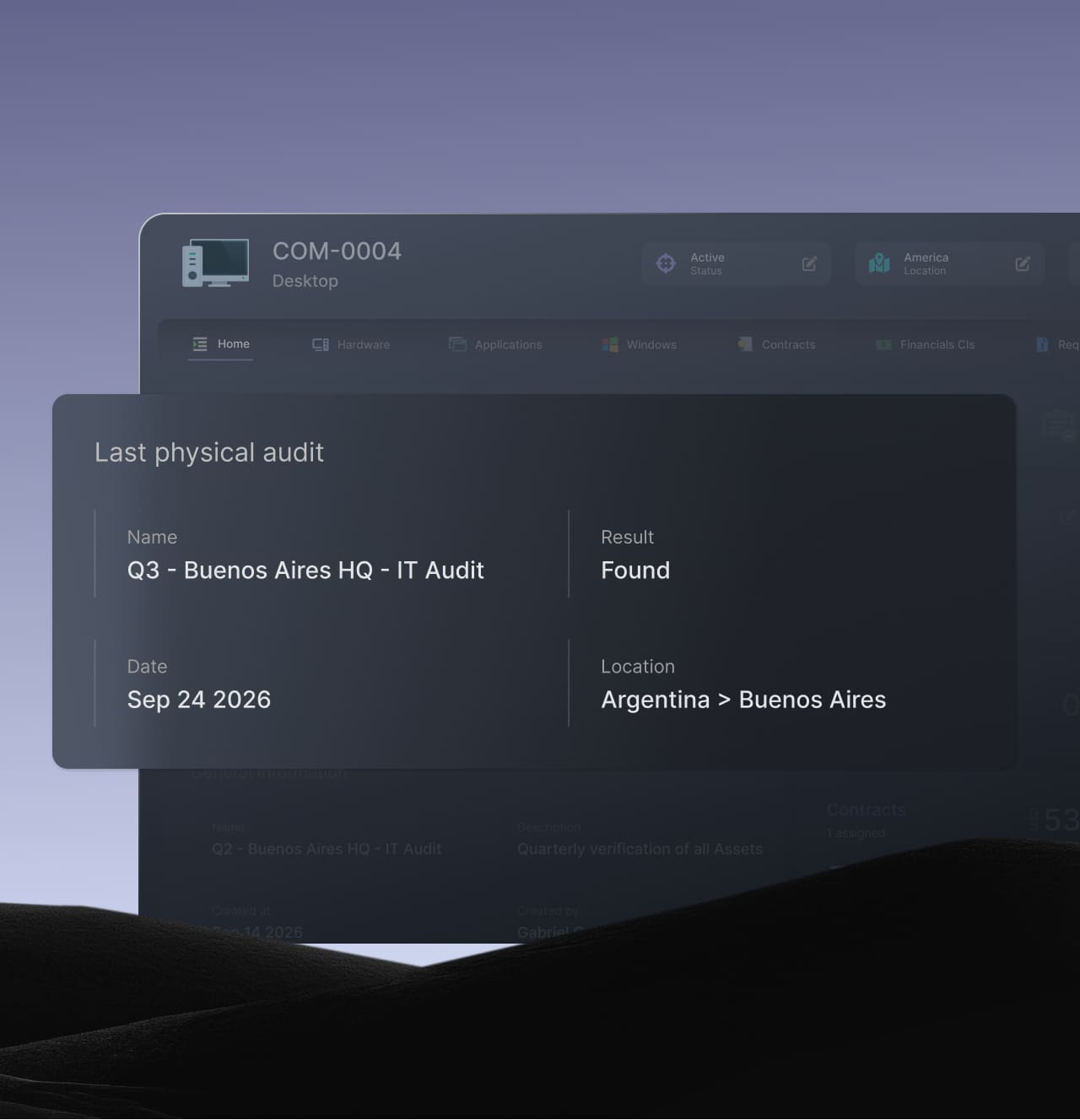 This is what removes the separate matching phase. Each scan is compared against the expected list as it registers, so a Found asset is confirmed against its record, a Pending asset stays visible until it turns up or the audit closes, and anything outside the scope lands in Others.
When the audit closes, it becomes read-only, Pending assets become Missing, and each expected asset's record shows the result of its last physical audit. From there, the Assets explorer filters by audit result, so the team can act on a whole group at once, for example updating the location of every Missing asset in a single bulk action.
The practical effect shows up in how a cycle gets planned. Instead of walking each location with a spreadsheet and matching it against the inventory afterward, the team walks it once and leaves with every discrepancy already sorted and ready to act on.
Not every asset question starts from a location. InvGate Asset Management lets you paste or scan any list of identifiers, including serial numbers, hostnames, asset IDs, inventory IDs, asset names, and RFID codes, and returns every matching asset in a single search, with up to 500 identifiers per search.
This is what builds the expected list before an audit runs, so you can compare the list you already have against the one the audit produces. The same search covers three moments:
A QR code on an asset does not have to be for the IT team alone. The QR Menu Portal, arriving in a future release, turns any tagged asset into a starting point for action, with a configurable menu that opens on scan and requires no app and no login.
What appears in that menu is configured per asset type. A shared printer in a conference room can offer "Report a problem," "Request supplies," and "Who manages this?", and when someone taps the first one a ticket is created in InvGate Service Management, without that person needing to know the asset tag number or the help desk process.
Physical audits in InvGate Asset Management bring verification and the check against the record into the same pass. The team scopes an audit to a location, walks it with a phone or an RFID scanner, corrects individual records along the way, and leaves with Found, Missing, and Extra already sorted and ready to act on.
The prerequisite is real, and the tags have to be on the assets before any of this works. Once they are, you can run a pass against your own inventory with a 30-day free trial, or talk to Sales to work out which scanning method fits your locations and volumes.
A physical asset audit is a scoped verification pass that compares the asset record against what is physically present in a location or on a list. It produces a categorized result showing what matched, what was expected and not found, and what was found and not expected.
The assets need tags already placed on them, and you need a device to scan with. QR codes and barcodes (coming soon) work from the camera of any iOS or Android phone or tablet, while RFID scanning requires a Zebra handheld RFID reader.
Yes. The audit works on any asset that carries a tag and has a record in the inventory, including non-connected devices that never appear in a network scan.
Found means the asset was in the expected location and matched the record, and Missing means it was expected there and was not detected during the scan. Extra means the asset was detected at that location without being expected based on the records.


