









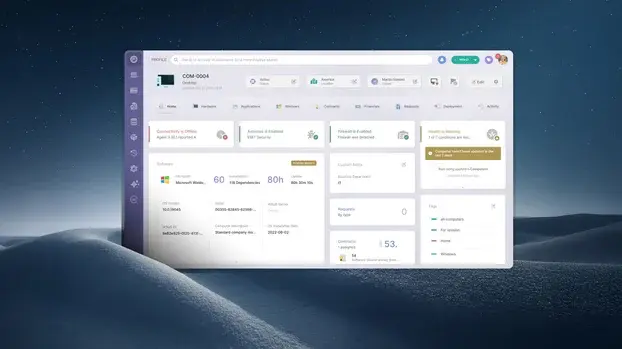

A hardware inventory checklist is the list of data an IT team needs to log for each physical asset, such as laptops, servers, and network devices. It ensures that no essential information is left out of the record, from equipment identification to warranty expiration dates.
Most IT teams start with a spreadsheet that works reasonably well for 50 devices. At 200, it begins to present issues. At 500, no one trusts the data. And when an audit comes around or hardware needs to be upgraded, the team realizes they don't know for sure what they have, where it is, or who owns it.
This article describes which fields a hardware inventory checklist should include, how to populate it using InvGate Asset Management, and when to review it to ensure the data remains useful over time.
Every asset in the IT infrastructure must have a complete record, with the same 12 fields filled out regardless of the device type. This consistency underpins Hardware Asset Management and allows you to compare, filter, and audit inventory without rework.
These fields are the foundation for any asset discovery process: without them, even an automated tool works with incomplete data.
An inventory filled out just once loses value in a few weeks. Instead of relying on an isolated periodic review, the ideal approach is to update the checklist at each event in the asset's lifecycle.
These are the key moments when the IT inventory should be reviewed and updated:
Maintaining this routine turns the inventory into a living record rather than a snapshot that ages with every change in the environment.
Having a well-defined checklist is necessary, but not sufficient. The real challenge is completing and keeping this data updated as the environment evolves. The following steps outline how to accomplish this with InvGate Asset Management from day one.
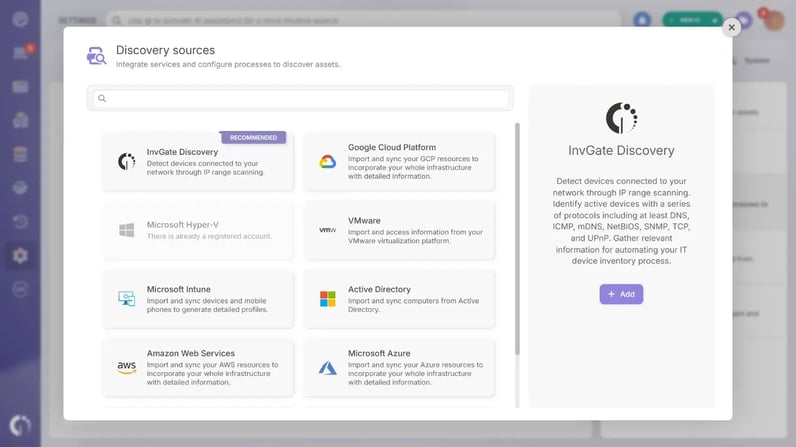
The platform automatically detects computers, servers, and mobile devices running the InvGate Asset Management Agent. For devices that cannot run an agent (but can connect to the network), you can use Discovery capabilities (or InvGate Discovery), which scans network-connected devices. Assets can also be imported via a CSV file.
The result is a unified view of all organizational assets, ready to be enriched with checklist data. Knowing how to build a unified hardware inventory from the start prevents duplication and ensures no device is overlooked in the records.
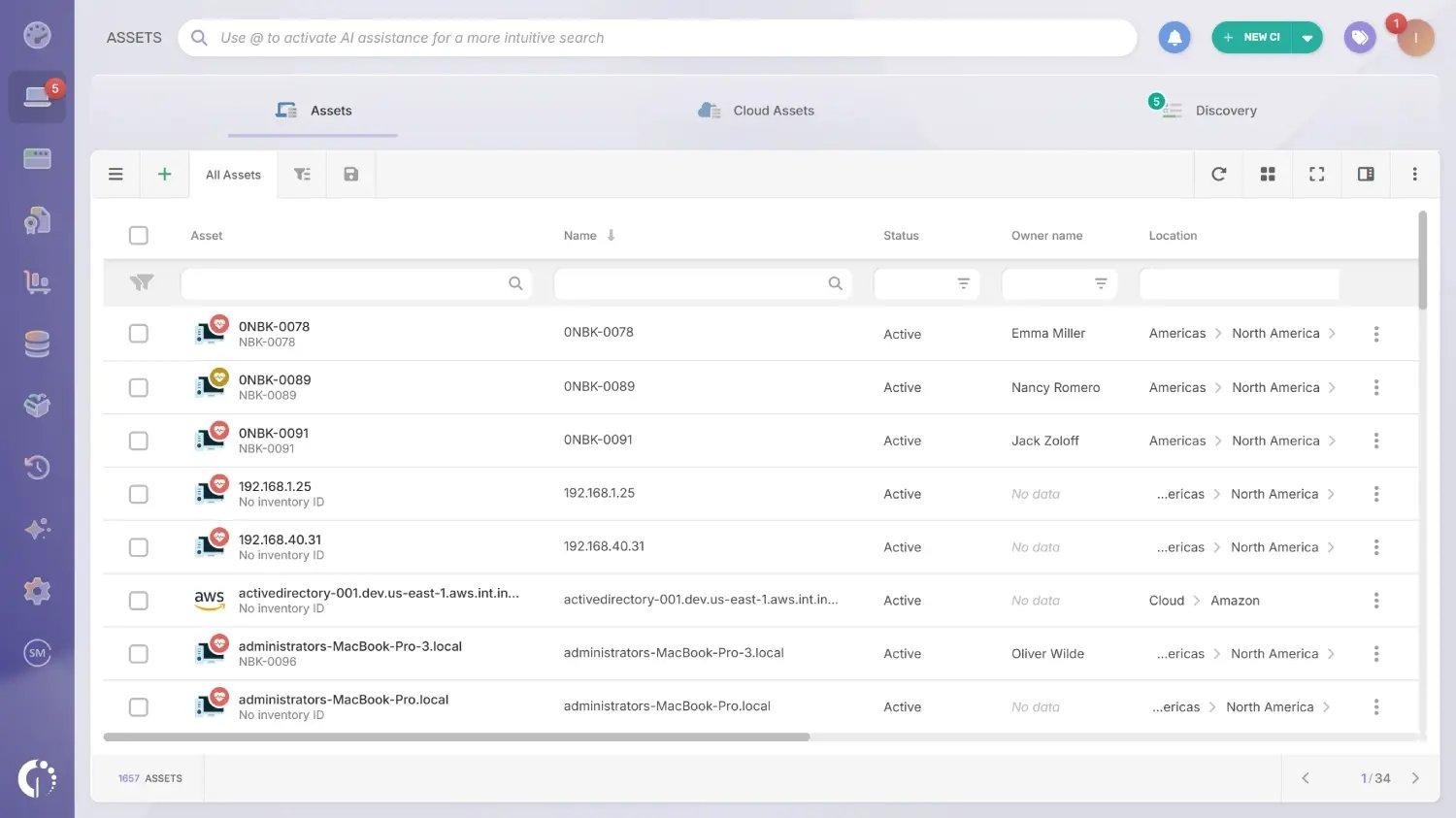
Each discovered asset generates a record in the platform. The vast majority of attributes for assets discovered by the Agent or over the network will be populated automatically. This process can be significantly accelerated using bulk asset editing. Here's how it works: select the assets, click Edit, and modify the desired fields.
Remember that you can scale the process by importing assets that cannot run the Agent or be discovered directly via network scan using a CSV file.
The platform includes many native fields. However, you can add specific fields for a particular asset type. These fields, known as custom fields, can be created under Settings > Configuration Items > Custom Fields.
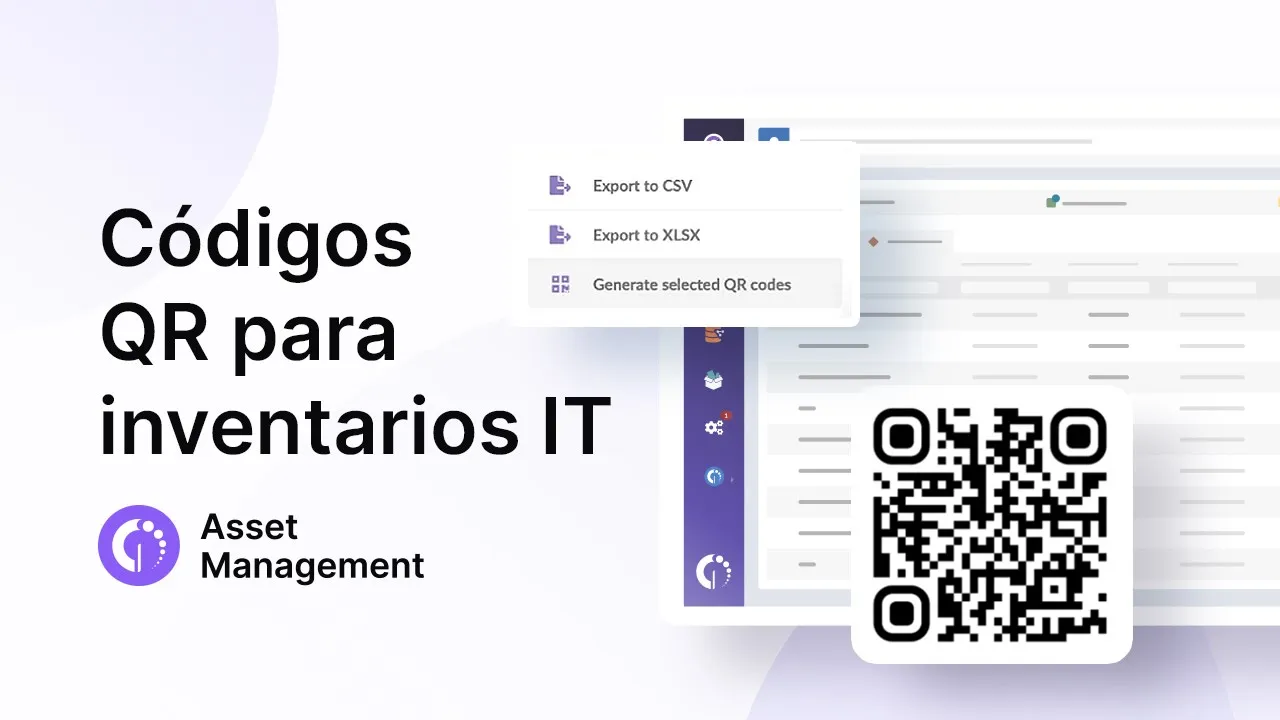
InvGate Asset Management generates QR codes for each registered asset. Once printed and attached to devices, any team member can scan them with a mobile phone to view or update asset information in the field without needing to be at a desk.
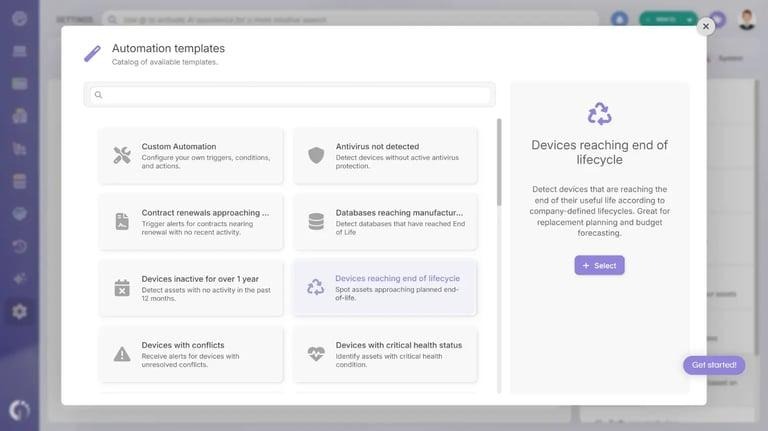
InvGate Asset Management includes health rules that evaluate asset conditions and categorize them automatically (Critical, Warning, or Safe). Automations allow you to go further: the product features out-of-the-box rules for common scenarios, such as alerts for newly added assets, warranty expiration, or low performance. It also lets you build custom rules tailored to your organization's processes.
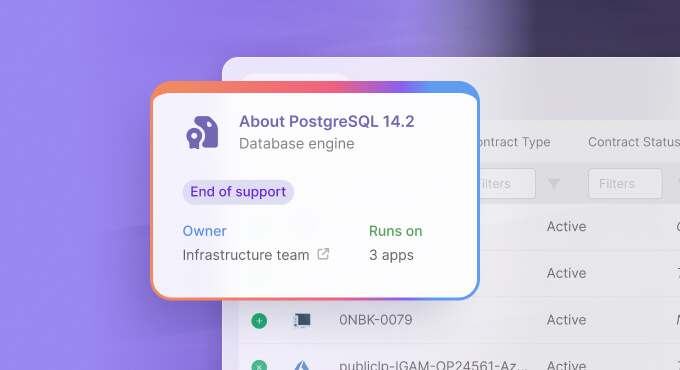
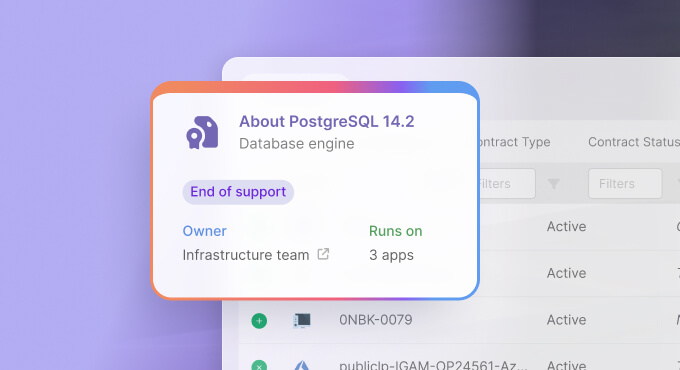
Additionally, there are Atlas and Smart Recommendations. Atlas automatically enriches inventory records with external data, such as technical specifications and End-of-Life dates. Smart Recommendations leverage this information and translate it into actionable suggestions so the team can act with more context and less manual effort.
The InvGate Asset Management Agent and regular network scans report changes periodically. Assets that are decommissioned, reallocated, or transferred are updated automatically. The inventory shifts from a temporary snapshot to a dynamic record reflecting the state of your IT infrastructure in real time.
To see how inventory management works in practice before implementing it, you can request a demo of InvGate Asset Management.
Not all assets require the exact same information. Basic fields apply to any device, but each category has specific data points that increase the record's value.
InvGate Asset Management allows you to create custom asset types with their own required fields, ensuring every team member logs the right information for the device being registered. Consistent Hardware Asset Management starts with ensuring that the asset type determines required data rather than individual judgment.
An inventory that is completed once and never modified becomes useless within weeks. Updates should not depend on comprehensive periodic reviews, but rather on tying the checklist directly to asset lifecycle events.
These are the moments when the inventory should be reviewed and updated:
Understanding the hardware refresh cycle helps anticipate when assets reach the end of their useful life, enabling timely replacement planning. Likewise, full visibility over the IT asset lifecycle is what transforms inventory into a management tool, rather than just a system of record.
The term "hardware inventory checklist" is used in two distinct ways. The first is the list of fields to record for each asset, detailed in the previous section. The second is the task checklist the team must complete to perform the inventory properly, which we will cover next.
Most hardware inventory issues are non-technical. They stem from process errors that occur regardless of the tool used by the team.
A hardware inventory checklist is the starting point for controlling physical IT assets. It defines required fields, assigns accountability, and provides the framework to audit, plan, and make decisions based on real-time data.
Without automation, however, this checklist becomes technical debt. Someone must manually update it, and when neglected, data decays. InvGate Asset Management delivers an active inventory from day one, complete with automated discovery, lifecycle alerts, and continuous updates without manual data entry.
To see it in action, request a demo of InvGate Asset Management.
The minimum required fields are: asset type, make and model, serial number, assigned user, location, status, purchase date, warranty expiration date, purchase cost, asset tag or qr code, department or cost center and last verification date.
The inventory should be updated at every asset lifecycle event: procurement, reassignment, transfer, repair, and disposal. In addition to event-driven updates, a monthly or quarterly periodic review is recommended to detect discrepancies between records and physical inventory.
The checklist is the specification of data points to be logged for each asset. An audit verifies that those data points are accurate and up to date by reconciling records against physical hardware.
Yes. In addition to agent-based discovery, assets can be discovered via agentless network scanning, CSV file import, or manual entry. Combining these methods ensures complete coverage across all asset types, including devices that do not support software agents.

