









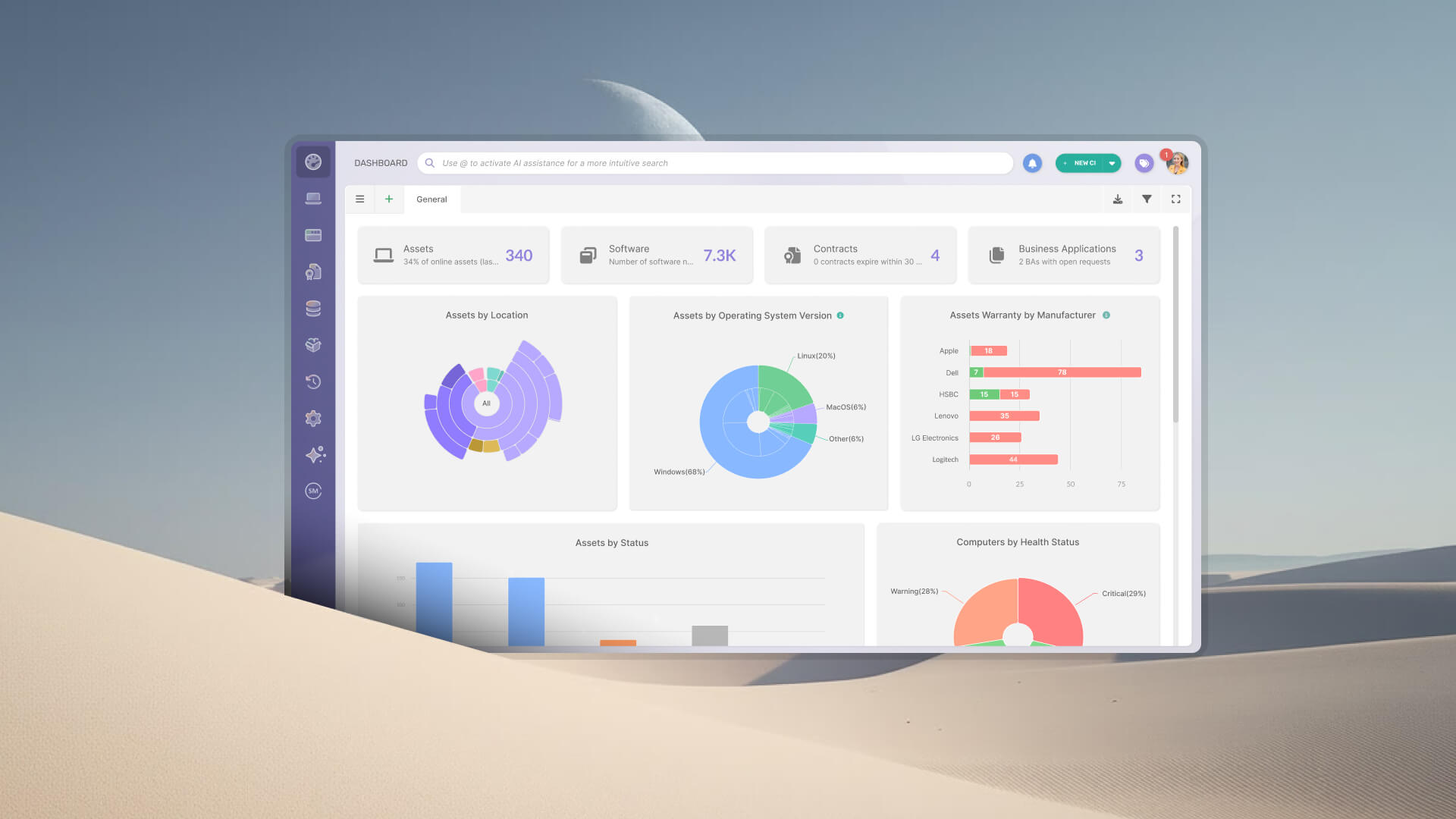

Windows 10 stopped receiving free security updates in October 2025, and every machine still running it is either enrolled in paid Extended Security Updates (ESU) or quietly accumulating risk. Commercial ESU pricing doubles for each year an organization renews it, so the cost of standing still grows on a schedule. That leaves IT teams with one question to answer before anything else: which of their machines can actually run Windows 11?
A Windows 11 compatibility check takes two minutes on the laptop in front of you and becomes a project on four hundred of them. The requirements that block an upgrade live in firmware and silicon, so the answer sits in per-device data that most inventories were never set up to report on. This article covers the requirements that decide the outcome, how to check a single PC, and how to get a count of every non-compliant machine in your fleet from your hardware inventory.
Microsoft publishes the Windows 11 hardware requirements as a short list, and nothing on it is unusual for a machine bought in the last few years. What makes the list awkward to audit is that it mixes specifications you can read off a spec sheet with firmware settings and an approved processor list.
The published minimum for Windows 11 covers eight items:
On a fleet of business laptops and desktops, memory, storage, graphics and display almost never decide the outcome. The requirements that disqualify machines are TPM 2.0, an approved processor, and UEFI firmware with Secure Boot available.
Those three fail for different reasons, and the distinction decides what happens to each machine later. TPM and Secure Boot are frequently present on the device and simply switched off in firmware. The processor requirement is the one you cannot change on the machine, and Microsoft frames its approved processor lists around design principles rather than a clean generation cutoff, with Intel 8th generation and AMD Ryzen 3000 series sitting at the practical floor.
For a single machine, three routes give you an answer in a couple of minutes. They differ in what they tell you when the answer is no, which is the part that matters for planning.
PC Health Check is Microsoft's own tool and the fastest path to a verdict. It runs the eligibility check on the machine it is installed on and names the specific requirement that failed.
Its scope is what keeps it out of an audit workflow. The app reports on one device at a time, so an organization running it across a fleet ends up with a stack of individual verdicts and no aggregate number to plan against.
When you want the underlying values rather than a verdict, Windows exposes each one directly:
tpm.msc opens the TPM management console and reports the specification version.msinfo32 shows basic input/output system (BIOS) mode, either UEFI or legacy, along with Secure Boot state.Get-Tpm and Confirm-SecureBootUEFI return the same two security values in PowerShell.Those commands are the ones a script would run, which is what makes them useful beyond a single desk. Microsoft also publishes a hardware readiness script that returns a pass or fail per requirement and is built to be pushed through Microsoft Intune or Configuration Manager.
Every method above answers for one device at a time. Four hundred machines mean four hundred sessions, or a script run whose output lands in a spreadsheet that starts aging the moment it is exported.
The number a refresh budget needs is a count, broken down by the reason each machine failed. That has to come from a system already holding current hardware data for every device in the fleet.
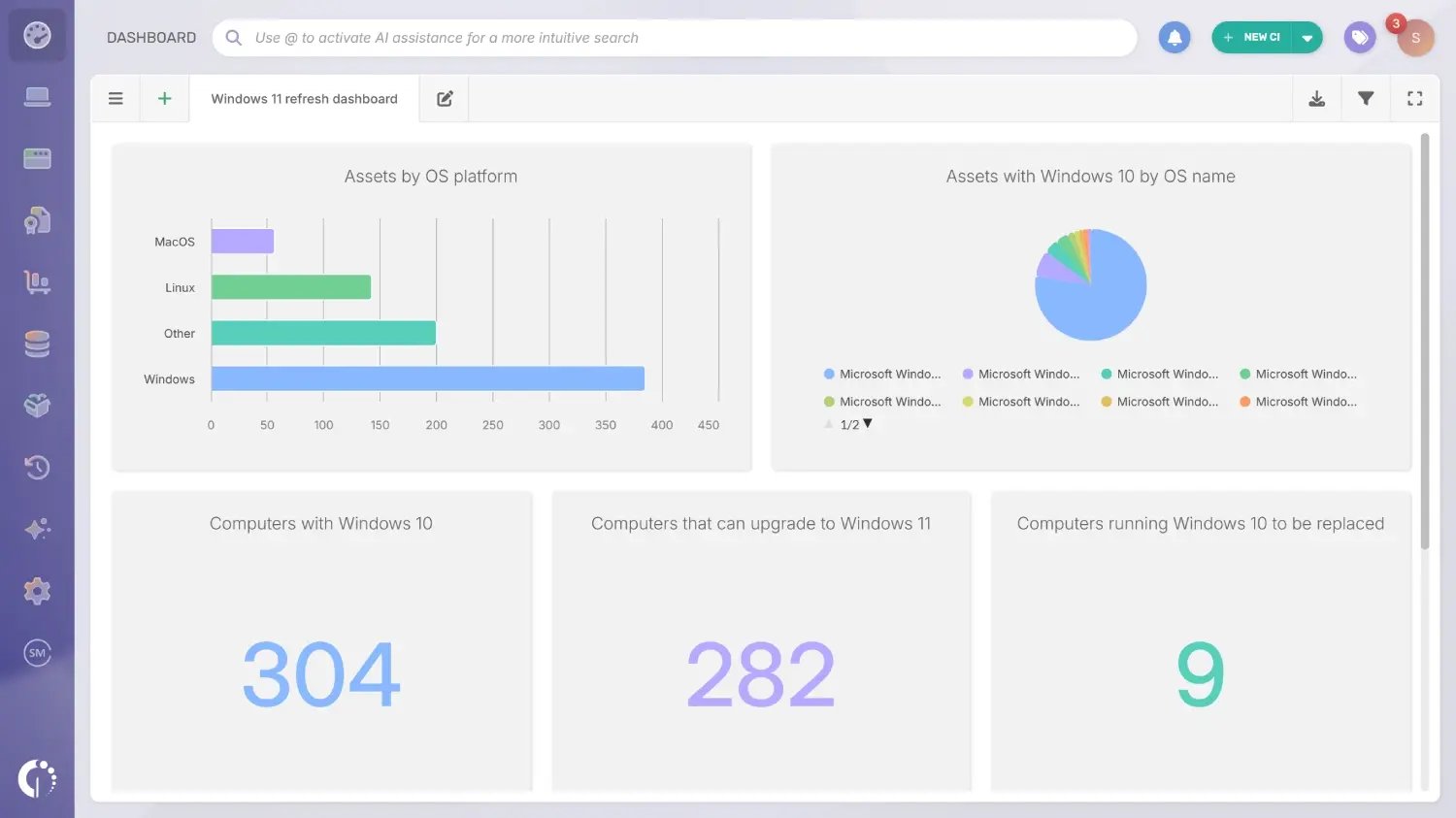 InvGate Asset Management is an IT Asset Management (ITAM) platform that discovers and manages hardware, software, cloud assets and any other IT resource in a single interface. Its agent collects hardware and operating system data from every endpoint on a scheduled scan, so the inventory already holds most of the specifications a Windows 11 audit needs.
That makes the audit a query your inventory can answer. You can filter every device by operating system version, processor model, installed memory and available storage, classify the results automatically with Smart Tags, and build a dashboard that counts compliant and non-compliant machines side by side. The firmware values get confirmed afterwards on the machines that cleared the processor test, either with the commands above or by pushing Microsoft's readiness script to a group through software deployment.
The capabilities that carry a fleet-wide compatibility audit:
You can start a 30-day free trial and run the audit against your own inventory. If the refresh reaches beyond a handful of sites, talk to Sales about scoping it.
Each condition below is written the way the filter builder takes it, as a field, an operator and a value. Conditions inside a group combine with AND, so the fleet narrows with every line you add:
What comes out is a per-reason count that holds up in a budget conversation, built on the numeric floor plus the processor test. The firmware values get confirmed afterwards on that shorter list, and software deployment here covers application packages, Windows updates and scripts, while the operating system upgrade itself runs through your own operating system deployment tooling.
A non-compliant result is a diagnosis, and the treatment changes with the cause. Sorting the list by failure reason usually shrinks the replacement estimate everyone walked in assuming.
The most common surprise in a first audit is the machines that hold every piece of required hardware with the security features turned off. A TPM 2.0 chip disabled in firmware, or Secure Boot left off, produces a failed compatibility check on a device that qualifies on paper.
Two changes cover most of these cases. Enabling TPM and Secure Boot in firmware settings brings the device into scope, and a disk still using the master boot record (MBR) layout can be converted to the GUID Partition Table (GPT) with Microsoft's mbr2gpt tool so the machine boots in UEFI mode.
Memory and storage are the two requirements you can buy your way out of. A machine below 4 GB of memory, or with a drive under 64 GB, clears the requirement once the part is replaced.
Whether that is worth doing depends on where the device sits in its lifecycle. A three-year-old laptop with warranty left is worth the memory module, while a seven-year-old desktop rarely justifies the labor.
An unsupported processor ends the conversation for that device, since it is the one requirement that cannot be changed on the machine. Those units move into a refresh plan, and the per-model breakdown from the audit is what makes the plan costable.
The gap between today and their replacement date still has to be covered. Commercial Extended Security Updates start at $61 per device for the first year and double each year after that, which gives you a running cost to weigh against new hardware. For the machines that did pass, the Windows 11 migration guide covers sequencing the upgrade itself.
A Windows 11 compatibility check is really a hardware inventory question in operating system clothing. The requirements come down to three that matter on a corporate fleet, and only one of them, the approved processor, forces a machine out of the upgrade path for good.
Run the check per device when you need a quick verdict, and run it against your inventory when you need a number. A per-reason count of non-compliant machines turns a vague replacement worry into a costed plan, and it usually reveals that a share of the fleet was compliant all along with two firmware settings turned off.
The questions below come up most often once an audit is underway. Each one has a short answer here and more detail in the sections above.
Install Microsoft's PC Health Check app and run the eligibility check, which names the requirement that failed if the device does not qualify. To see the underlying values instead, open tpm.msc for the TPM version and msinfo32 for BIOS mode and Secure Boot state.
A compatible 64-bit processor at 1 GHz or faster with 2 or more cores, 4 GB of memory, 64 GB of storage, UEFI firmware with Secure Boot capability, TPM 2.0, DirectX 12 graphics with a WDDM 2.0 driver, and a 720p display larger than 9 inches. The processor also has to appear on, or match the design principles of, Microsoft's approved processor lists.
Two causes account for most of these results. The processor may sit below Microsoft's approved floor, roughly Intel 8th generation and AMD Ryzen 3000 series, or the machine may have TPM and Secure Boot available in firmware with both switched off.
Yes, and it comes from inventory data rather than a per-device tool. An asset management platform that collects processor model, memory, storage and operating system version from every endpoint can filter and count the whole fleet at once, and Microsoft's hardware readiness script can be pushed to groups of machines through Microsoft Intune, Configuration Manager or a software deployment feature.
They stop receiving free security updates, which ended in October 2025, and stay secure only while enrolled in Extended Security Updates. The commercial program covers critical and important security fixes for up to three years, with the per-device price doubling each year, and it requires devices to be on Windows 10 version 22H2.

