








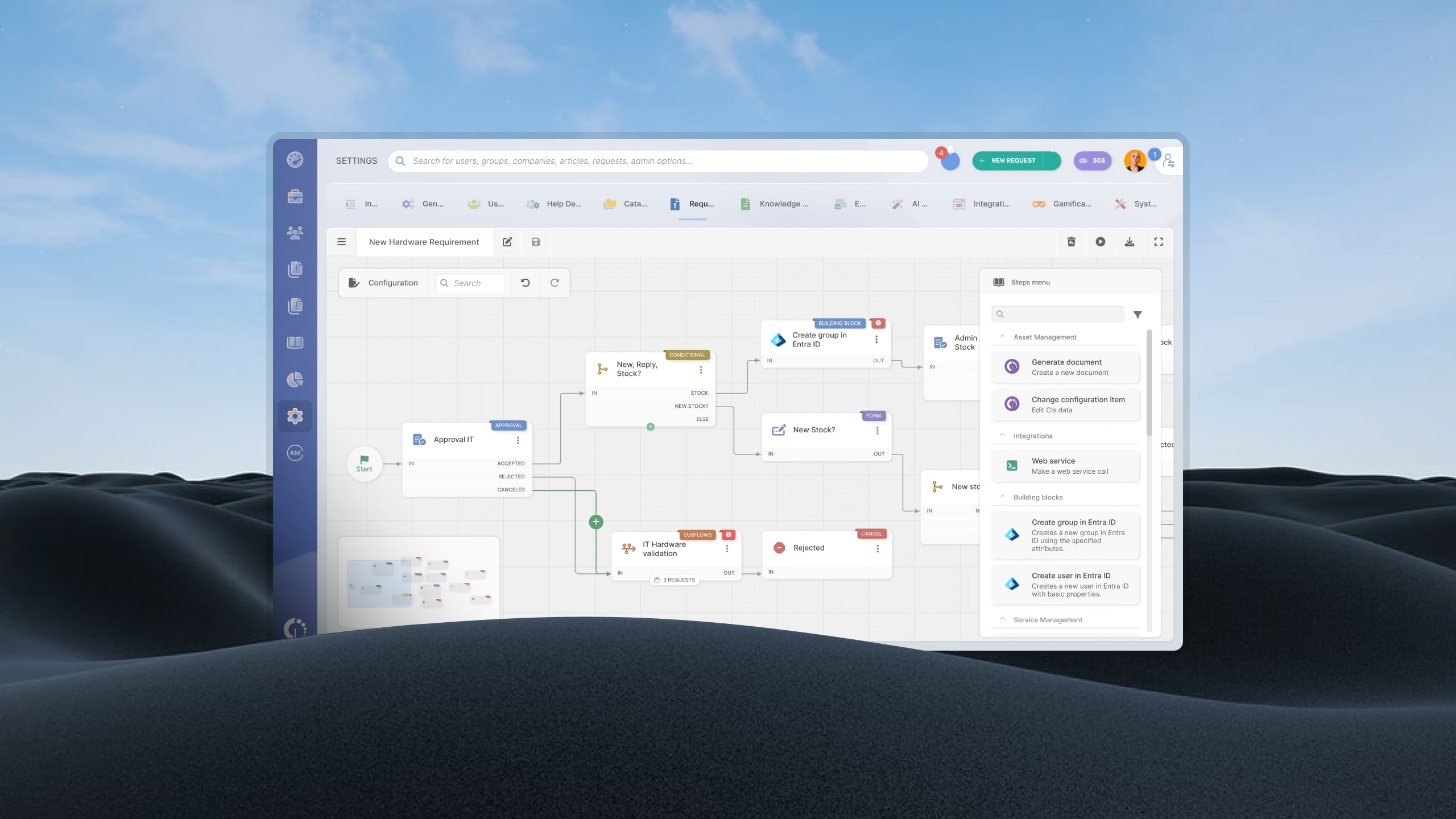


Many IT teams run NinjaOne to manage and monitor their endpoints and a separate service management tool to handle requests and incidents. You can connect InvGate Service Management with NinjaOne: a workflow can pull device data, alerts, and other records from NinjaOne straight into a ticket, so agents see what they need without opening a second tool.
This guide covers what the integration does, why you would connect the two, and how to set it up step by step.
The integration is a NinjaOne connector you add to an InvGate Service Management workflow to bring NinjaOne data into a ticket. From a workflow stage, you can retrieve a NinjaOne organization and its devices, a single device by its ID, alerts, activities, users, locations, and installed software. Most of these actions are read only: the workflow reads from NinjaOne and writes the result into the ticket, without changing anything in NinjaOne. One action works the other way — Run script on device runs a script or built-in action on a managed device, so a workflow can trigger remediation as well as pull data.
The connector is available from version 8.22 onwards, on Pro and above plans, in both cloud and on-premise deployments.
NinjaOne has its own ticketing. NinjaOne Ticketing is the support layer of its endpoint platform, with automated routing, SLA tracking, approval steps, and a self-service portal built in. So why send its data to a separate service management tool?
The reason is usually scope. Teams that run a dedicated Service Management platform use it as the organization's system of record for requests: a service catalog that spans IT and other departments, structured request and approval flows, per-service SLAs, and ITIL-aligned practices across the whole request lifecycle. NinjaOne is where the endpoint lives — its configuration, recent alerts, and installed software, the same inventory and monitoring ground teams weigh when they compare it with other endpoint and asset tools.
Connecting the two keeps each tool doing what it does best and puts the endpoint context in front of the agent working the request. When a ticket comes in about a specific machine, the device's details are already in the ticket, pulled from NinjaOne, instead of looked up by hand.
Setting up the integration takes three steps: generate API credentials in NinjaOne, add the NinjaOne connector to a stage in your workflow builder, and choose the action whose data you want in the ticket. You will need version 8.22 or later and a Pro or higher plan.
The connector reaches NinjaOne through its API, so start by creating API credentials there. In NinjaOne, an administrator generates these from the API settings by creating a client application, which returns a client ID and client secret. You will also need to know your NinjaOne instance's region, because the API endpoint differs by region.
See the official NinjaOne API documentation here.
In the workflow, add a stage that uses the NinjaOne Built-in Action Connector, the same way other built-in connectors slot into a workflow stage. Enter the API credentials from Step 1 so the stage can reach your NinjaOne instance, and test the connection before you continue.
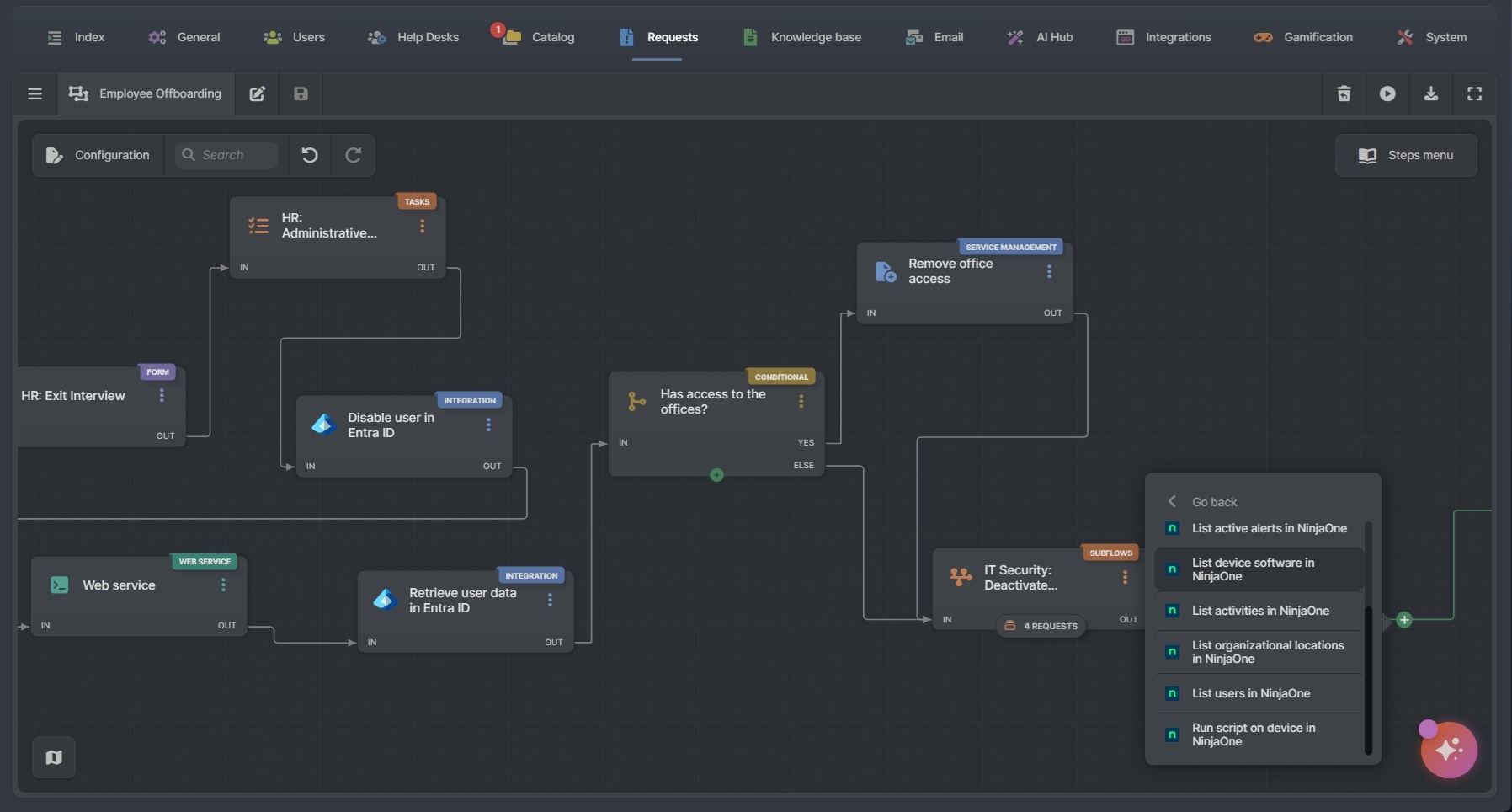
With the connector in place, pick which NinjaOne action the stage runs — for example, get a single device by ID. Map the input the action needs, such as the device ID from a ticket field, and the stage returns that device's data. From there you can write it into ticket fields, show it to the agent, or branch the workflow on it.
A workflow stage can run any of these actions. The first eight only read data from NinjaOne; the last one runs a script on a device:
The integration earns its place in the moments when an agent would otherwise stop to look something up in NinjaOne. A few examples:
A disk-space alert that opens a ticket with the device already attached. A NinjaOne alert fires on a machine running low on disk. The workflow pulls that device by ID and writes its details into the ticket, so the agent opens a request that already names the machine, its specs, and its recent activity. From there, a later stage can run a remediation script on the device, closing the loop without leaving the ticket.
A software request that checks what the user already has. Someone requests an application. Before it goes to approval, the workflow reads the installed software on that user's device, so the agent can see whether the app is already there or a license is being duplicated.
An incident that arrives with the device's location. A hardware incident comes in. The workflow pulls the device's location from NinjaOne, so routing and on-site support know where the machine is without asking the requester.
Already running both tools? You can add the connector to a workflow and start pulling NinjaOne data into your tickets today. If you are not using InvGate Service Management yet, start a free trial to try it, or book a call with our team to talk through how it would fit your service operations.
Yes. NinjaOne Ticketing is the support layer of its endpoint platform, with routing, SLA tracking, and a self-service portal. Teams also connect it to a dedicated service management platform when they need broader service management across the organization.
Yes. From version 8.22, an InvGate Service Management workflow can pull data from NinjaOne through a built-in connector, so endpoint information shows up in the ticket.
Organizations, devices, a single device by ID, alerts, activities, users, locations, and installed software. All of these actions are read only.
The data actions are read only — they read from NinjaOne and write the result into the ticket, leaving NinjaOne unchanged. There is a Run script on device action that runs a script or built-in action on a managed device, so a workflow can act on a device when you pick that action.

