








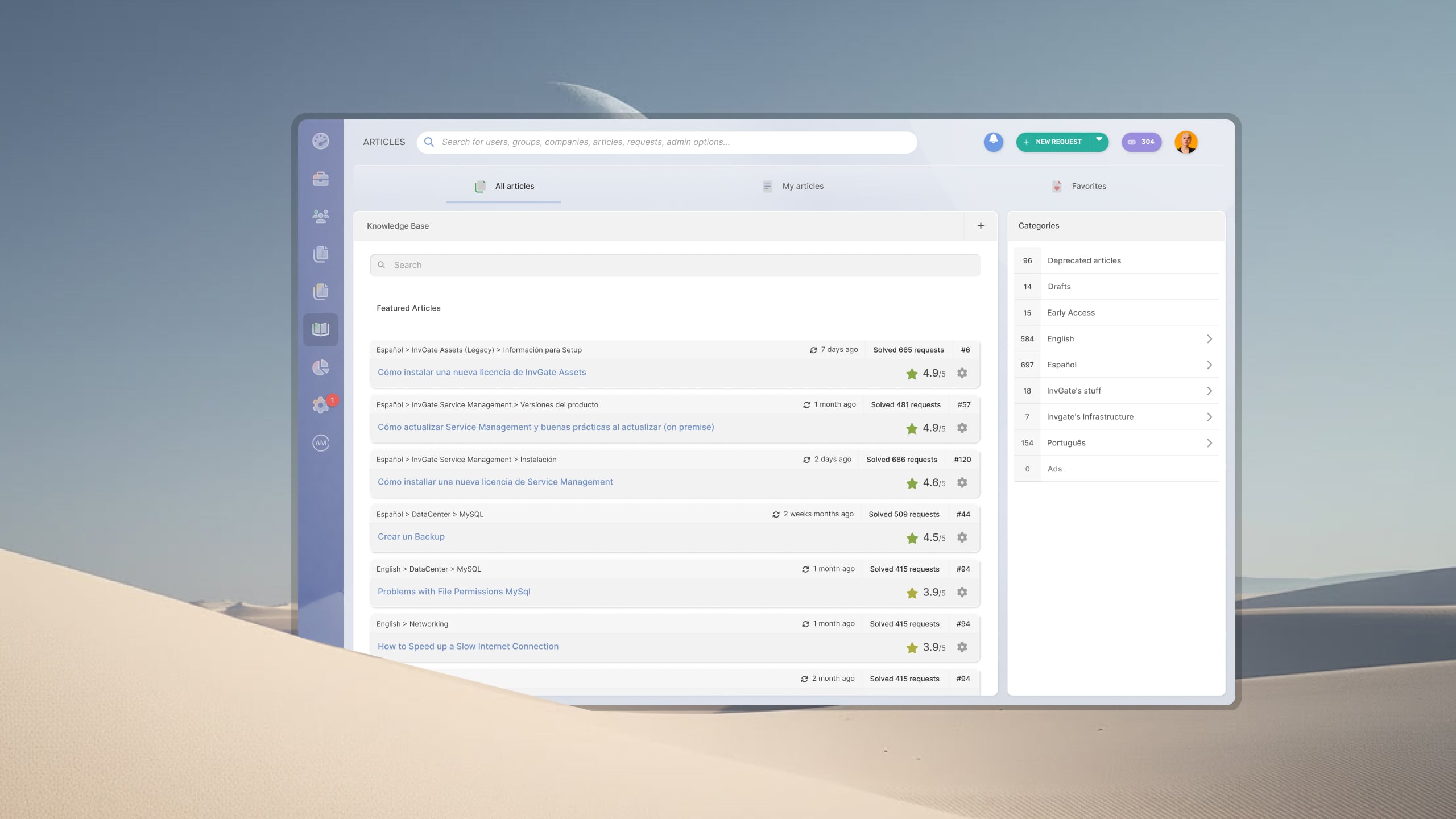


A Google Docs knowledge base lets IT teams keep writing their procedures in Google Docs while those same documents show up in the IT knowledge base and update on their own. IT teams that already document in Google Workspace look for this setup when they want to stop copying procedures by hand into another tool and keep a single version of each one.
This guide explains how the Google Drive integration in InvGate Service Management syncs Google Docs into the knowledge base, which content it brings in, and who can see it. It then walks through the setup on the Google side and in the product, and closes with the cases where an article should stay native to the knowledge base.
When a procedure lives in Google Docs and a copy lives in the service desk, every edit has to be made twice. Sooner or later one copy falls behind, and agents or end users follow steps that no longer apply.
Syncing removes the second copy. The procedure stays in Google Docs as the single source of truth, and the knowledge base shows the current version after each sync.
The knowledge base in InvGate Service Management can connect to external sources, so content written in other tools becomes searchable without migrating it. The Google Drive integration is the external source that brings in Google Docs, and it extends the Knowledge Management capabilities of InvGate Service Management to the documents your team already keeps in Google Workspace.
The integration syncs native Google Docs from the shared drives you select. You can choose a whole shared drive or a specific folder in one, and all of its subfolders are always included. Content stored in My Drive can't be synced.
Other files are skipped automatically and counted in the sync breakdown: Google Sheets, Slides, and Forms; uploaded files such as .docx, .pdf, or .txt; images; videos; and Google Sites. InvGate Service Management never copies or modifies the original documents, so Google Drive remains the source of truth.
The sync runs automatically on a regular cycle, with no manual work. When a change needs to show up sooner, admins can click "Sync now" in the integration settings to bring it in without waiting for the next cycle. The table below shows how each change in Google Drive is handled.
Synced docs appear in global search next to native articles, marked as external content, and clicking one opens it in Google Docs in a new tab. In Knowledge > Articles, you can filter them with the "External Articles" category: the "Source" column shows Google Drive, the "Permissions" column shows "View", and each ID starts with "GD-".
The Virtual Service Agent answers questions with synced docs just as it does with native articles, and cites each one with a link to the original, so the procedures your team keeps in Google Docs also count when you use your knowledge base to increase AI chatbot deflection. Google Drive permissions always win: a synced doc is visible only to InvGate Service Management users whose primary email is a member of the shared drive.
The setup has two parts: preparing Google Cloud and Google Workspace, then configuring the integration in InvGate Service Management. The integration uses a Google Cloud service account with domain-wide delegation, which lets InvGate Service Management read shared drives without using any person's credentials.
Before you start:
A few things need to be in place on the Google side before you configure anything. Check that you have each of these:
Before configuring the integration in IGSM, complete these steps on the Google side. You'll create a JSON key file and copy a Client ID — keep both, you'll need them later.
In the Google Cloud console:
In the Google Admin console:
https://www.googleapis.com/auth/drive.readonly — for Google Groups access, also add https://www.googleapis.com/auth/admin.directory.group.member.readonly.
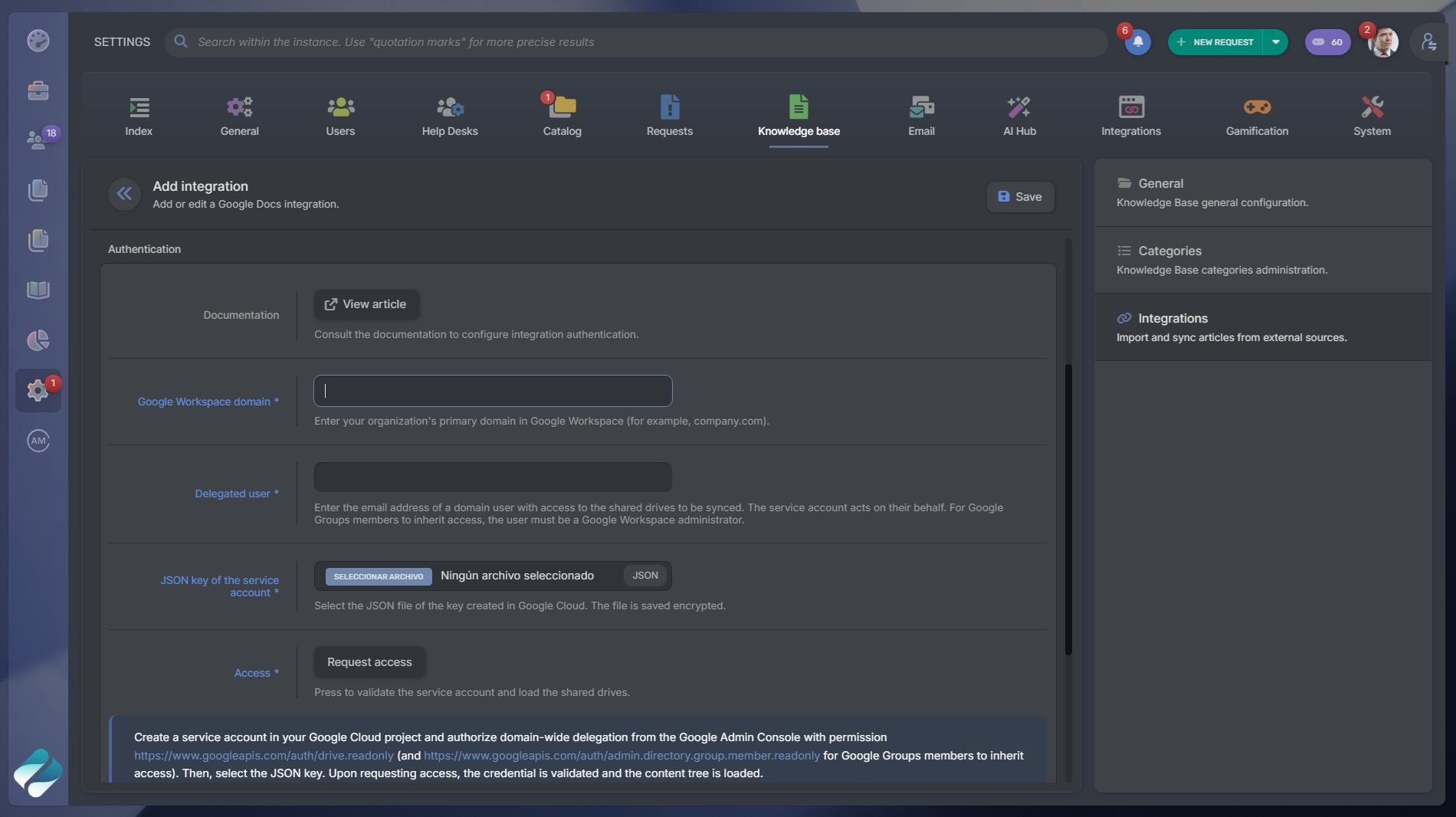 With the Google side ready, the rest happens in the settings of InvGate Service Management. Have the JSON key file and the delegated user's email ready before you start.
The Google Drive integration fits teams that already write their procedures in Google Docs on shared drives, which is the setup closest to a Google Workspace knowledge base. For those teams, the integration turns existing documentation into knowledge base content with no migration.
Some content still belongs inside the knowledge base, because it needs editing in the service desk or the integration can't reach it. Keep native articles for these cases:
Native articles can be written from scratch, or you can bring existing ones in one at a time or in bulk with a CSV or ZIP file, as covered in the guide to creating a knowledge base in InvGate Service Management.
A Google Docs knowledge base keeps one version of each procedure in Google Docs, visible in the knowledge base and to the Virtual Service Agent, and updated on its own after each sync. With the Google Drive integration in InvGate Service Management, your team keeps writing where it already works, and the service desk shows the current steps.
Start a 30-day free trial of InvGate Service Management, with no credit card needed. If you'd like to discuss your setup, talk to Sales.
No, only shared drives or folders within them can be synced. My Drive content depends on a single person, so it would disappear if that person left the organization.
The Google Drive integration syncs only native Google Docs. Other formats are skipped and counted in the breakdown of the last sync.
Only InvGate Service Management users whose primary email is a member of the shared drive in Google Workspace can see them. Google Groups members inherit access when the delegated user is a Google Workspace administrator and the group scope is authorized.

