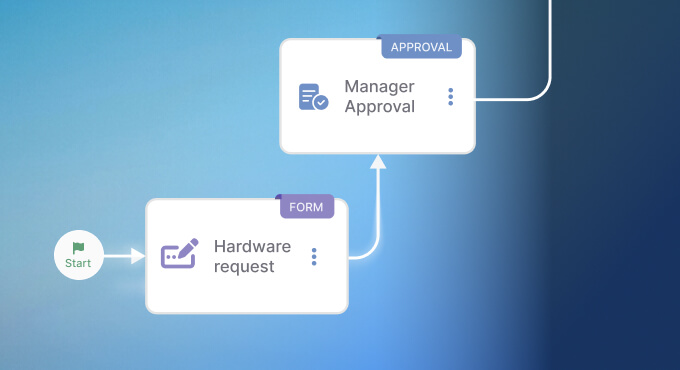










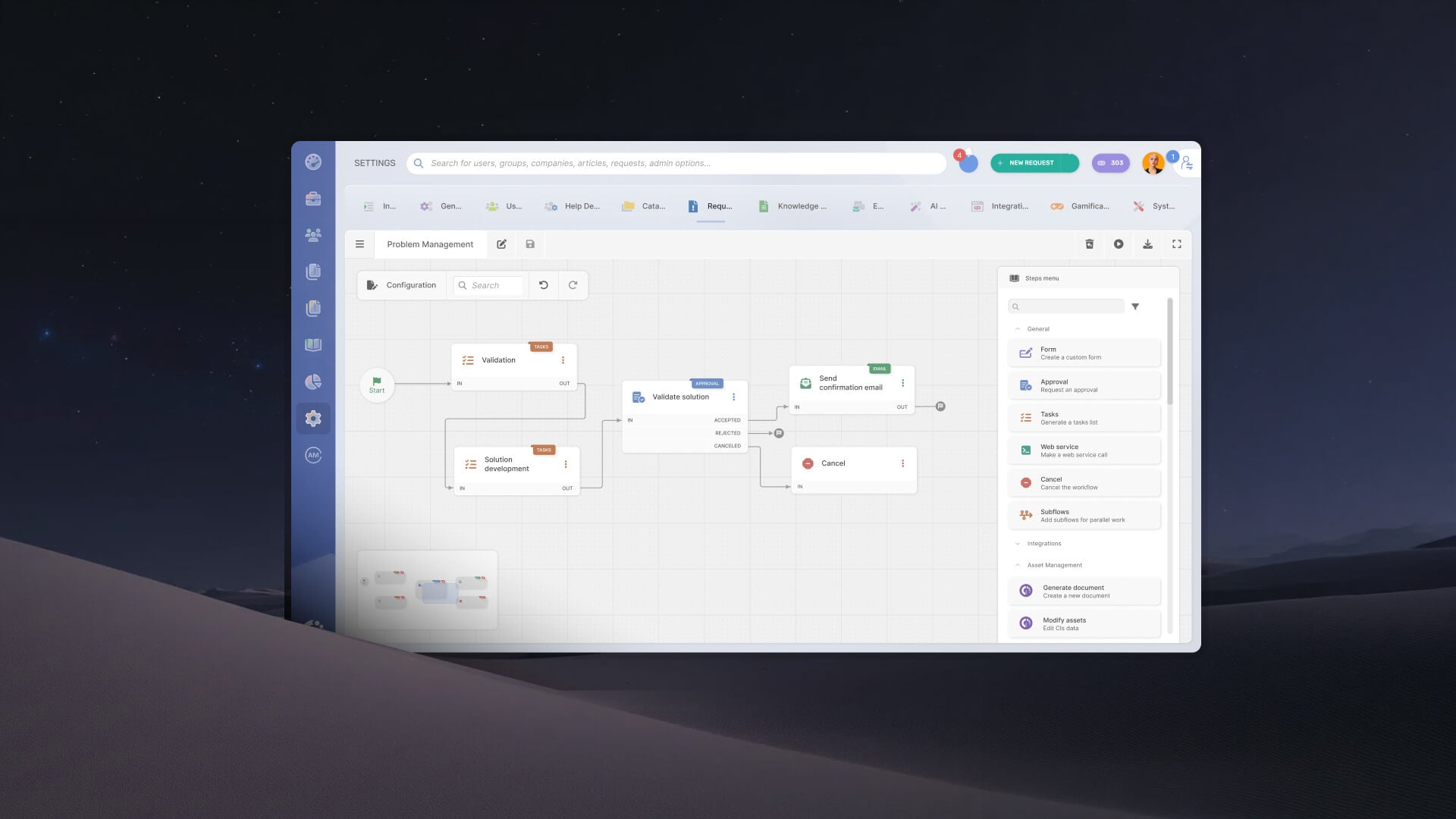

Inevitably, workflows change as teams adjust processes, add steps, update conditions, or redistribute responsibilities. Over time, the people responsible for maintaining them may have little visibility into how an IT workflow was originally designed or what else a change could affect. Workflow documentation provides a written record of how the process works, who owns each step, and how its different parts connect.
This guide covers what to document, how to create it step by step, and includes a reusable template and tips for keeping it current.
Workflow documentation is a structured description of how a process runs from start to finish: what sets it off, the sequence of steps, the decisions and approvals along the way, and the people responsible for each part. It stays close to the mechanics — the order of operations and the handoffs — rather than the reasoning behind the process.
That focus separates it from a standard operating procedure, which lays out the rules and instructions a person follows to carry out a task, and from a system's technical documentation, which describes how the software itself is built and configured. Workflow documentation sits between the two: it maps the path work takes, step by step, across the people and tools involved.
Most IT workflows pass through several hands, and the knowledge of how they fit together tends to live with whoever built them. Writing it down keeps the process working when that person is out, busy, or has left the team.
The clearest reason is handoffs. When a workflow moves between people or teams, each one needs to know what reaches them, what they do with it, and where it goes next; undocumented, every handoff rests on someone remembering. The second is change. Steps depend on each other, so editing a trigger or a condition can affect an approval or a downstream task you weren't thinking about — and without a record, you find that out only after something breaks.
Documentation also lets you answer for the process. When an auditor or a manager asks why a request was approved the way it was, you can point to the defined path rather than reconstruct it after the fact. And it shortens onboarding: someone new can read how a workflow runs in a few minutes rather than assembling the picture from old tickets and half-remembered conversations.
Good workflow documentation records enough that someone who has never run the process could follow it and understand what depends on what. These are the elements worth capturing:
Here is a template you can copy into your own documentation. It uses the elements avobe, filled in for an employee onboarding workflow so you can see what a complete entry looks like.
Workflow documentation becomes outdated whenever a process changes and its record doesn't. Keeping both in sync requires making documentation updates part of the team's regular change process.
Assign one owner to each workflow. One person should be accountable for maintaining its documentation and making sure every change is reflected in the record. Updates should happen alongside the workflow change, not be postponed until an annual review, when some details may already be outdated.
Keep a record of changes and previous versions. Documentation should capture who made each change, when it happened, and what was modified. Following the same practices used in technical documentation makes it easier to trace decisions and investigate unexpected behavior. Retain previous versions, too, so the team can review earlier configurations and restore a working version if a change causes problems.
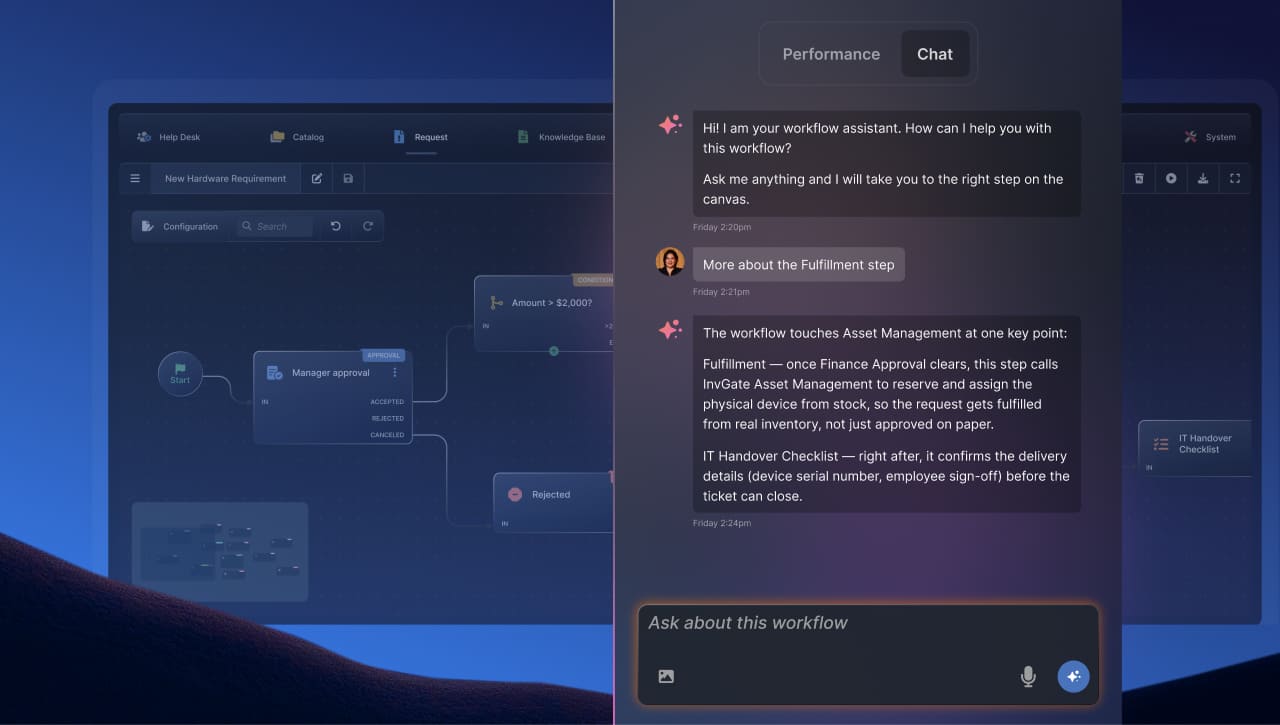 The hardest part of keeping documentation current is the problem this guide opened with: knowing who changed what, and being able to walk back a change that caused trouble. InvGate Service Management keeps that record inside the workflow editor itself, so it stays attached to the workflow rather than drifting out of date in a separate file.
Every workflow carries a full version history showing who changed each part and when. When a change doesn't work out, you can restore an earlier version as a draft and continue from there, with no rebuilding by hand. And for anyone working on a workflow they didn't build, the Workflow Assistant explains how it runs — its branches, triggers, approvals, and possible outcomes — and answers what would happen if a given step changed, in a chat inside the editor; it comes with the Pro and Enterprise plans.
Workflow documentation is far easier to keep current when the tool you build workflows in keeps the history for you. You can try InvGate Service Management free and see how version history and the Workflow Assistant help, or book a call with our team to talk about your processes.
Map it from its trigger to its final output, listing each step in order with its owner and marking every decision point and approval. Store the result where the team already looks, and name someone to keep it current.
The trigger, the ordered steps, decision points and approvals, the owners (ideally mapped with RACI), inputs and outputs, integrations, any SLA, and a version number with the date of its last change.
One named owner per workflow — usually the person or team that runs it — is responsible for updating the document whenever the workflow changes. Shared ownership tends to mean no ownership.
Every time the workflow changes, as part of making the change, not on a fixed annual schedule. A periodic review can catch what slipped through, but it shouldn't be the main mechanism.s.

