








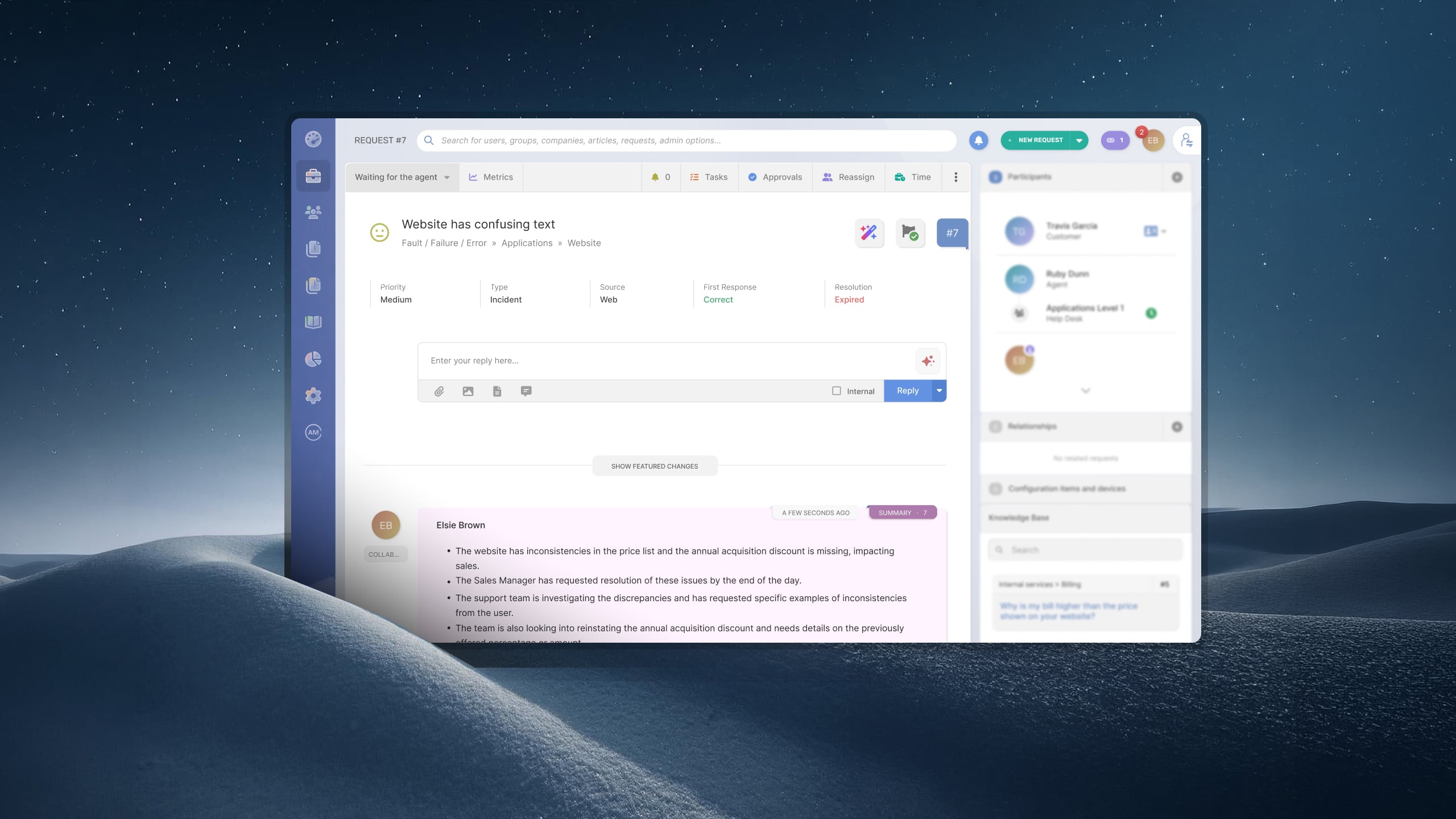


A new hire's onboarding request looks like one ticket, but it's rarely one job. IT needs to provision a laptop and set up accounts, facilities needs to prepare a desk and badge, and the hiring manager's team needs to grant access to specific tools. If the ticket stays as a single item assigned to one agent, someone ends up chasing three teams over email or Slack just to know if the laptop is ready before the start date.
This is where a ticket and a piece of work stop being the same thing. The ticket is the request; the tasks are the actual pieces of work it takes to close it. Splitting them apart is what lets each team see only what's theirs, update it independently, and still have the whole thing add up to one tracked request.
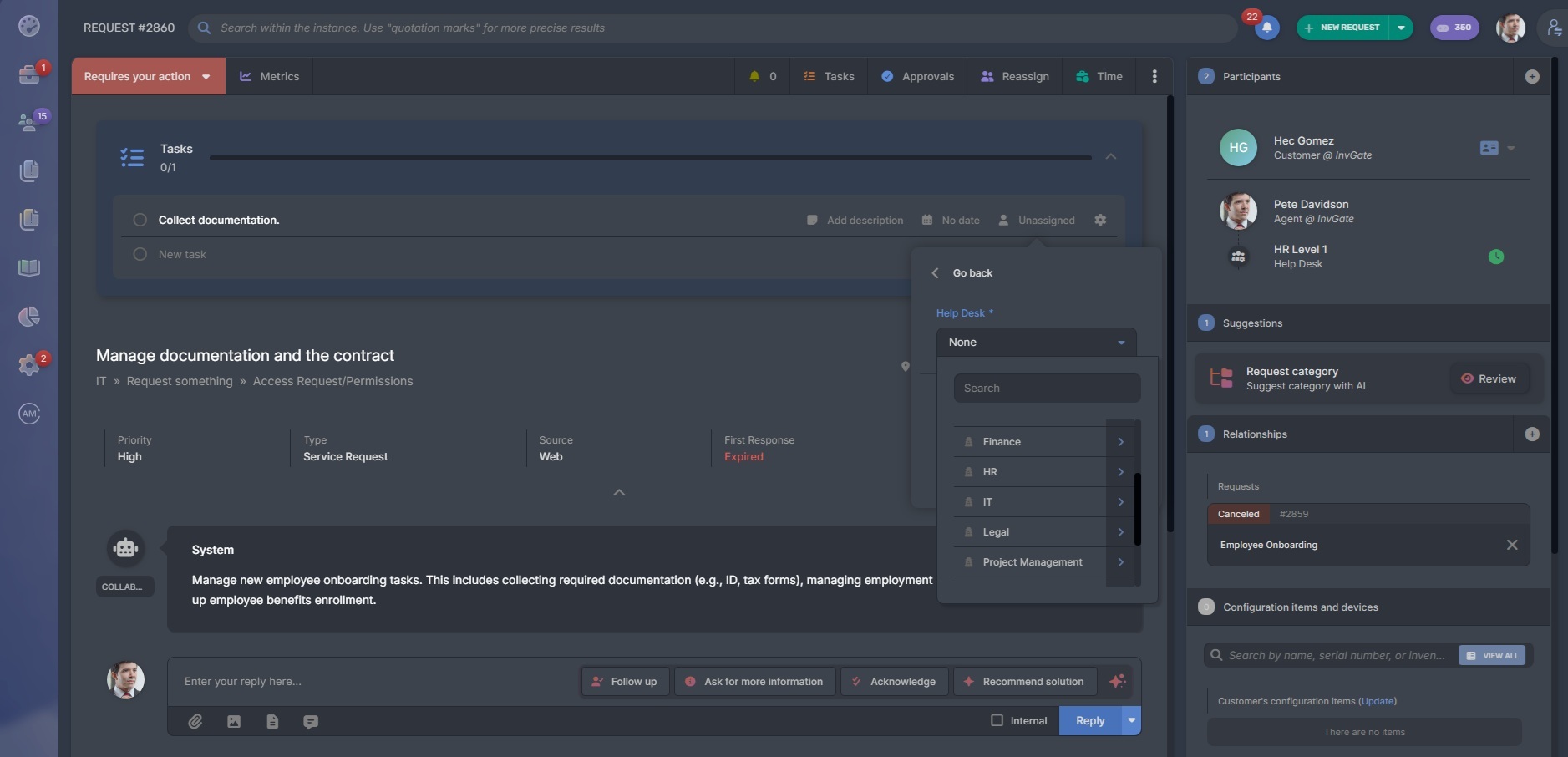
A task is a discrete unit of work attached to a ticket. It has its own status, its own assignee, and — when needed — its own due date, but it doesn't exist on its own: it's always tied back to the ticket it belongs to.
Any agent with visibility into the ticket can see its task list, but a task can be assigned to someone outside the original ticket's team. That's the point — the requester's ticket stays with the service desk, while the individual tasks route to whoever actually does the work: facilities, a specialized IT team, procurement.
Closing out a task doesn't automatically close the ticket. The ticket only closes when every task tied to it is done — or when an agent overrides that manually. That dependency is what stops a ticket from being marked resolved while one team's piece of the work is still open.
Once every task is marked done, the ticket becomes eligible to close. Until then, it stays open, so the requester and the original assignee both know the request isn't fully wrapped up yet.
Preconfiguring task lists for recurring requests
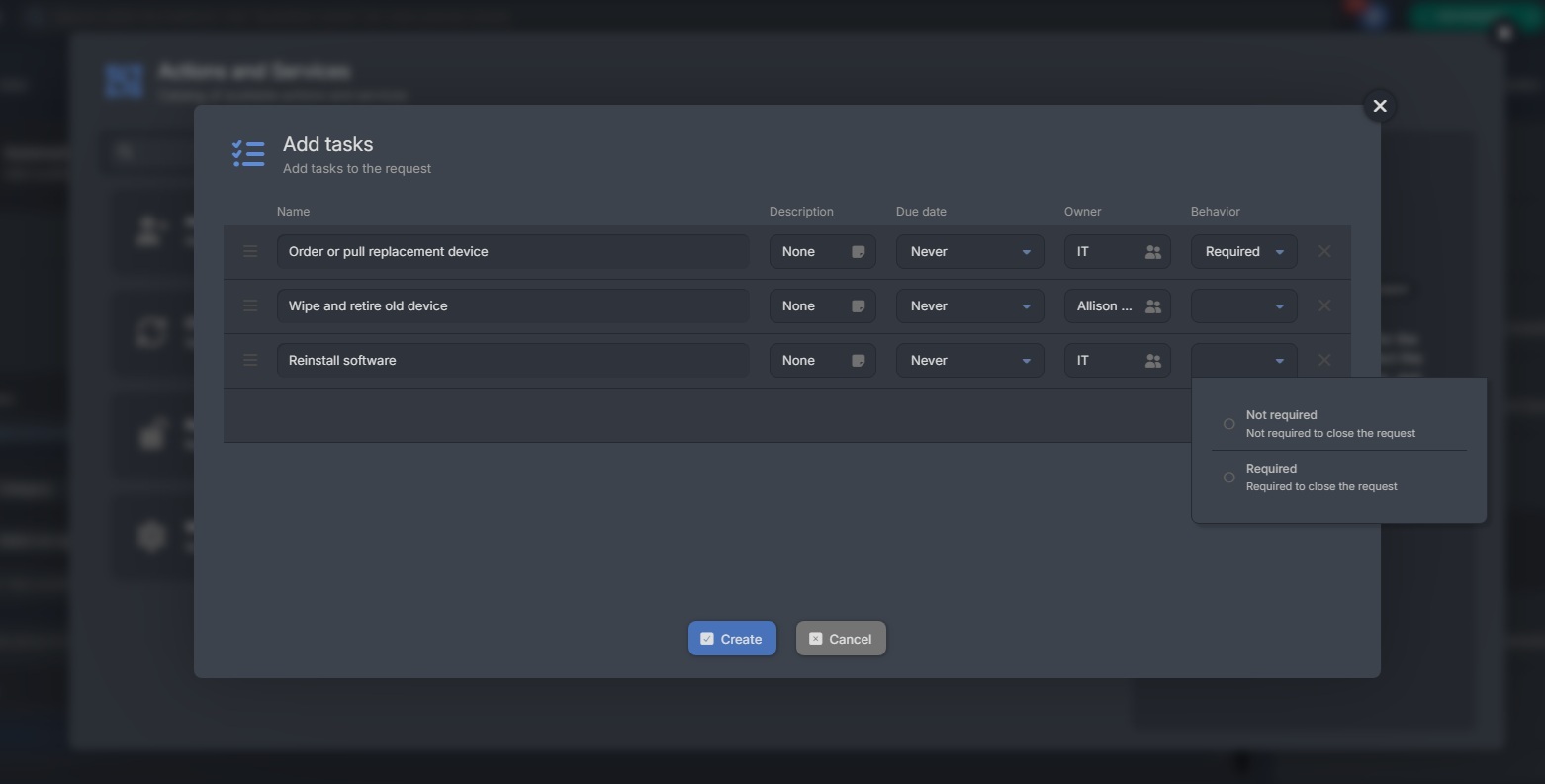
Requests that come up often tend to need the same tasks every time. A computer replacement almost always means: order or pull the replacement device, wipe and retire the old one, reinstall software, and update the asset record. Instead of an agent typing out that list from memory on every ticket, you can set up an automation that adds the right tasks the moment a matching request comes in.
From then on, any ticket that matches the category comes in with that task list already attached and the agent's job shifts from remembering the process to running it.
 Completing tasks from Microsoft Teams
Agents who spend most of their day in Microsoft Teams no longer need to switch over to InvGate Service Management just to close out a task. Tasks assigned to them can now be marked complete directly from Teams, without opening the ticket.
It's a small change with an outsized effect on teams like facilities or procurement, who might only touch InvGate Service Management a handful of times a week — the ticket comes to them, instead of them having to go find it.
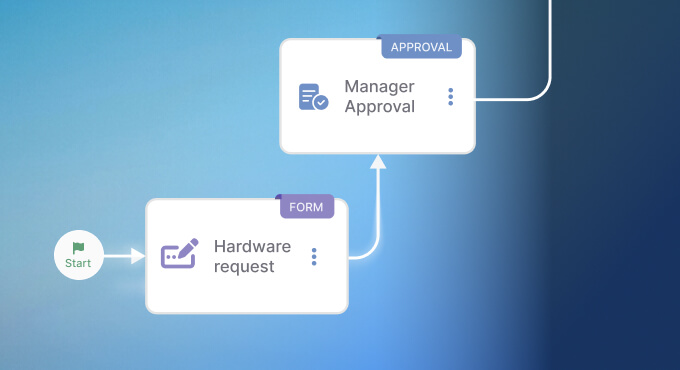
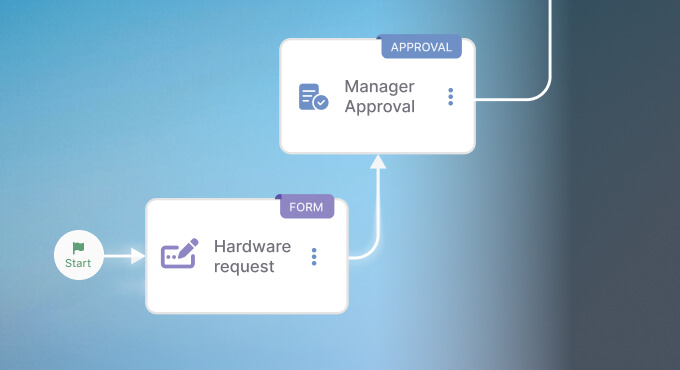
Tasks and workflows both break a ticket down into smaller pieces, but they solve different problems.
If the work is the same every time and doesn't branch, a preconfigured task list is usually enough. Reach for a workflow when the path a ticket takes depends on a decision made along the way.
Can a task be assigned to someone who isn't the ticket's agent?
Yes. Tasks can go to any agent or team with access to that ticket type, independent of who owns the ticket itself.
Does closing all the tasks automatically close the ticket?
The ticket becomes eligible to close once every task is done, but closing it is still a deliberate action — an agent can also close a ticket manually before all tasks are finished if needed.
Can task lists differ by request type?
Yes. Task lists can be preconfigured per request type, so a computer replacement and an onboarding request each come with their own set of default tasks.
Which channels support completing tasks outside the platform?
Tasks can currently be completed from Microsoft Teams in addition to the InvGate Service Management interface.

