








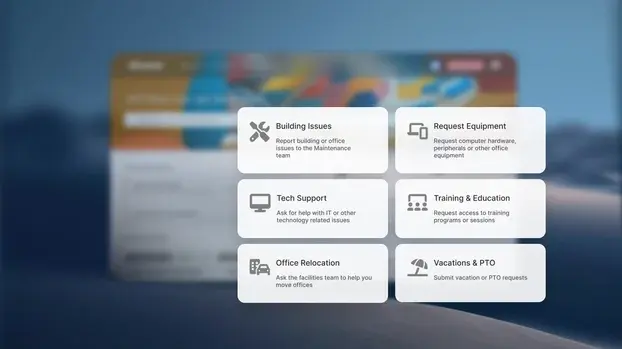


An internal technical support portal allows you to centralize tickets, requests, help articles, and workflows in a single location for the entire company. The goal is not only to optimize IT work but also to reduce the use of emails, direct messages, and other informal channels that often result in requests without follow-up and visibility.
But implementing a portal doesn't guarantee that employees will use it. Adoption depends on much more concrete factors: how the categories are organized, how easy it is to find the services, how the search function works, and whether the portal truly simplifies the process of requesting help.
In this article, we'll look at how to structure an internal support portal designed from the employee experience perspective, what components it needs, and how to configure it with tools like InvGate Service Management.
Key findings regarding internal technical support portals
In many companies, the problem isn't the lack of a support portal. The problem is that employees still prefer Slack, Teams, email, or direct messaging to technical support.
When this happens consistently, there is usually a specific reason behind this behavior.
Creating an internal technical support portal that employees actually use requires solving these three problems simultaneously: accessibility, clarity, and visibility.
When these conditions don't exist, informal channels end up functioning as the organization's "real call center." Diverting requests to informal channels has measurable consequences for Service Request Management: resolution times that cannot be measured because there is no record, work queues invisible to the team, duplicate calls when the same user reports the problem through two different channels, and agents wasting time requesting information that should have been included in the original request.
Before we delve into the setup steps, it's important to define which components an internal support portal needs to function. This isn't a list of features; each component solves a specific problem.
InvGate Service Management centralizes all these components on a single platform: catalog, knowledge base, custom fields, status tracking, and access channels, without the need to integrate separate tools.
Would you like to see how this is configured? Request a demo of InvGate Service Management.
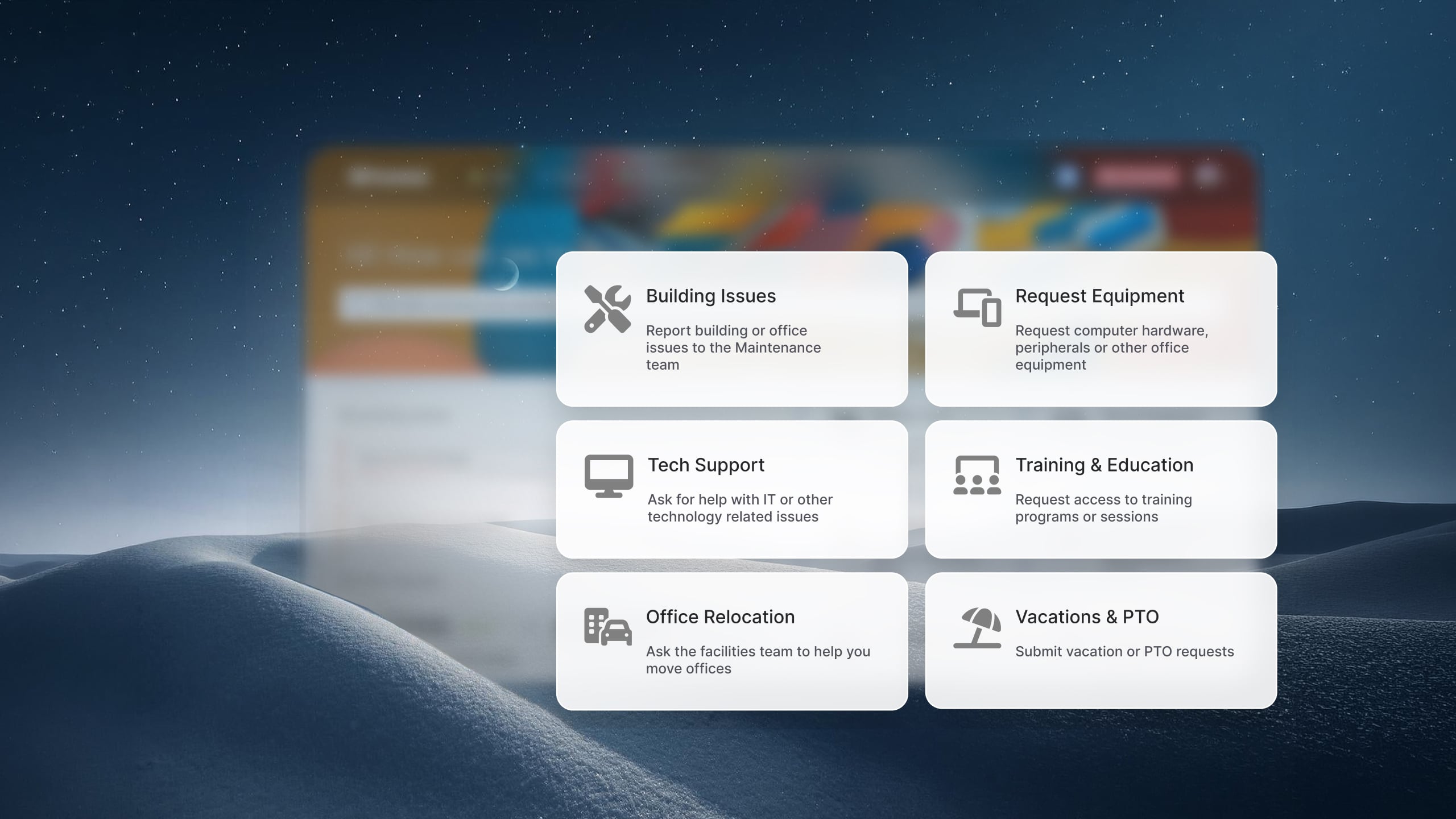
The following steps show how to structure an internal support portal in InvGate Service Management: from catalog design and search experience to configuring automations and workflows for different areas of the company.
The catalog should begin with simple questions that employees already ask themselves in their daily work: "What's happening with...?" or "How do I achieve...?". From there, categories are created that reflect real situations, not technical areas.
Examples closest to this model:
In InvGate Service Management, this structure is organized as a three-level tree: category, subcategory, and request type. Each node can have its own assigned team, SLA rules, and specific fields, depending on the case type. This allows an access request to have a different workflow than a hardware failure, without requiring complex configurations.
An additional layer enhances the portal's search experience: AI-powered keyword generation. Instead of forcing the user to think of the exact category, the system can suggest related options as they type their problem. If someone searches for "I can't access my email," the portal can automatically suggest "system access problems" or "account blocked," reducing the difficulty of finding the correct category.
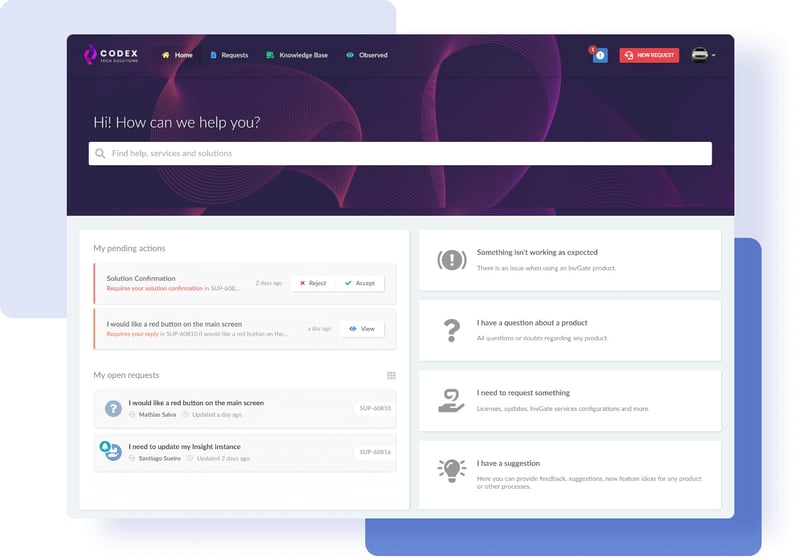
The second step is to define what information needs to be included in each type of request so that the agent can resolve it without having to exchange messages with the user.
Custom fields in InvGate Service Management are category-specific fields that are dynamically displayed when an employee selects an option from the catalog. If the employee selects "Request system access," the portal can automatically prompt for the system name, the required access level, and the approver before the request reaches the IT team.
The same ticket, without the custom fields, arrives with the message "I need access to the billing system," and the agent needs to request all the above information separately. With the correct fields configured, the request arrives ready for use.
Some fields that must be mapped before configuration:
In InvGate Service Management, the knowledge base is directly integrated into the support portal. As the user types a request or browses through categories, the system automatically suggests related articles before the ticket is created.
If the article solves the problem, the request will never reach the call center.
This approach helps reduce repetitive calls and improves response times for incidents that truly require technical intervention.
For the model to work, the knowledge base also needs to be kept up-to-date. InvGate incorporates AI features that allow the generation of articles from resolved tickets and previous conversations within the support team. In this way, operational knowledge no longer depends exclusively on manual documentation and begins to grow along with daily operations.
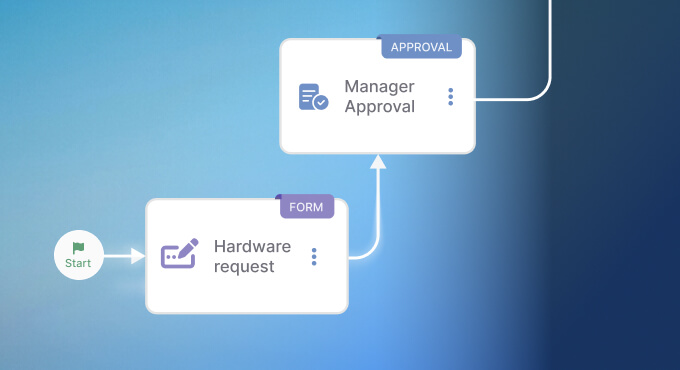
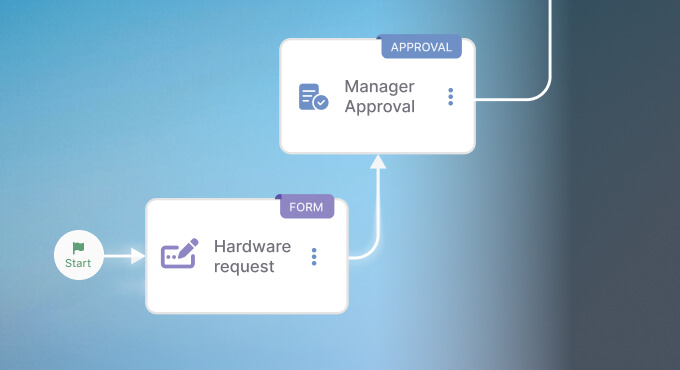
InvGate Service Management's no-code workflow editor lets you model complex processes without writing a single line of code. The logic is visual: you add steps, conditions, approvals, and actions as connected steps, and the result is a readable flow that any team member can understand and modify.
A concrete example: a request for paid software can be configured to automatically follow this route:
The entire process is configured only once and executed automatically. There is no email exchange between departments, no missed calls awaiting a response, and the employee is kept informed of the status of their request at all times.
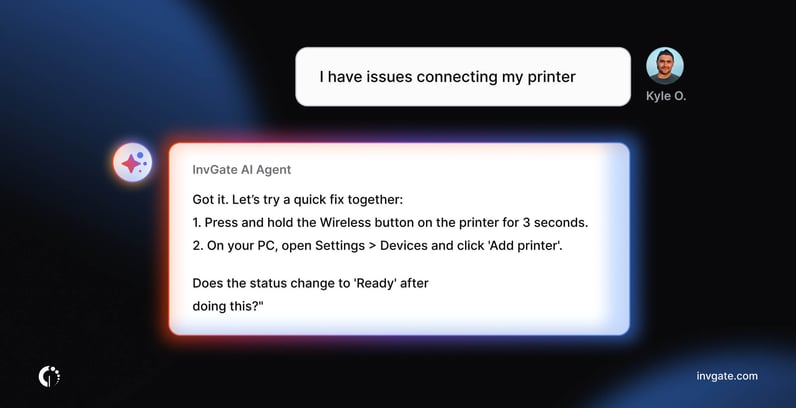
The Virtual Service Agent is an AI-based assistant that helps users resolve requests and get answers without having to go through the traditional support flow.
It can be implemented on the channels that employees already use: Microsoft Teams or WhatsApp, without disrupting existing workflows.
As users ask questions, the Virtual Service Agent uses existing articles to provide quick and contextual answers without human intervention. When it cannot resolve the issue autonomously, it routes it to the appropriate agent within InvGate Service Management.
The result is a reduction in the volume of repetitive calls and level 0 support that operates 24 hours a day, without additional burden for the IT team.
Before opening the portal to the entire organization, it is important to test it with a limited group of real users, ideally from different areas, with different levels of experience with digital tools.
The first use determines whether the employee adopts the portal or rejects it. If the categories are unclear, the fields are confusing, or the workflow has unnecessary steps, the person will resort to the informal channel the next time they encounter a problem.
Allshores experience with InvGate Service Management is an example of how, when the portal is intuitive from the first use, adoption occurs naturally, without the need for forced internal communication campaigns.
The launch of the portal is not the ultimate goal: the objective is to reduce the workload of the IT team and improve the employee experience. To know if this is actually happening, it is necessary to measure it. Tracking metrics is part of the best practices for creating and managing a support portal, as it allows you to identify pain points, adjust categories, optimize workflows, and work on continuous improvement based on real user behavior.
The metrics that provide a real signal about the portal's performance:
InvGate Service Management offers configurable dashboards and reports to track all these metrics without the need for additional tools. Reports can be scheduled to be generated and distributed automatically at regular intervals and are accessible to users without a license.
Once the IT support portal is up and running, the next logical question is: why do employees need to access another system when they need something from HR or Infrastructure?
The Enterprise Services Management (ESM) model extends the same logic of the help desk and IT self-service portal to other departments. HR can manage vacation requests, certificates, and new employee onboarding. The facilities department can receive reports of office problems. The legal department can manage contract reviews. All of this within the same portal that employees already use for IT support.
The benefit for employees is clear: a single place to request anything internally, without having to remember which system to access depending on the type of request. The benefit for teams in each area is the same as what IT already gets: structured requests, automated approval workflows, workload visibility, and performance metrics.
InvGate Service Management allows you to scale the portal across multiple departments without additional IT configuration. Each area can design and operate its own workflows, respecting shared rules for permissions, approvals, and visibility. Check out the features and functionalities by requesting a demo.
What is the difference between an internal technical support portal and a self-service portal?
An internal support portal centralizes requests, tickets, and communication between employees and support teams. A self-service portal, on the other hand, focuses on allowing users to resolve issues on their own, through articles, guides, or automated workflows. In practice, many platforms combine both models into a single experience.
What do I need to create an internal employee support portal?
An internal portal typically includes a service catalog, request forms, a knowledge base, automations, and ticket tracking. The category structure and search experience have a direct impact on employee engagement. Platforms like InvGate Service Management allow you to configure these components from a single tool and extend the portal to areas such as HR or Infrastructure.
How can I encourage employees to use the portal instead of sending an email?
Adoption depends on the user experience. Employees tend to use the portal when they quickly find the right category, the forms are simple, and they can track the status of their requests without needing to ask for updates via chat or email. The portal's integration with tools they already use daily, such as Microsoft Teams or WhatsApp, also helps.
Can the support portal be integrated with Microsoft Teams?
Yes. Many internal support portals can be integrated with Microsoft Teams so employees can create tickets, receive notifications, and check requests without leaving the application. Tools like InvGate Service Management offer native integration with Teams, including portal access, workflow forms, and virtual agents within the platform.
How long does it take to implement an internal technical support portal?
The time required depends on the complexity of the catalog, the approval workflows, and the number of departments involved. A basic IT portal can be set up in a few days, while a more extensive implementation, with automation and multiple departments, typically takes several weeks.

