









The signs you've outgrown your help desk software show up when a tool that served a small team starts holding back a growing IT team. IT managers and service desk leads look for these signs to decide whether to keep adjusting their current tool or replace it with one built for their size.
This article covers eight signs of outgrowing help desk software, what to look for in your next tool, and how to plan the switch without losing your ticket history. It closes with how InvGate Service Management handles the move.
8 signs you've outgrown your help desk software
Each sign below is short enough to recognize at a glance, and the details follow in its own section. When several of them apply at once, that is the clearest answer to when to switch help desk software.
- Resolution times and the backlog keep growing.
- Your team fills the gaps with manual workarounds.
- Reports get built in spreadsheets.
- Tickets arrive without asset data.
- Other departments want in, and the tool can't take them.
- Every configuration change depends on the vendor.
- Users keep going back to email.
- Costs jump every time you add agents, add-ons, or integrations.
1. Resolution times and the backlog keep growing
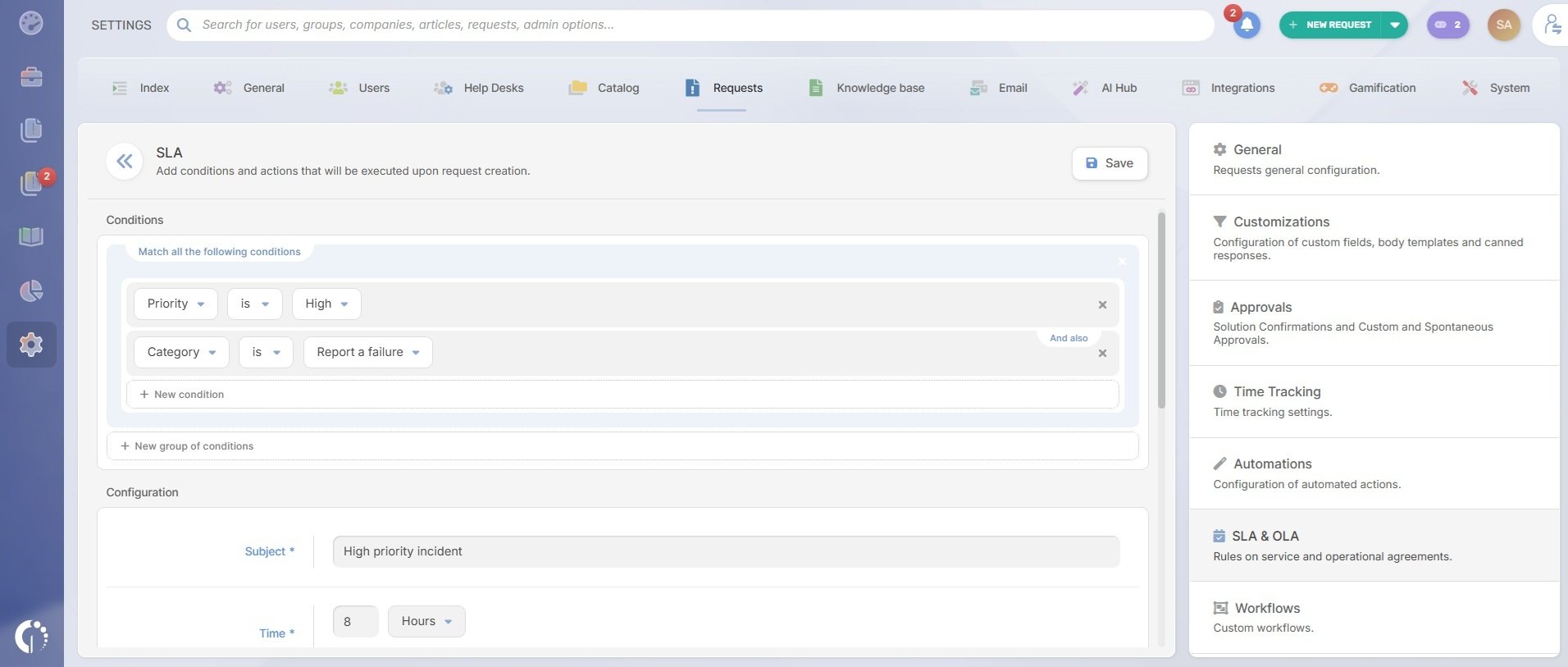
Tickets wait a little longer every month, the queue never clears, and the team only learns that a target was missed after the fact. Without Service Level Agreements (SLAs) and Operational Level Agreements (OLAs) tracked inside the tool, nobody sees the delay building until users complain.
A tool built for this stage measures every ticket against its targets, so delays show up while there is still time to act. InvGate Service Management lets teams configure and monitor SLAs and OLAs, which helps service desk leads see which queues are slipping and rebalance the work.
2. Your team fills the gaps with manual workarounds
Agents route tickets by hand, copy data between systems, and keep reminders in personal notes or calendars. The same repetitive tasks get done manually every day, which takes time away from support work and leaves room for errors.
The next tool should take over that routine work with rules your team defines. In InvGate Service Management, assignment rules and agent groups send each ticket to the right team, and automation rules handle simple trigger-and-action work like routing a ticket or notifying a team when conditions are met. Built-in Action Connectors read data from or run actions in tools like Okta, Workday, Jira, or Google Workspace without custom web services.
3. Reports get built in spreadsheets
Someone exports ticket data every week and rebuilds the same metrics by hand. Figures don't match between teams, and by the time the report is ready, the problem it shows is already old.
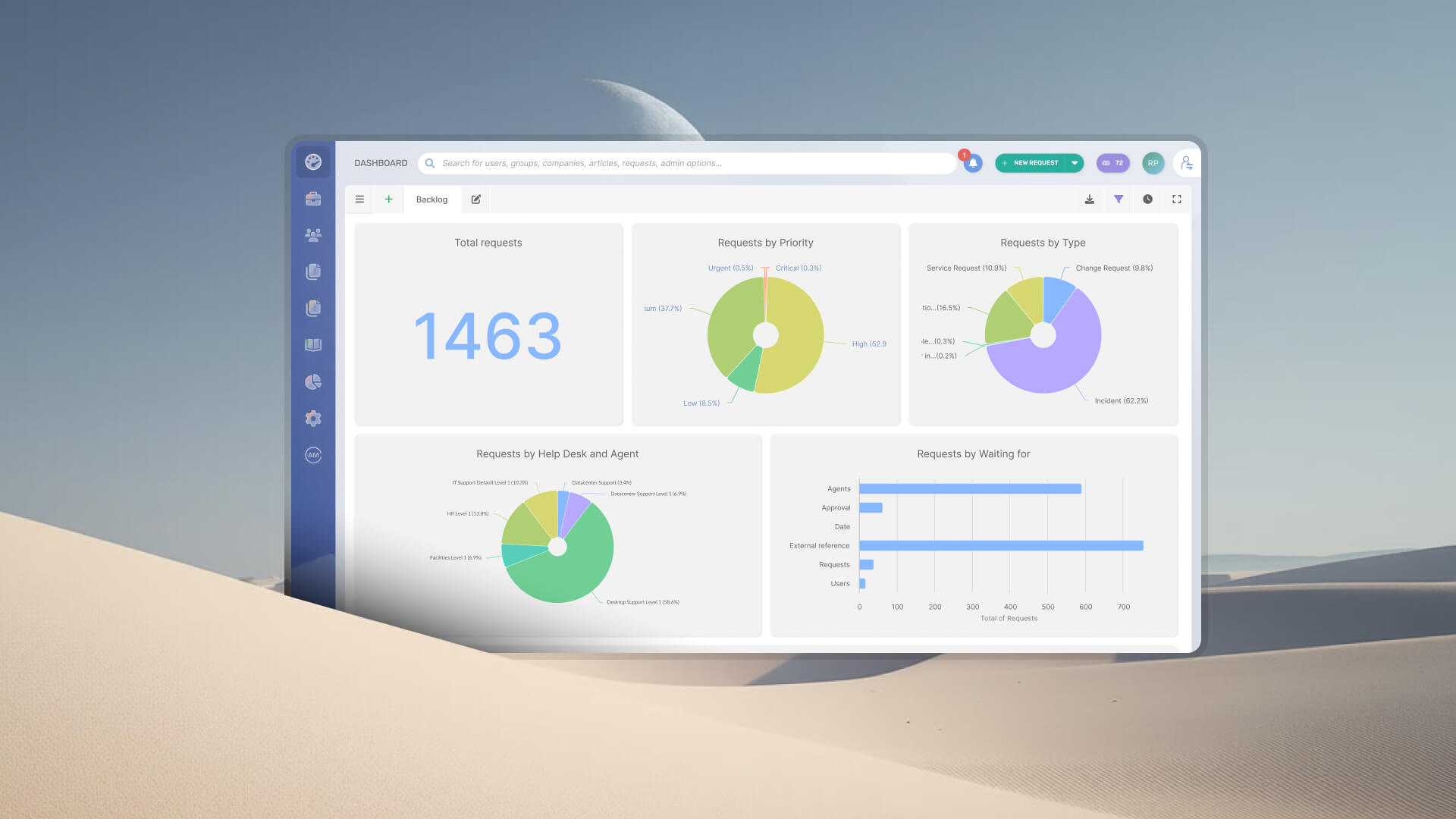
Reporting should live where the tickets are, so metrics stay up to date without extra work. InvGate Service Management includes built-in reports and dashboards with service metrics, which gives leads a shared view of how the service desk performs without spreadsheets in between.
4. Tickets arrive without asset data
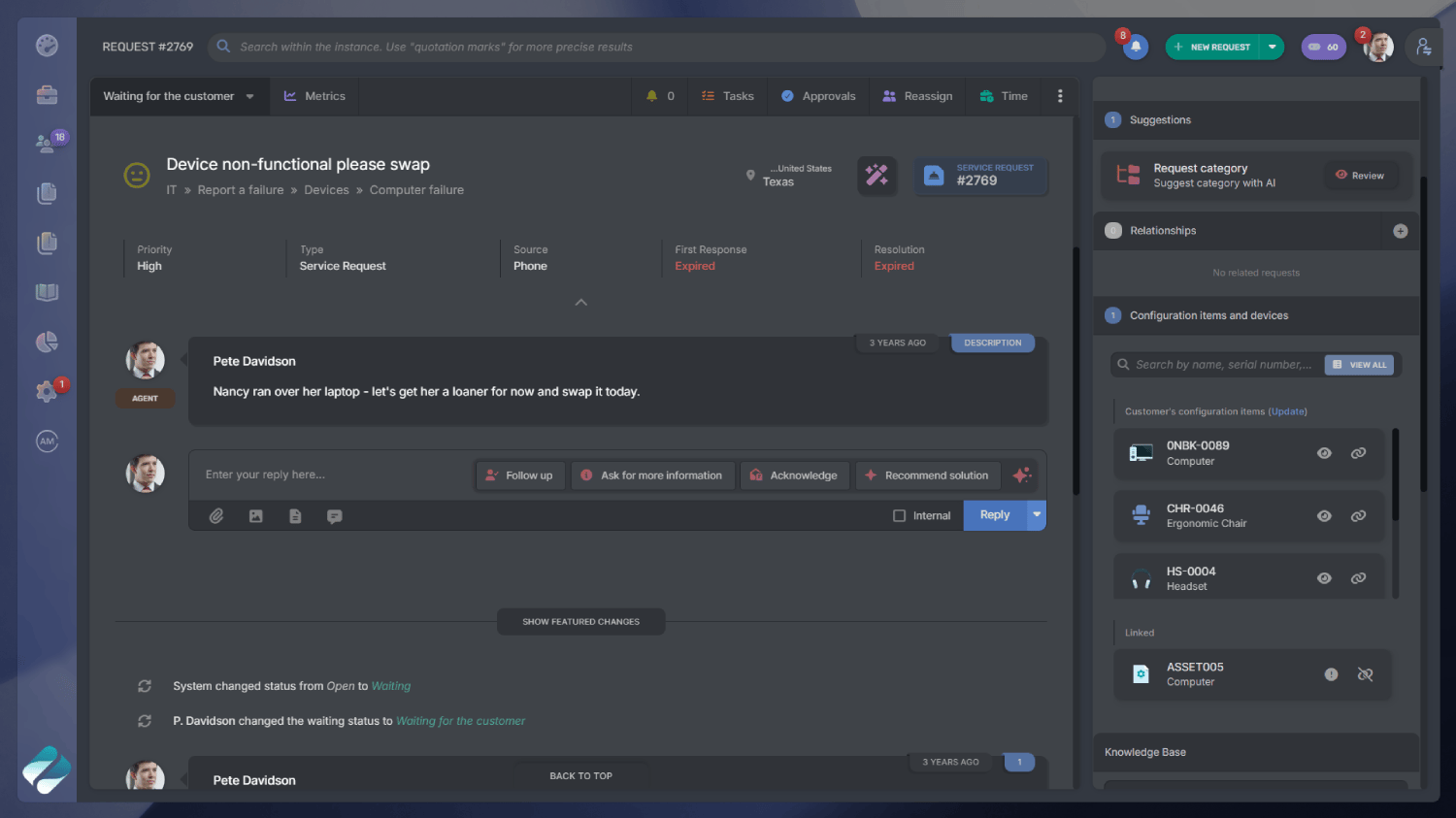
Agents ask users for their device model, serial number, or installed software before they can start working on a ticket. There's no record of what changed on the asset and no link between an incident and the equipment it affects, so recurring issues are hard to spot.
Help desks at this stage need asset data from an IT Asset Management (ITAM) tool and a Configuration Management Database (CMDB) available in the ticket. When InvGate Service Management is integrated with InvGate Asset Management, which provides the CMDB, agents can link Configuration Items (CIs) to requests, see each user's devices, contracts, and applications, and check a CI's past incidents from the ticket.
5. Other departments want in, and the tool can't take them
HR, facilities, or legal ask to use the help desk because they see IT's requests being tracked and resolved. The tool can't separate their queues, forms, or permissions, so they stay on email and spreadsheets or end up sharing a queue with IT that serves no one well.
Extending Service Management to other areas is known as Enterprise Service Management (ESM), and it needs a tool that keeps each department's work apart. InvGate Service Management lets you set up separate help desks by business unit, location, or service type, and it offers ready-made workflow templates for areas beyond IT, such as relocation, visitor management, and legal document review.
6. Every configuration change depends on the vendor
Adding a form, an approval step, or a new category means opening a support ticket with the vendor or paying for services. Meanwhile, processes stay frozen, and the team adapts its work to the tool.
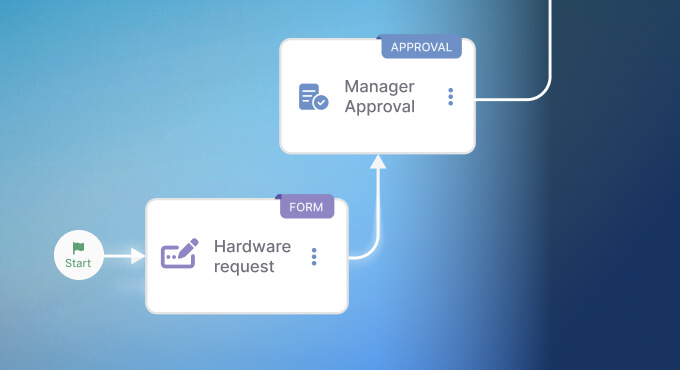
The next tool should let your own admins make those changes. InvGate Service Management has a visual, no-code, drag-and-drop workflow builder with forms, approvals, tasks, conditions, and external actions. With AI-Powered Workflow Generation, you describe a process in plain language and get a draft workflow to review, people complete the approvers and the final configuration, and the Workflow Assistant explains any workflow in plain words.
7. Users keep going back to email
Requests arrive by email, chat, or in person because the portal is hard to use or hard to find. That work stays outside the tool, with no tracking, no priorities, and no data for reports.
Bringing users back takes a portal that answers common questions and channels they already use. InvGate Service Management offers a self-service portal with a service catalog and knowledge base, and its Virtual Service Agent answers questions and resolves common requests in the portal, Microsoft Teams, WhatsApp, and Slack, where it can also create, check, and comment on requests. Incoming emails are parsed into tickets, so email still works as a channel and every request gets tracked.
8. Costs jump every time you add agents, add-ons, or integrations
License costs rise with every new agent. The features and integrations the team needs also come as separate add-ons. The total becomes hard to project at the team's next size, and every budget conversation turns into a negotiation over seats.
When the cost of growing the current tool approaches the cost of a new one, it's time to evaluate whether to replace help desk software. Compare what each option costs at the size you expect to reach, including agents, add-ons, and integrations, and check which features come included.
What to look for in your next tool
Each sign points to a capability your next tool should have. The table below maps them one to one, so you can use it as a checklist when you compare options.
Beyond these criteria, check the basics: security certifications, deployment options, and alignment with ITIL practices. Our comparison of the best IT Service Management (ITSM) tools helps you build a shortlist, and a proof of concept lets you test the shortlisted tool with your own processes and data before you decide.
How to plan the switch without losing your ticket history
A migration plan protects the ticket history your team still relies on and keeps the service desk running during the change. Switching ITSM tools works best when you decide what to keep first, move data in a set order, and run both tools in parallel for a defined period.
Decide which ticket history to keep
Moving every old ticket adds time and cost, while dropping them all loses context the team still needs. Migrate the history that is still useful. Archive or export the rest in a format your team can still read and search.
The history worth migrating is usually the one agents and auditors will open again. These are the records most teams keep in the new tool:
- Open tickets.
- Recent tickets.
- Tickets tied to assets, audits, or recurring problems.
- The knowledge articles that came out of those tickets.
Migrate in a set order
Data that other records depend on should move first. Tickets and articles then land in a structure that already exists. A common order looks like this:
- Users and agents.
- Help desks and categories.
- Service catalog.
- Knowledge base.
- Open tickets.
- The history the team chose to keep.
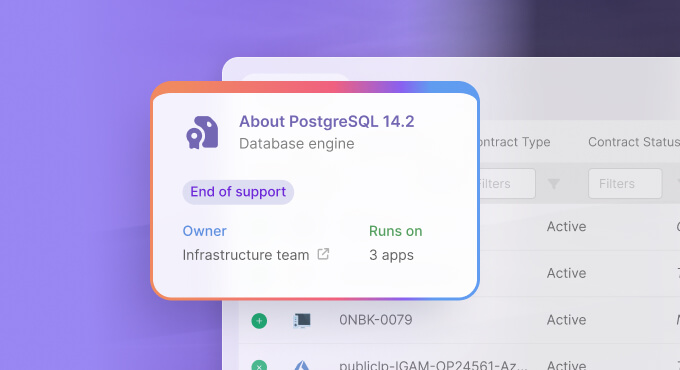
The same order applies when a tool reaches End of Support and the switch runs against a fixed deadline, as this help desk migration planned around an End-of-Support date shows. A fixed date leaves less room to iterate, so the order matters even more.
Run both tools in parallel for a defined period
Keep the old tool in read-only mode while the new one takes over, so agents can check past tickets without creating work in two places. Set the end of the parallel period by criteria: open tickets closed or moved, reports checked against the old data, and each team confirming it works in the new tool.
Once those criteria are met, turn off the old tool and keep the archived history accessible for audits and reference. Document where it lives and who can open it, so it stays useful after the people who ran the migration move on.
How InvGate Service Management handles the move
InvGate Service Management offers an enterprise-level experience without the complexity or the price of an enterprise-level tool, built on ease of use: an intuitive interface, a no-code approach, and fast deployment. Beyond the capabilities behind each sign above, these are the basics teams usually check before they commit:
- An ITIL-accredited tool, accredited under PeopleCert's Accredited Tool Vendors (ATV) program for 15 ITIL practices.
- SOC 2 Type II, ISO 27001:2022, ISO 9001, and GDPR compliance, with TLS encryption in transit and AES-256 encryption at rest.
- Deployment in the cloud or on-premises.
- Integration with InvGate Asset Management, so agents see asset data from the ticket.
What you can bring into InvGate Service Management
Moving to InvGate Service Management starts with the structure your help desk already has. These are the elements you can bring:
- Users and agents, from a CSV file or synced through Lightweight Directory Access Protocol (LDAP) or System for Cross-domain Identity Management (SCIM).
- Help desks.
- Categories.
- Service catalog items.
- Knowledge articles, imported one by one or in bulk from CSV or ZIP files.
Ticket history follows the plan from the previous section, where you decide what to keep and how to move or archive it. That way, the new help desk starts with the data agents need on day one.
How long the setup takes
The basic setup of InvGate Service Management can be ready in one day. A full rollout across teams takes longer and depends on the scope of the change.
According to the Grupo Gigante case study, the company's service desk had operated without traceability, with tickets open for years, before it implemented InvGate Service Management in three months. Grupo Gigante went from 11 IT audit observations to 0, exceeded its adoption goal by 250%, cut in-person requests by 74%, and reached 92% SLA compliance.
Support during the transition
InvGate's team supports the transition with onboarding, training, human support, and a Customer Success Manager, so the move stays fast, smooth, and hassle-free. That support lets your team focus on its processes and data while the new help desk takes shape.
If you recognized several of the signs you've outgrown your help desk software in your own service desk, the next step is to see how a tool built for your size handles them.
Start a 30-day free trial of InvGate Service Management, no credit card needed, or talk to Sales about your migration plan.
Frequently asked questions
How often do teams switch help desk tools?
There's no fixed cycle. Teams usually switch when several of the signs above add up, or when a contract renewal or an End-of-Support date forces the decision, and that moment is a good time to review the criteria in this article.
How long does a help desk software migration take?
A help desk software migration depends on the scope: how many help desks you run, how much history you keep, and how many integrations you rebuild. With InvGate Service Management, the basic setup can be ready in one day, and a full rollout takes longer: Grupo Gigante implemented it in three months.
What happens to old tickets when you switch?
Migrate the history that is still useful: open tickets, recent ones, and those tied to assets, audits, or recurring problems. Archive or export the rest with read access. Keep the old tool in read-only mode while both run in parallel, so agents can still check past tickets.