










Service level agreements are only useful when teams can track, automate, and report on them consistently. As ticket volumes grow, manual monitoring becomes difficult, response targets are missed, and managers lose visibility into service performance.
Help desk software with SLA Management helps teams define response and resolution targets, apply different service levels based on priority or customer type, automate escalations, and monitor compliance in real time. The right platform should support your operational processes without adding administrative overhead.
In this guide, we'll review the best help desk software with SLA management, comparing their capabilities, strengths, pricing, and ideal use cases.
Key takeaways
Before comparing specific tools, it helps to align on what "good" SLA Management actually means in practice. A tool can claim SLA support and still leave your team scrambling. The capabilities below are what distinguishes a robust implementation from a basic checkbox.
Flexible SLA configuration by ticket type, priority, or department. Different tickets have different urgency. A critical incident affecting production shouldn't share the same SLA as a new equipment request. The tool needs to let you define distinct rules by priority level, ticket category, type of requester, or the help desk assigned to the ticket.
Business hours and calendar-aware timers. An SLA clock that runs over weekends or holidays will produce inflated breach numbers and demoralizes teams. Good platforms let you define working hours, exclude holidays, and pause timers when the ball is in the user's court — for example, when waiting for a response.
Automated actions at defined thresholds. The most important feature. When a ticket reaches 50% of its SLA window, the tool should be able to notify the assigned agent. At 75%, alert the team lead. At 100%, escalate to a manager and reassign. These should trigger automatically, without anyone watching a queue.
Visual SLA indicators on every ticket. Agents shouldn't need to calculate time remaining. Each ticket should display a clear, color-coded indicator: SLA in progress, at risk, or breached. That visual context changes how agents prioritize their queues.
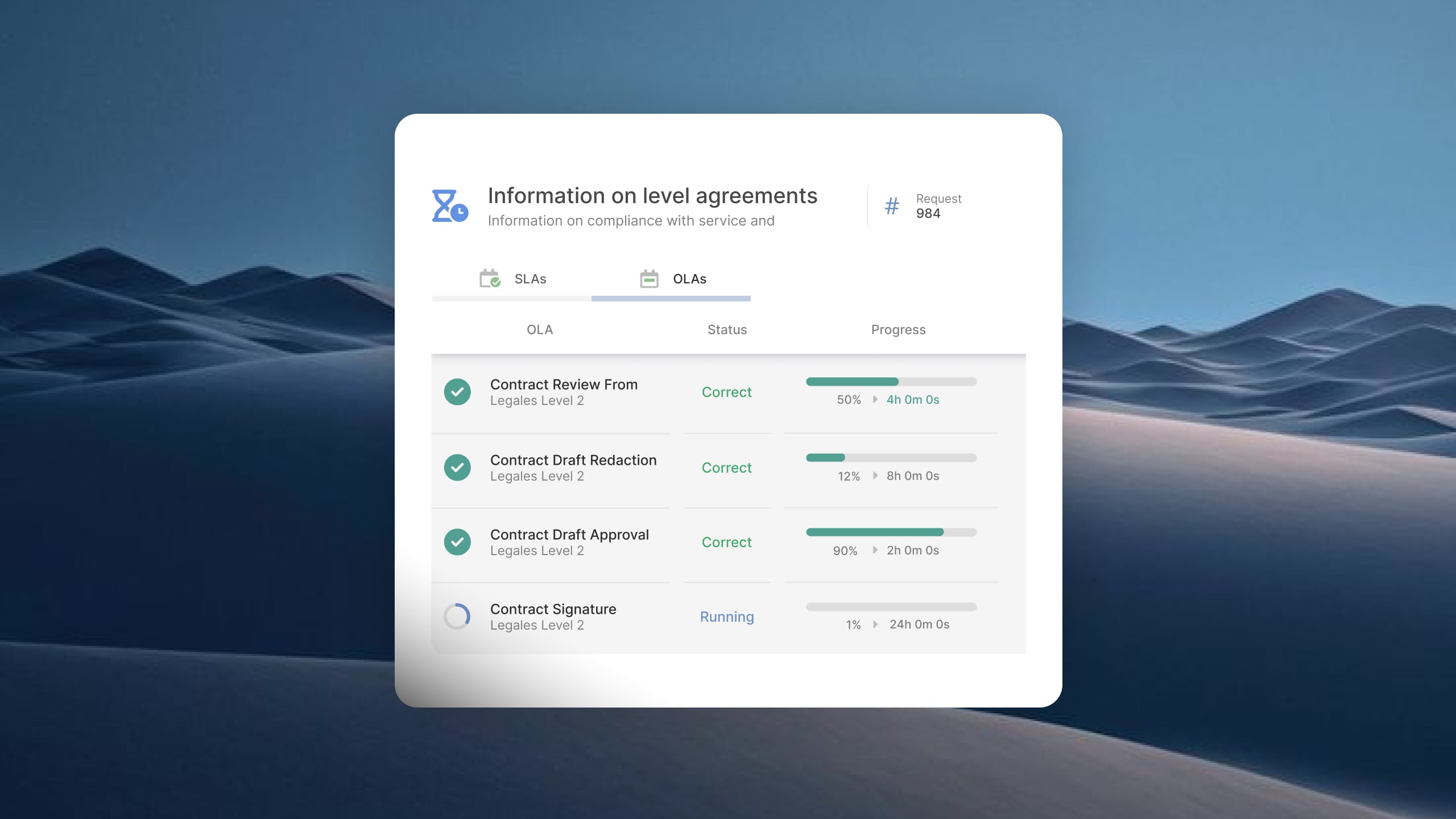
OLAs for internal coordination. Operational Level Agreements govern the internal stages of a workflow — for example, how long the infrastructure team has to complete their step before the ticket moves on. OLAs let you enforce internal deadlines without exposing the end-to-end SLA to internal teams.
Real-time dashboards and compliance reporting. Managers need visibility into current SLA status across all open tickets, plus historical reporting by category, agent, team, or help desk. The ability to filter breach reports by root cause is what makes SLA data actionable.
Availability in base plans. Several platforms restrict meaningful SLA features — multi-policy support, escalation automation, business-hours calendars — to mid-tier or enterprise plans. If SLA management is a core requirement, check the feature list carefully before assuming the entry price covers what you need.
Methodology note: InvGate builds and offers IT Service Management and IT Asset Management solutions, making us an active player in this software market. Some vendors in this article are our competitors. Even so, we aim to deliver accurate, honest, and practical information that helps you make the best decision. All vendors were evaluated using the same criteria based on publicly available information: official product pages, documentation, and reviews on G2, Gartner Peer Insights, and Capterra.
InvGate Service Management is an ITSM and enterprise service management platform designed for organizations that need structured service delivery with minimal implementation effort. Its SLA management capabilities are available through a no-code interface, allowing teams to configure service targets, escalations, and reporting without relying on administrators or developers.
Key SLA management features
Pricing
Freshservice combines incident, service request, change, and asset management with SLA tracking capabilities. The platform provides predefined ITSM workflows and allows teams to create multiple SLA policies across different support scenarios.
Key SLA management features
Pricing
The fourth tier, Enterprise, requires a quote. - Checked on June 2026 (US) official website.
Jira Service Management provides SLA tracking alongside incident, change, and service request management. It is particularly suited to teams that already use Jira Software and want operational and development work managed within the same ecosystem.
Key SLA management features
Pricing
The following rates apply to a 50-agent deployment:
Plus, they offer a free tier for up to 3 agents. The enterprise tier requires a quote.
Checked on: June 2026 (US), official web.
ManageEngine ServiceDesk Plus combines ITSM processes, asset management, and SLA management in a platform available both in the cloud and on-premises. Its SLA capabilities support organizations with complex service requirements and multiple support tiers.
Key SLA management features
Pricing
Cloud pricing tiers:
- Checked on: June 2026 (US), official website.
Xurrent (formerly 4me) is an enterprise service management platform designed around service-provider-style operations. It supports complex SLA structures, cross-team accountability, and service performance reporting, making it a strong fit for organizations that manage services across multiple internal departments, external providers, or business units.
Key SLA management features
Pricing
Disclaimer: All product names, logos, and brands are property of their respective owners. All company, product, and service names used on this site are for identification purposes only. Use of these names, trademarks, and brands does not imply endorsement. Comparisons are based on publicly available information as of April 2026 and are provided for informational purposes only.
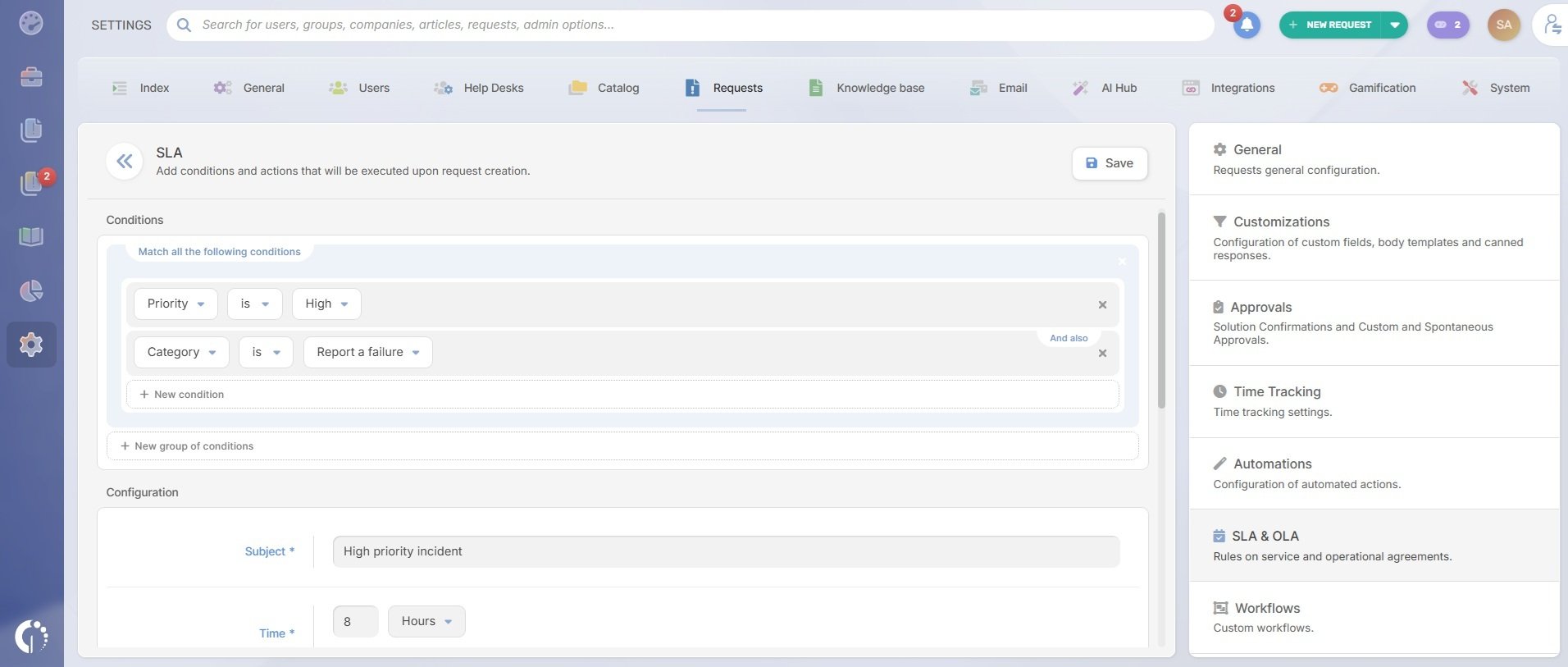
If you've decided that SLA management is a core requirement this section walks through exactly how InvGate Service Management handles it, step by step.
Step 1: Create an SLA rule. Navigate to Settings > Requests > SLA and select whether you're creating a First Response SLA or a Resolution SLA. Give it a name that reflects its scope (e.g., "Critical IT Incidents – 4h Resolution").
Step 2: Set conditions. Define what tickets this SLA applies to. Conditions can be based on priority (Critical, High, Medium, Low), ticket category (Incident, Service Request), type of requester, or the specific help desk assigned to the ticket. Combining conditions lets you build precise rules — for example, Critical Incidents submitted by VIP users assigned to the IT Operations help desk.
Step 3: Define the time target and counting mode. Set the allowed time for first response or resolution. Choose whether the SLA timer runs continuously (24/7) or only during defined business hours. This is the difference between a 4-hour SLA that actually means 4 working hours and one that counts overnight.
Step 4: Configure pauses. Specify when the SLA timer should stop: outside business hours, on public holidays, or when the ticket is in a "Waiting for User" status. This prevents your team from being penalized for time spent waiting on the requester.
Step 5: Add automated actions at thresholds. Configure what happens as the SLA window closes in. Common setups: send an email notification to the assigned agent at 50%, alert the team lead at 75%, trigger a reassignment and notify the department manager at 100%. These actions fire automatically — no manual monitoring required.
Step 6: Create OLAs for internal stages. From Settings > Requests > SLA & OLA, define Operational Level Agreements for specific workflow stages. For example, the infrastructure team must complete their step within 2 hours after a ticket is assigned to them. OLAs operate independently of the customer-facing SLA, so internal deadlines don't create confusion for end users. For a detailed walkthrough, see how to define an SLA policy in InvGate Service Management.
Step 7: Activate dashboards. Navigate to Dashboards and filter by help desk, category, agent, or SLA status. The real-time view shows which tickets are in progress, at risk, and breached — filterable across the full service operation. This is the view your team lead should have open at all times during business hours.
Step 8: Run SLA reports. Pull compliance reports filtered by time period, category, help desk, or agent to identify recurring bottlenecks. If incidents in a specific category consistently breach at the same stage, the report data points to a workflow problem — not just a capacity issue.
This is the difference between managing SLAs reactively (finding out after a breach) and managing them proactively (knowing a ticket is at risk before the deadline passes). Request an IGSM demo to see the full configuration in a live environment.
What is SLA management in help desk software?
SLA management in a help desk is the system of rules, timers, and automated actions that enforce service level commitments for each ticket. It includes configuring response and resolution deadlines by ticket type or priority, running timers that pause during off-hours or waiting periods, triggering automatic notifications and escalations as deadlines approach, and generating compliance reports that show whether teams are meeting their targets. The goal is to make SLA adherence a systemic outcome rather than a manual effort.
What's the difference between an SLA and an OLA in a help desk?
An SLA (Service Level Agreement) is the commitment made to the end user or customer: how quickly a ticket will receive a first response and how quickly it will be resolved. An OLA (Operational Level Agreement) governs the internal stages of the process — for example, how long a specific team has to complete their step in a multi-stage workflow. OLAs operate behind the scenes and are not visible to the person who submitted the ticket. Together, they let service teams manage both external commitments and internal accountability without conflating the two.
How do I prevent SLA breaches in my help desk?
Prevention relies on three things working together: visibility, automation, and process. Visibility means every agent can see the SLA status of their tickets at a glance, and managers have a real-time dashboard. Automation means the platform sends alerts and triggers escalations before the breach — at 50%, 75%, and 100% of the SLA window — without requiring anyone to manually monitor queues. Process means SLA rules are correctly calibrated to reflect realistic response times for each ticket type, and business hours are properly configured so teams aren't penalized for time outside their working window. Reactive SLA management — discovering breaches after the fact — is a sign that one or more of these three elements is missing.
Can help desk software apply different SLAs to different departments?
Yes, and this is one of the key evaluation criteria for organizations with multi-department service operations. Platforms with Enterprise Service Management capabilities, like InvGate Service Management, allow different SLA policies per help desk or department — so IT, HR, and Facilities each operate under their own rules from the same instance.

